
Before you can finish creating an item for scoring you must have a scoring rubric assigned to it. This article walks you This page guides you through the process of creating a scoring rubric.
- Select Rubric Setup in the Setup/Configuration menu (section of the left-hand navigation )column.
- In Click on
 in the top menu bar, select +New Rubric.
- Enter a Rubric Name : The
- . This will be the label seen when assigning rubric's
- rubrics to Items
- items.
- Enter a Reference ID : This is used
- which will be used when working directly with the API.
- Select the following Settings as applicable:
- Collect Evidence: This adds an additional text field for the scorer to add notes specific to each trait being scored (
...
- versus Text Traits)
...
- .
- Large Evidence Field:
- Reverse Score Points: Scores from 1 | 2 | 3 | 4 are reversed to 4 | 3 | 2 | 1.
- Prefill Scores: Sets
- .
...
- a default scored value of 1.
- Checklist
...
- : For Text Traits only, this adds a checklist to be completed by the scorer.
...
- Annotation Tags:
Trait Setup
There are two types of traits:
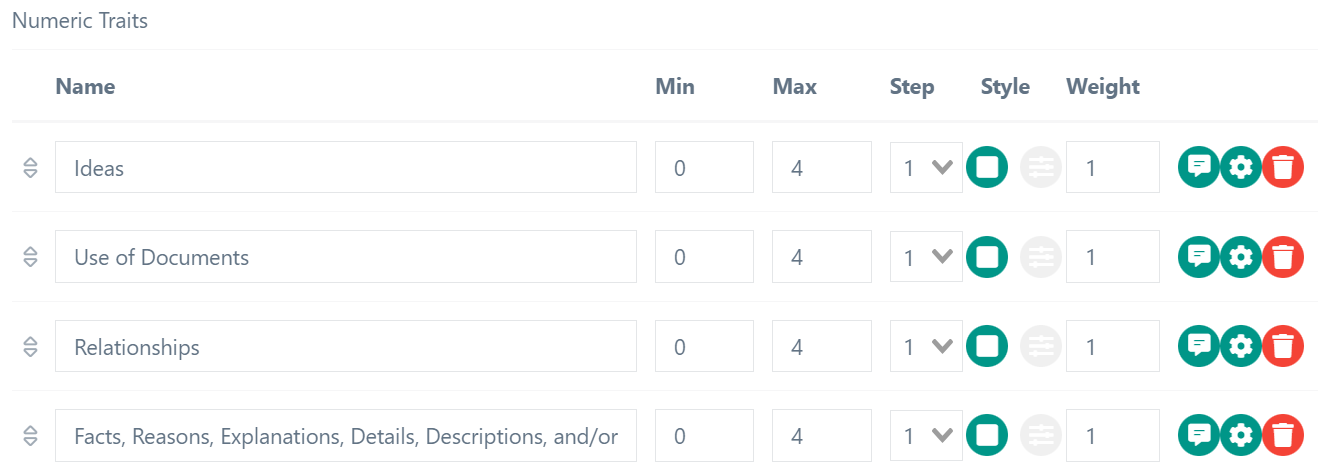
- Numeric Traits: Giving Provides scorers the ability to score a response using a range of numbers (from Min to Max), Optional Half Points, Weighting.
- Text Traits: Give Provide the scorers an open option for providing a response for the response as a whole. Text Trait types are : Text, Long Text and Text Select.
As traits are added, they are immediately visible in the Preview area, which will be on the right side or at the bottom of the screen (page depending upon your screen width) as Preview.
Add Numeric Trait
...
- Select Add Trait.
- Enter the following details for the new trait:
- Name:
Label - Label seen by the scorer for the scoring rubric.
- Min/Max: Sets the numeric range for the scoring 1 - 3 [ 1 | 2 | 3 ].
- Step:
When set, an additional set of scores are included - Set theincrement of available scores. For example, select '0.5' to allow scoring half point scoring [ 1 | 1.5 | 2 | 2.5 | 3 | 3.5, etc. ].
- Weight:
T- The reported score of a trait is multiplied by the weight.
- For example:
- Set a weight of 3 and if a scorer scores the trait as a 2
...- For example:
- , the score will be exported as a 6.
- Set a weight of 1 and if a scorer scores the trait as a 2
...- , the score will be exported as a 2.
 -
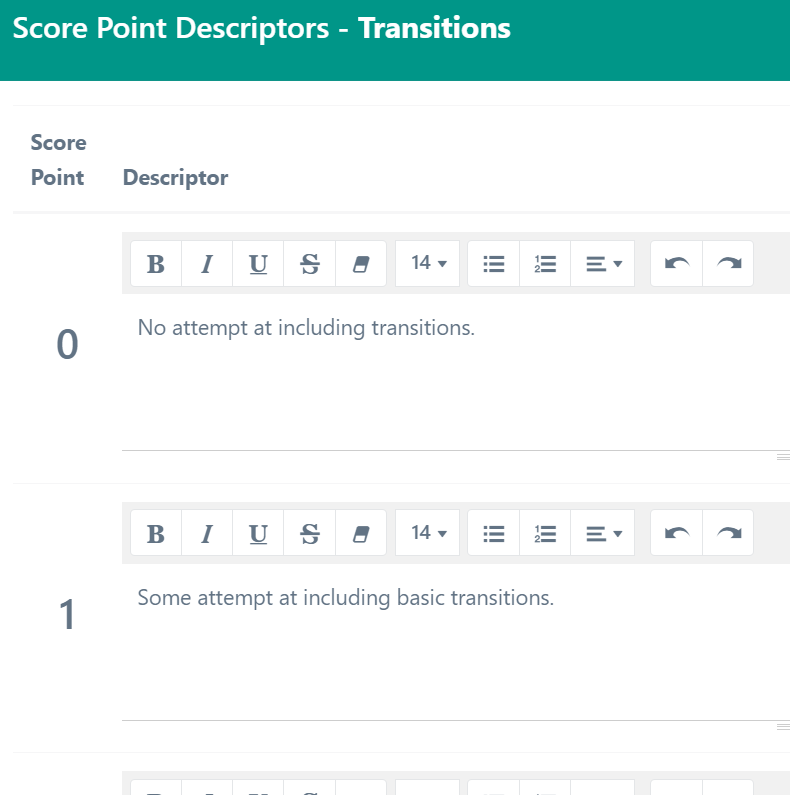
- Score Point Descriptors add hover over : For each possible score, you can add explanatory text for each of the trait scoring valuesvalue. Select the Score Point Descriptor icon, enter text, and then select Done to return to the rubric setup.
 Trait Settings provide
  - Trait Settings provide additional options for the trait.
- Reported Name
including - including External Trait ID and External Item ID.
- Masked Score Points
- hide - : Hide some of the sequential scores from the scorers [ 1 | 3 ].
- Condition Codes
- add - : Add flags for scorers to set beyond the scoring rubric on the trait. These might include codes to flag a response as a 'sensitive paper' or 'blank' (student didn't provide an answer). Use the 'Inline Condition Codes' checkbox to display the condition code either under the scoring options, or next to.
- The condition codes are defined during Tenant Setup as Flag Codes.
- The system defined response to the condition codes is defined during Tenant Setup.
- Withhold score or Apply score, Set as Alert, Require Score.
- : Add flags for scorers to set beyond the scoring rubric on the trait. These might include codes to flag a response as a 'sensitive paper' or 'blank' (student didn't provide an answer). Use the 'Inline Condition Codes' checkbox to display the condition code either under the scoring options, or next to.
- Score Point Comments: Additional information can be captured when a specific score is given, allowing the scorer to further justify or explain by choosing an option from a menu.
- Linked Trait: When two traits are linked, one of the traits is hidden. The hidden trait will receive the same score as the visible trait when the response is scored.
Note: The Add Page function allows the ability to do script-based marking. Ask support for additional information.
Add Text Trait
Select Add Text Trait.
 Click the
  button.
- Name: Label seen by the scorer for the scoring rubric.
- Type: Defines the delivery and entry rules for the text trait.
- Text: Provide a small text box allowing a scorer to enter a small amount of text.
- Long Text: Provide a scorer with a big text box for entering text.
- Text Select: Create "choices" that a scorer can pick from in a menu.
- Define the menu choices by clicking on


- Define the menu choices by clicking on
- Required: This requires the scorer to complete this text trait before they can submit this score.
...