-
Created by
 user-6d962, last updated on Jan 24, 2024
3 minute read
user-6d962, last updated on Jan 24, 2024
3 minute read
 Technical Bulletin
Published: January ??, 2024
What is happening?
Pearson support is notifying programs of two updates that affect those using iPads for secure testing:
- iPadOS 17.3 - Apple released this operating system (OS) update on Monday, January 22, and Pearson highly recommends updating to this version if testing on devices running iPadOS 17. This update provides programs the most stable and efficient testing experience.
Those testing on iPadOS 15 and 16 do not need to take action on this update.
- TestNav app for iPadOS - Pearson plans to release this required TestNav app update (iPadOS only) on TBD. This update improves TestNav security performance.
Programs with auto-update enabled do not need to take any action to receive this update.
What does this mean?
iPadOS 17.3 - Those using iPadOS 17 should use the instructions below to update to iPadOS 17.3 for optimal TestNav performance during secure testing. Customers running iPadOS 17 that experience any issues can contact Pearson support.
TestNav app for iPadOS - Programs with auto-update disabled on testing devices should use the applicable instructions below to manually take the TestNav for iPadOS patch update.
What do I need to do? (and how do I do it?)
iPadOS 17.3 update instructions - Programs using iPadOS 17 should update all iPads to iPadOS 17.3 or continue using supported iPadOS versions lower than iPadOS 17.
Click to enlarge images.
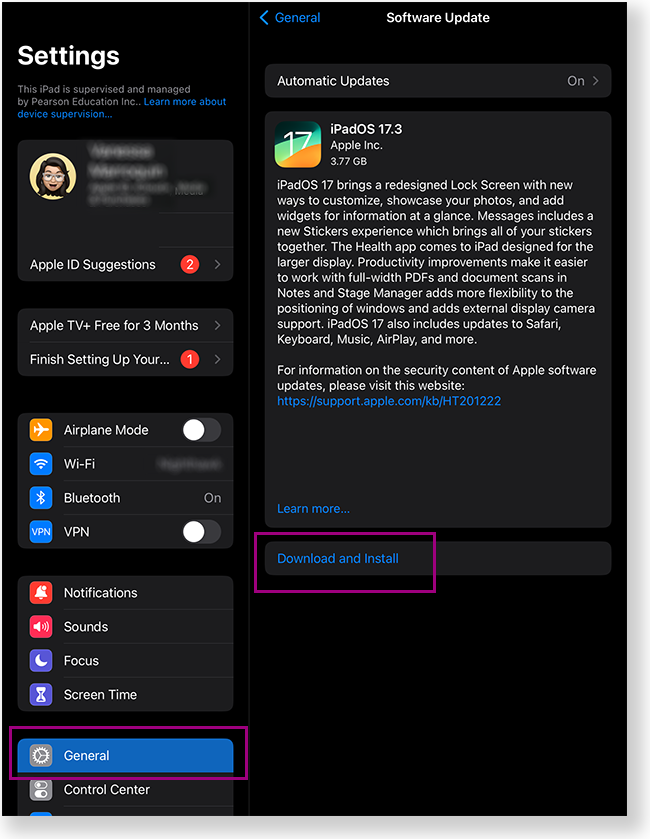
To update to iPadOS 17.3:
- Go to Settings > General > Software Update.
- Confirm that the available update is iPadOS 17.3.
- Tap Download and Install.
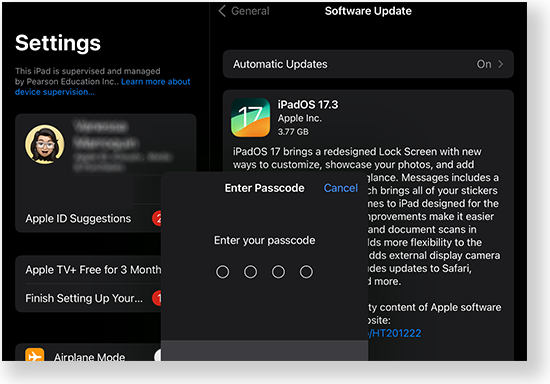
- Enter the device passcode.
TestNav app for iPadOS instructions - All programs using TestNav for iPadOS are required to take the patch update. These instructions pertain only to programs with auto-update disabled:
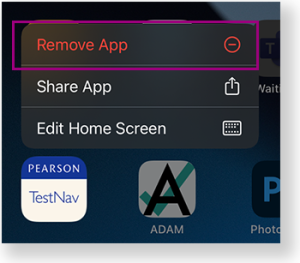
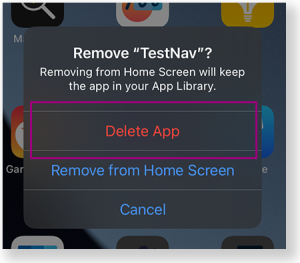
- Search for the TestNav app and press and hold it until a menu appears.
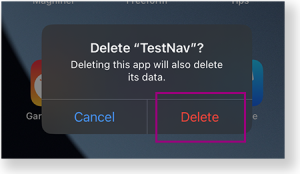
- Then, select Remove App > Delete App > Delete.
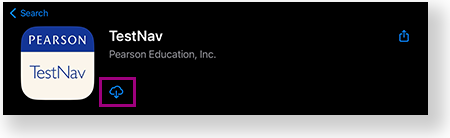
- Go to the App Store, search for TestNav, and tap the Download button to re-install the app.