-
Created by
 user-760ba, last updated on Dec 17, 2025
3 minute read
user-760ba, last updated on Dec 17, 2025
3 minute read
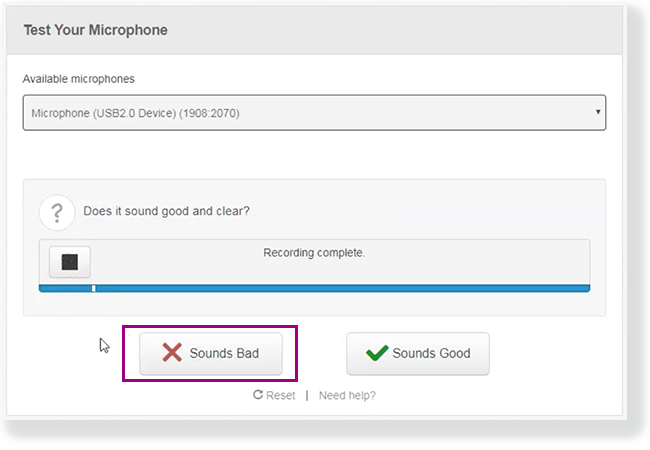
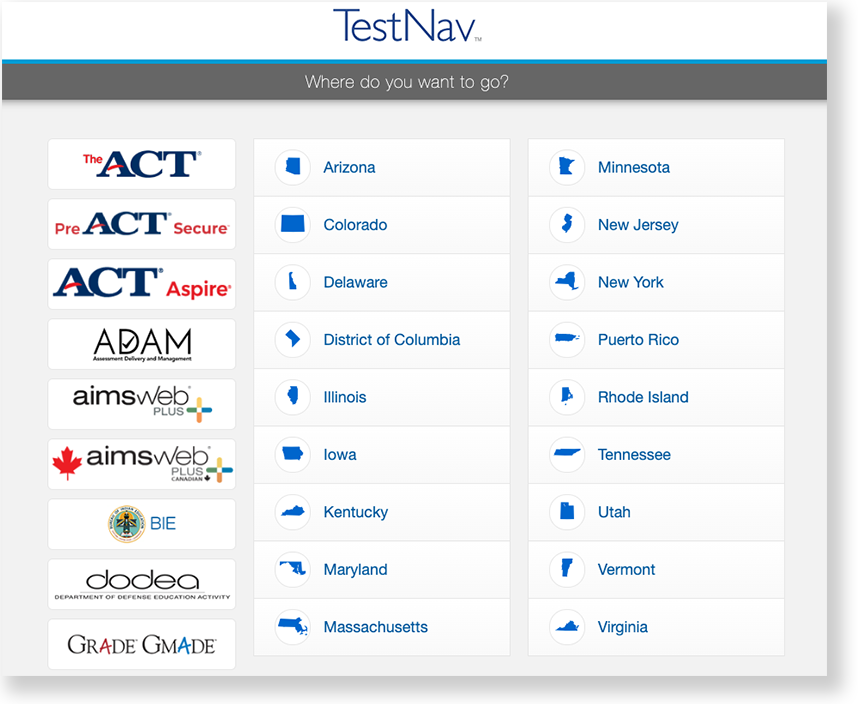
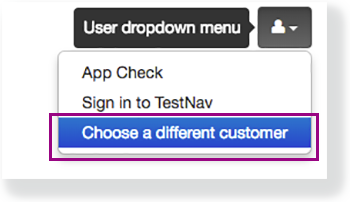
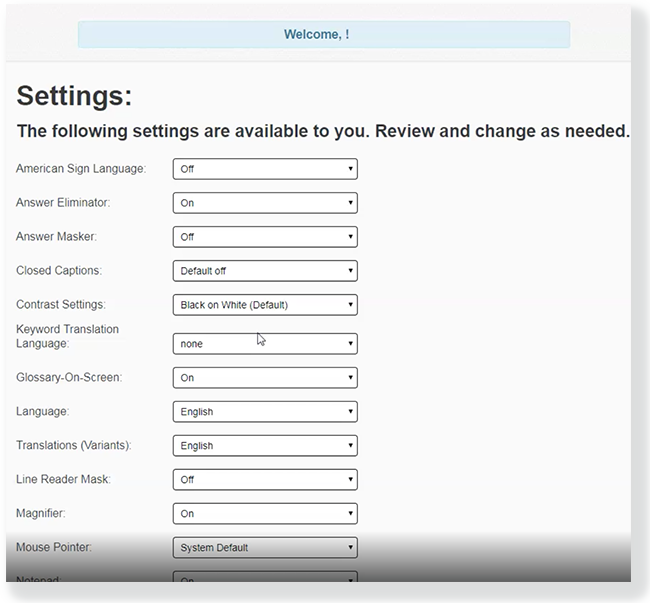
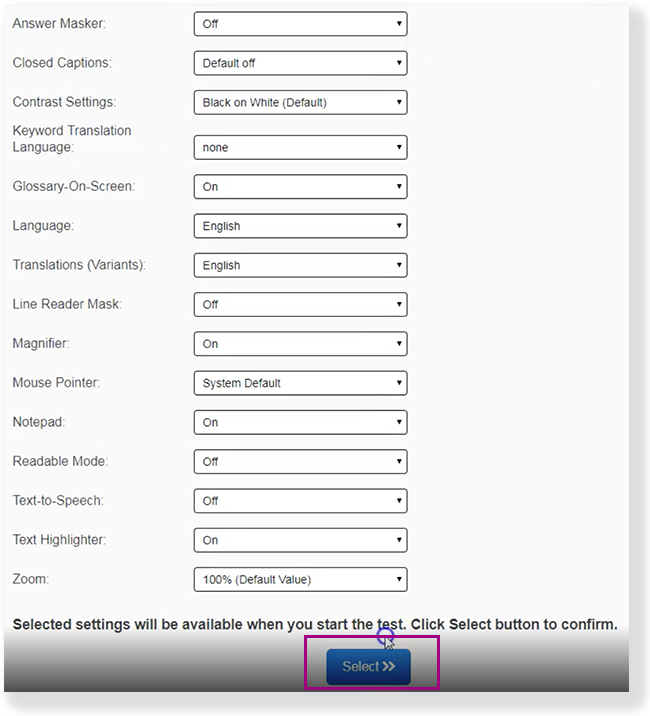
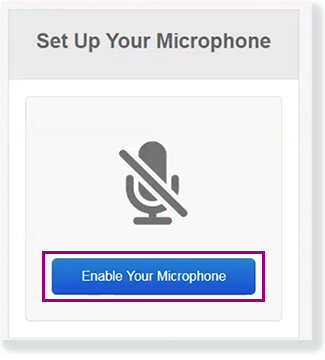
Proctors will generally use a test-specific script when instructing students to launch their test. These general instructions are provided for those doing TestNav configuration, infrastructure testing, etc. Note: If the program was previously selected on this device, the page will automatically default to the Sign In page for the selected program. If you need to select a different program, select the menu in the upper-right, and select Choose a different customer. If the test requires audio, click Enable Your Microphone to set it up. Follow instructions to on the Test Your Microphone window to select an available microphone, record audio, and play it back. Sign in to TestNav
Additional Step for Tests Requiring Audio
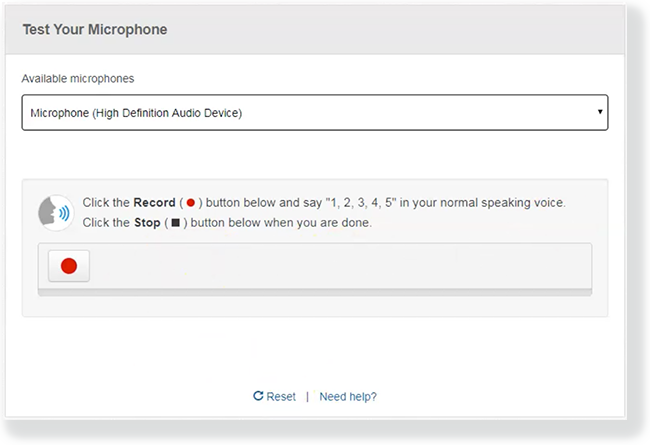
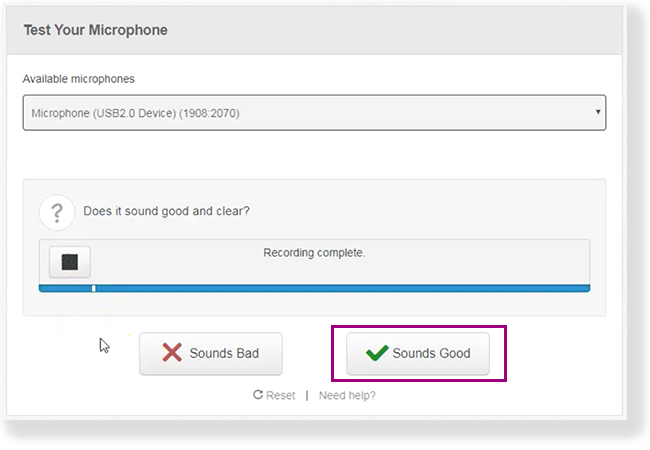
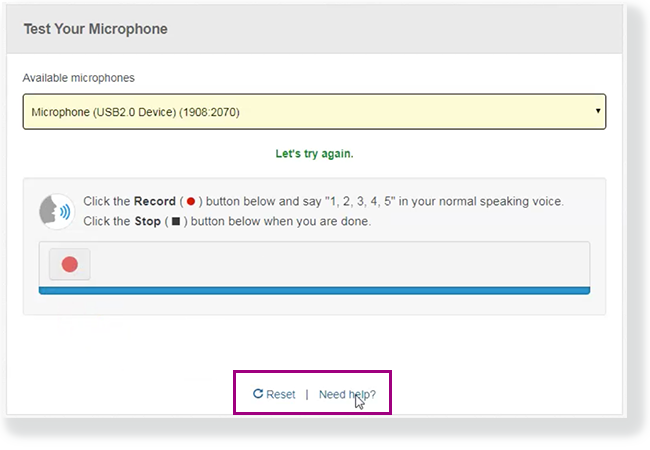
Clicking Need help? prompts you (or the student) to raise a hand for teacher assistance.