Accountability codes provide a way for designated users to tag students who should not test, or who were tested but should not appear in reporting. The available codes, what they do, and who can add them depends on your site implementation. In your district or state, accountability codes may be called Not Tested, Exception Irregularity codes, etc.
Depending on role permissions, users can apply codes individually from the administration card or bulk apply codes from Session Explorer. Some codes are available to designated user roles only.
See also: Administrations Page & Card.
View Accountability Codes by Session
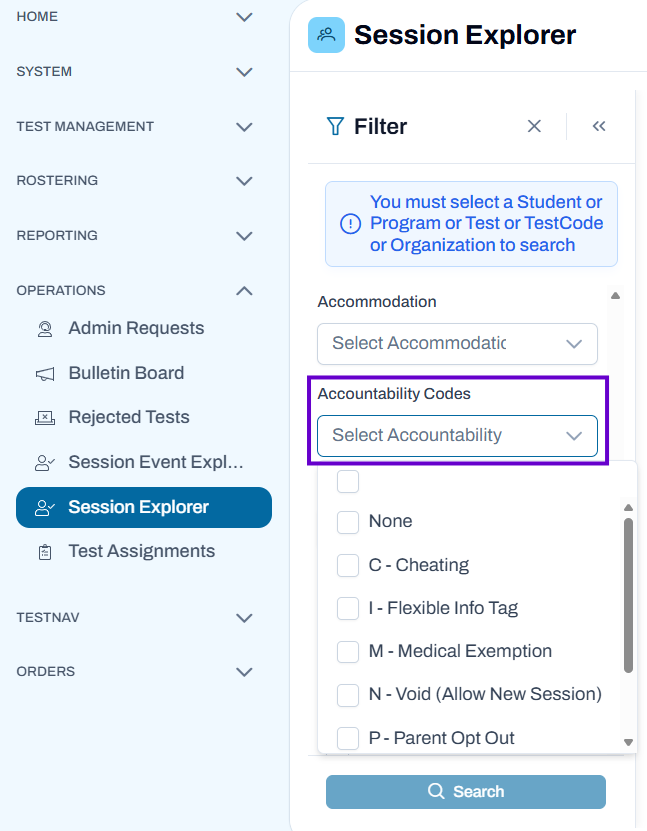
In Session Explorer, you can filter on one or more assigned accountability codes.
To view a list of students by code:
- Navigate to Operations > Session Explorer.
- Filter on at least one required field.
- Optionally add one or more filters in the Accountability Codes menu.
Classic User Interface:
Updated User Interface:
Apply Codes from the Admin Card
You can apply accountability codes from the administration card in ADAM one student at a time.
- Go to Test Management > Administrations.
- Find the appropriate Admin card.
- Select View in the Students Action menu.
- Locate the student who needs a code, and then select Apply in the Code column.
- In the pop-up menu, select a code.
- Select Apply. Repeat as needed for additional students and administrations.
Apply Codes to Multiple Sessions
The following method is available only if your role has permission to access Session Explorer.
- Go to Operations > Session Explorer.
- Apply the appropriate filters to find the sessions you want.
- Select checkboxes for the sessions needing the accountability code. There is a row for each session. Make sure you are selecting the student's correct session by looking at the test name.
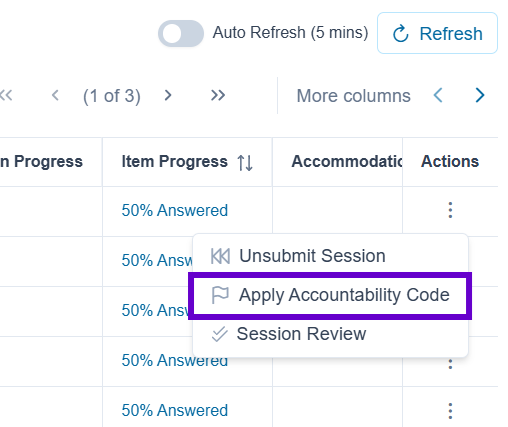
- Select the Apply Accountability Codes from the more menu.
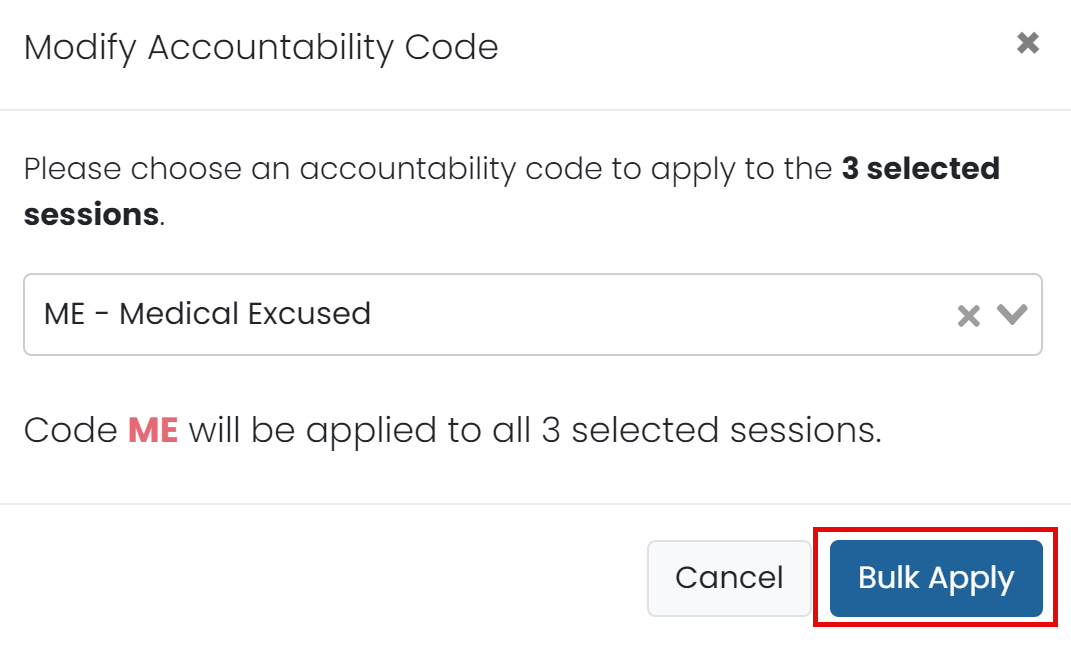
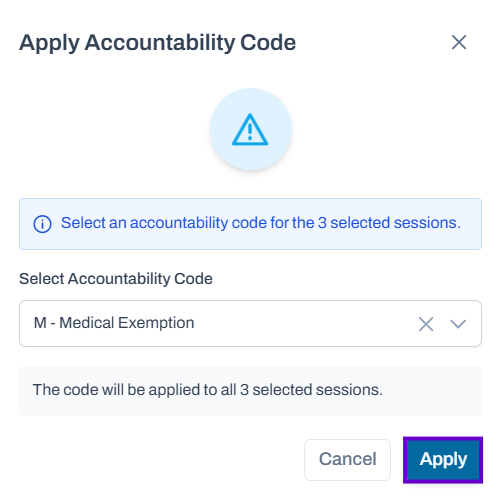
- Select the code to apply.
- Select Apply.
Classic User Interface:
Updated User Interface:
Apply Codes from the Proctor Dashboard
Depending on settings, logged in proctors can add selected codes from the Proctor Dashboard.
Classic User Interface:
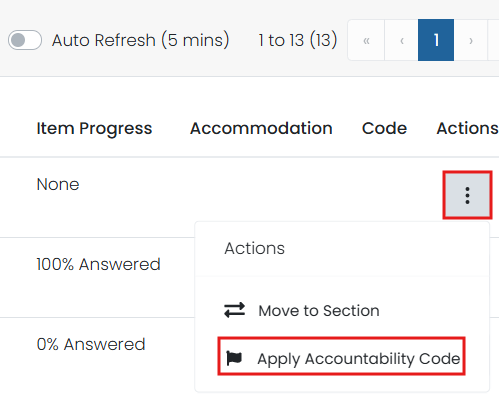
Updated User Interface: