These settings are typically set by the Pearson Program Delivery Team in consultation with customer data requirements.
When making edits, be sure to save all changes.
Account Details
Account Name: Enter the account name.
ID:Autogenerated and not editable.
ClientID:Autogenerated and not editable.
Display Label: This is the program name that will appear in all menus.
Current School Year: This is used to roll over to the new school year.
Enforced normalized sourcedid casing: Recommended. When enabled, sourcedId values will save as lowercase.
Logo: Maximum size is 300px by 80px.
Sign In Settings
Allow roster user access: The account will be listed in the client lookup on the LaunchPad home page.
Auto-launch of licensed app: If enabled, rostered users with access to a single licensed app will bypass the LaunchPad page and be routed directly to the app.
Session Timeout (Minutes): The default is 30 minutes. After this duration of inactivity, users will be logged out automatically.
Sign In Screen Message: This text is displayed for rostered users on the Sign In screen. Limit of 1,000 characters.
Welcome Email Subject Customization: Email subject will be: "Account information for [subject line system name]"
Welcome Email Custom Text: This text appears in the welcome email as the first paragraph.
Selected users must acknowledge a configurable user agreement upon initial login. If enabled, select which user roles must receive and enter the message text.
Demographics
Only the selected demographics will appear as field on the user profile and be available for use in other applications tied to LaunchPad. Fields may not be added or edited; for student characteristics not available as a demographic, User Metadata can be added instead.
Org Metadata
Enable Contact and Shipping Address Fields: Enable if Pearson will provide paper materials.
Enable District Shipping Override Fields: if enabled, the following fields are made available:
Ship reports to schools: Reports will be shipped to schools in district.
Ship materials to schools: Materials will be shipped to schools in district.
Order optional reports: Optional reports can be ordered in this district.
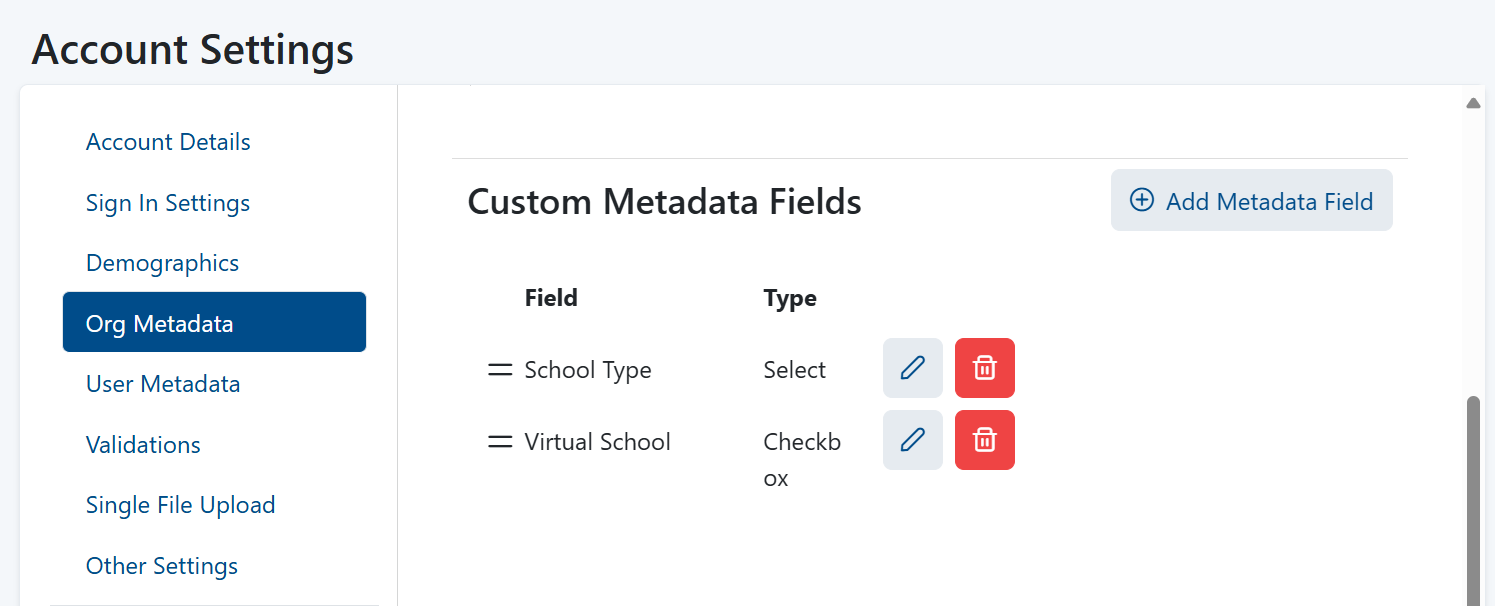
Custom Metadata Fields: Select Add Metadata Field to include additional data about each organization. Org metadata can be found in the Orgs Template CSV, the Org export report, and on the Org Details page. Metadata included within files will continue to be uploaded by LaunchPad but will be invisible in the user interface and only accessible via JSON for ADAM.
User Metadata
For student characteristics not available in demographics, set up User Metadata. Select Add Metadata Field, add required fields and save.
Validations
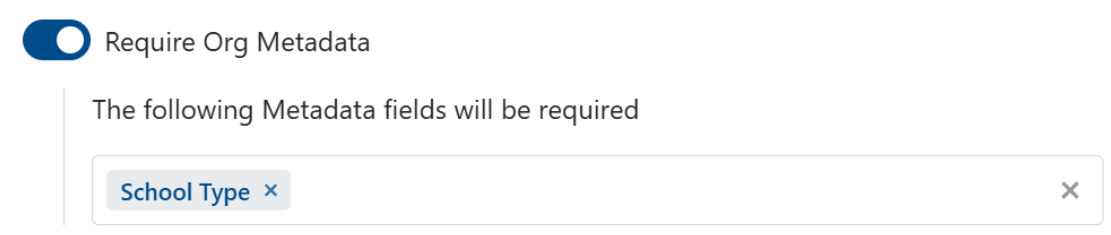
Require Org Identifier: Option to require specific org metadata, operating similarly to required demographics and user metadata. LaunchPad will check if an org metadata field is marked as required and reject records that do not provide a value.
Enforce Org Identifier Uniqueness: If Org identifier is required, enable this option to validate for a unique identifier.
Require Student Identifier: Although the One Roster specification does not require a unique value, this is recommended when feasible.
Enforce Student Identifier Uniqueness: Enable to require a unique identifier for students.
Enforce Student Identifier Pattern: If the student IDs follow a specific format (for example, always eight characters), LaunchPad can validate for this to help weed out errors. The Product team can provide the syntax to add here.
Enforce binary gender values: If enabled, "Other" will not be an available gender option. Incoming roster integration data will auto-convert "Other" to "Unspecified".
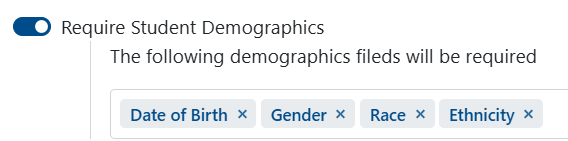
Require Student Demographics: Allows different demographic data fields to be set as required for students. Only demographic fields that have been defined will be available to mark as required. To use this feature, enable the toggle and select the demographic fields that should be mandatory.
Require User Metadata: Allows users to designate specific user metadata fields as required when utilizing Single File Upload. If these metadata fields are left blank, the upload will not be successful. Furthermore, these metadata fields are also mandatory when creating a student via the user interface.
Block user email update: If enabled, the email address of a user cannot be updated manually or through Single File upload.
Auto-trigger Student Transfer Requests and reject out-of-district student updates: This setting is designed for State accounts where district data is managed independently within LaunchPad. If enabled, any type of the student file import will generate a Transfer Request event if an attempt is made to move a student to an out-of-district org.
Single File Uploads
These options allow client-specific customized instructions to appear on-screen when performing Single File Uploads of Student, Non-Students and Orgs. Customized text can be uniquely configured for each file type (Student, Non-Students and Orgs) and will show as Step 2 in the on-screen import instructions.
File Display Label
Upload Specification File (PDF Format) can upload the customer's spec as a PDF - WIDA did this
File Display Label
Upload Specification File (PDF Format)
File Display Label
Upload Specification File (PDF Format)
Text to display for Orgs
Text to display for Students
Text to display for Non-Students
Other Settings
Limit Grade Level Selection: If enabled, select grades that may be used. This can help avoid errors for a program that only applies to specific grades, but use caution if there is an anticipation of off-grade testing, for example.
Show Student 'Preferred Name' Fields: If enabled this field is available for use.
Automatically prepend the sourcedId of the district org to all incoming records: This setting is designed for accounts where data are populated from multiple unique sources to guarantee uniqueness. Not frequently used.
Validate Org Shipping Addresses: Enable to validate shipping addresses. This tool helps ensure paper materials reach their destination, if applicable.
Enable Student Transfer Requests: This setting is designed for State accounts where district data is managed independently within LaunchPad.
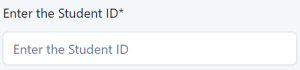
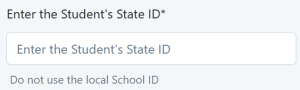
Customize "Identifier" Field Label and Helper Text: For organizations, student and non-student IDs, you can customize the field label and add instructional text. When configured, these custom labels appear throughout the app, including on display grids, detail pages, export options, and CSV templates for both roster and single file upload features.
Lock Account Settings: If enabled, this setting helps prevent unintended changes. Once all configurations are set, lock the page to prevent changes. Only authorized users can intentionally unlock the page to make changes, and warning messages appear when locking or unlocking to ensure users understand the impact of their actions. This feature is particularly useful for summative clients who need to manage changes according to specific requirements. You may need to scroll down the page to see this option.
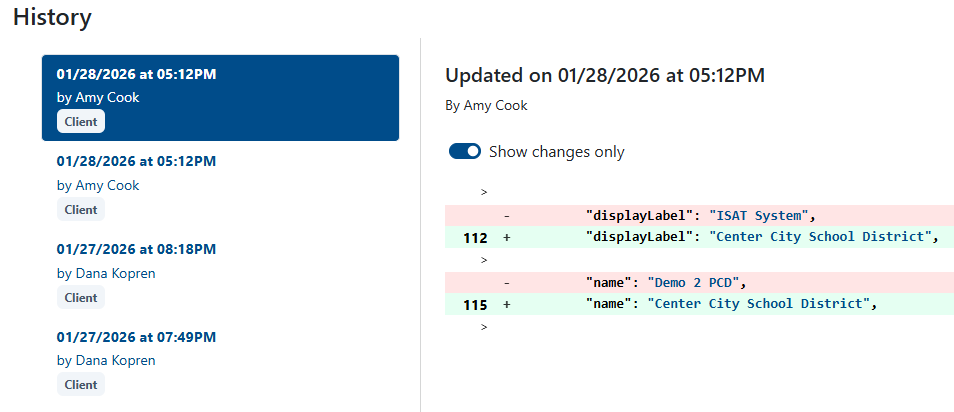
History
The audit log enables users to view a record of all changes made to account settings. This feature captures the user, date, time, and details of each modification, ensuring transparency and traceability. The audit log is accessible to anyone with access to Account Settings.