User Management> Roles
Roles Overview
Most features in OSCAR can be enabled or disabled for an account using the User Role Permissions. Role permissions can either enable access or limit access to pages and features. This article will detail how to use the Roles page and how to create new Roles. Many combinations of OSCAR features are possible to create a myriad of custom roles suitable for a specific project. By default, the following roles will be created in a tenant:
- Director
- Admin
- Supervisor
- Team Lead
- Scorer
- Basic Scorer
These roles can be modified to suit a project's need and new roles can also be created. The Roles page has three main sections (from left to right): 1) a list of all active roles in order of access level, 2) tabs that detail permissions by OSCAR page Category, and 3) a preview of the currently selected role's page access. To get started, select a role and begin reviewing the permissions or create a new role. After all the changes to a selected role have been finished, the changes will not take effect until the Save button is used. Note, after saving the role of the current user, the Director role will be selected by default.
Use the Copy Role button to copy an existing role and all of it's settings, or use the Add Role button to create a new role without any permissions enabled.
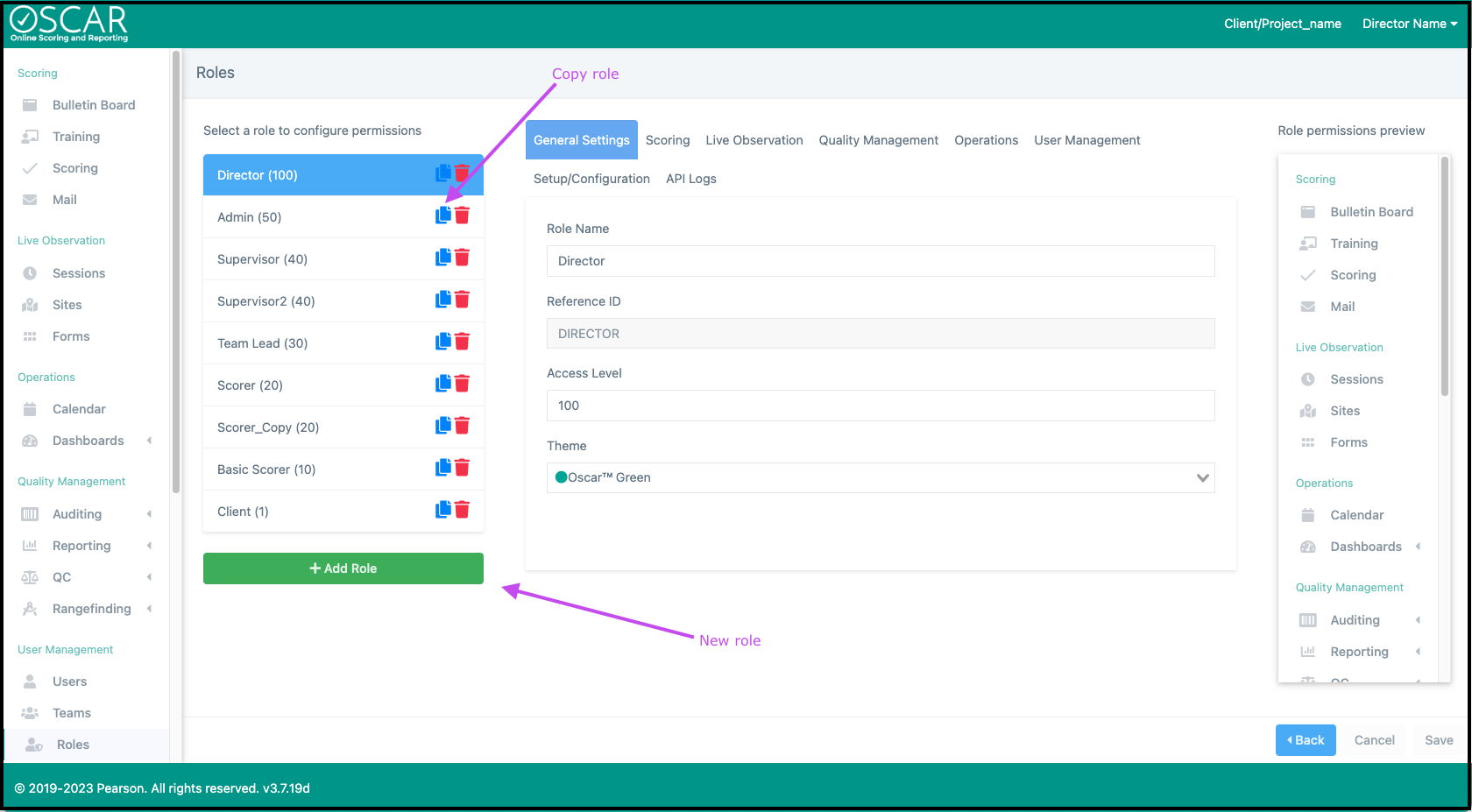
General Settings
Role Name – How the role will be displayed in OSCAR.
Reference ID – This id can be automatically generated or manually created but must be unique within the tenant.
Access Level – The role access level can be any whole number from 0-100. The access level allows for creating a user who has the ability to create/edit roles but with limited scope. For example, if a user is created with an access level of 80 they will not be able to edit or create a role with an access level above 80, therefore not allowing them to edit a role with the access level of 90.
Theme – This is the displayed theme color of OSCAR for any user assigned the role.
Roles can easily be modified or created by clicking User Management > Roles from the main menu.
Scoring
This tab includes all permissions related to Scoring, the Bulletin Board, and the Mail feature.
Scoring – Allow access to the Scoring page. There are a large range of optional permissions for enabling access to special scoring queues like Backreading and Resolution or allowing a user to print during scoring and escalate responses into QC. Scoring limitations can also be set like Beginner or Require Lockdown Browser.
- Score Rangefinding- access to the Rangefinding Scoring queue on the Scoring page
- Backreading- access to the Backreading Scoring queue on the Scoring page
- Auto-populate Backread Score- scores and comment codes will be pre-selected based on the score that is being Backread. Backread rater can still submit a different score if desired.
- Show Agreement Stats- display backread agreement stats on the Backread home page
- Backreading to Own Teams- limits Backreading to only responses scored by users on the Backreaders' teams
- Has Resolution Access- access to the Resolution Scoring queue on the Scoring page
- Has Adjudication Access- access to the Adjudication Scoring queue on the Scoring page
- Has Appeals Access- access to the Appeals Scoring queue on the Scoring page
- Flag Queue Scoring- access to the Flag Scoring queue on the Scoring page
- Delete Flags - allows users to delete flags
- Can Send Flag to Supervisor - allows users to send a mail message to a user with a higher role permission (e.g., Supervisor) that includes the current response being reviewed
- Is Flag Supervisor - allows users to review and be able to resolve the responses sent via email but the user with the Can Send Flag to Supervisor permission.
- Not Required to View all - allows users to skip and score audio and video media without having to view the whole response (despite item configuration). This is designed for scoring leadership.
- Allow Response Printing- allows users to Print from the browser while Scoring
- Show Help Link- enables the Help link to Zendesk support and articles from the User Profile drop down menu
- Prevent Auto-Enter- limits the user from using the Auto-enter feature on the Scoring page to automatically enter the Scoring queue of the first item with available responses in a Section
- Can Escalate- enables the Escalate button during Scoring to escalate responses into QC pools
- Apply Admin Flags- user can apply Flags and Condition Codes with an Admin type
- Review Restricted Flags - user can access responses with flags that have the Restricted Review setting.
- View Hidden Response ID - user will see the response ID as normal when the item is configured to "Hide Response ID"
- View Admin Metadata- metadata keys saved in Tenant Setup will be viewable while Scoring
- View Copyleaks Reports- view Copyleaks reports while Scoring, IF Copyleaks integration is on
- Skip Validity- user will not score Validity responses while in Scoring
- Show Count While Scoring- displays a count of all scores, including validity and calibration, in Scoring
- Show Score & Time Per Item- displays scores and time spent on each item on the Scoring page
- Show 1st Scorer's Annotations- while Scoring a Reliability response, the user can view any highlighting/annotations saved by the first rater
- Reset Own Scores- user can reset their own scores IF they also have access to Auditing
- Is Beginner- in the Scoring queue, user will only be able to score Unscored responses and responses with a first read by a non-beginner
- First Read Only- in the Scoring queue, user will only be able to score Unscored responses
- Prevent Downloading Resources- disables the download button when viewing a Resource
- Require Lockdown Browser- prevents access to OSCAR unless the user has installed the Lockdown Browser
- Prevent Multiple Scores of Same ID- prevents users from Scoring a response with the same ref id as a previously scored response
- Skip Training- Users are not required to complete training in order to begin scoring. Users will still be able to view the training content.
- Exempt from Rate Exception- Users assigned this permission can access scoring anytime overriding the Project > Setup > Project Availability settings.
Bulletin Board – Enable access to view the Bulletin Board page where static messages can be created for all users or for specific Roles.
- Post Bulletins- allows creating and editing Bulletins
Mail – Allow basic Mail access to view messages. Options allow access to contact a supervisor or enable advanced permissions for sending raters feedback messages or receiving email notifications when new responses are loaded.
- Send Mail to Anyone- users can create mail messages to any other user
- Send Mail to Supervisors- users can only create mail messages to a user with an access level of 40 or higher
- Only Mail to Team (limits access)- users may only send mail to their team members and not all users associated with the tenant.
- Reply to Mail from Anyone- users can reply after receiving a mail message
- Send to External Emails- users can send Mail messages to the email address associated with user accounts
- Mark Mail as Important- allows users to require a Mail message to be read before the Scoring queue can be accessed
- Receive Emails on New Responses- automated messages will be sent to the users email address when new responses are loaded in Sections the user is assigned
- Even from Unassigned Sections- automated messages will contain response loading counts from all items in the tenant
- Receive User Lockout Emails- automated messages will be sent to the user's email address when any user on their team is locked out
- Receive Alert Emails- receive emails when a flag that is an Alert type is used by any rater
- Receive Daily Email - receive email with a cumulative list of appeals for all tenants
- Receive Appeal Email on Request - receive emails when a response is flagged for an appeal score
Live Observation
These settings are only used for the Live Observation scoring features and are not enabled for any role by default.
Observation Scoring – Access to the Schedules page and the ability to score Observation Sessions.
- Manage Schedules- allows deleting unscheduled bookings
- Access All Observation Sites- allows creating Sessions from any site/location
- Edit Observation Scores- allows editing and exporting previously scored Sessions
Form Setup – can create/edit or import Forms for Observation Scoring
Site Setup – can create/edit locations/sites
Quality Management
Enable permissions for access to the various OSCAR tools used to monitor rater performance and create/modify responses and scores.
Quality Control (QC) – There are separate permissions for each page of the QC features that can be limited to the Sections the user is assigned (Auditing to Assigned Sections).
- QC Setup- access to the QC Setup page to create and modify QC sets
- QC Report- view the QC Reporting page to view item and set level QC performance
- QC Portfolio- view individual QC performance by QC type on the User Portfolio page
Rangefinding – Access to create Rangefinding sets (Rangefinding Setup) and view Rangefinding reports (Rangefinding Reports), though the permission to score Rangefinding sets can be found in Scoring.
Auditing – Usually only high-level users will have access to Auditing pages (Auditing, Candidate Auditing, Score Auditing) as they can be empowered to upload and delete responses, view and modify scores, and perform other project tasks like export or release responses. Use the Score Auditing permission with "Score Auditing to own scores" to allow raters a very limited access that will allow them to review their own scores and make changes if they also have the Scoring permission for "Reset Own Scores."
- Candidate Auditing- access to Candidate Auditing page where responses can be searched for across an entire Project and all responses with matching ref ids can be viewed
- Auditing- access to Auditing page
- Auditing to Assigned Sections- limits user on Auditing page to only sections and items the user's Team is assigned. This limitation will also prevent the user from viewing items not on the user's team in QC Setup as well as all Reporting pages.
- Auditing to School Code- user can only view responses in Auditing that share a matching School Code
- Create/Delete Responses & Scores- user can import responses to an item as well as delete scores and responses that do not have any scores
- Unprotect Responses- user can unprotect responses that have been marked protected to allow scores to be reset or additional scores added.
- Queue For Export- user can queue responses for export.
- Export Scores- can create a .csv export of the item's responses and scores
- Show Score History- can view all previous scores applied to a response that have been deleted
- Assign Scorers (Assigned Delivery)- allows assigning scorers to a response if the Item has the Assigned Delivery option enabled
- Request Rescores- while viewing a response, the user can request a scored response be rescored by the same rater. This rescore request will be viewed and the new score applied through the raters' mail.
- Escalate in Preview Mode- allows Escalating responses to Rangefinding or QC while viewing the Auditing table in Preview mode
Score Auditing – Like Auditing, though a table of scores applied to items rather than by response. The page includes score time and score creation data and can be filtered by score date.
- Score Auditing to Own Scores- limits Score Auditing page to only scores generated by the user
- Show Past 24 Hours Only- further limits own scores to the last 24 hours
- Allow Access to Reset History- access to Reset History page where all bulk score deletion records are kept
Reporting – Enable access to specific reporting pages designed to provide detailed information about project progress and rater performance. When the "Auditing to Assigned Sections" is also enabled, users on Reporting pages will be restricted to data generated from the teams the user is assigned.
- Completion- view the status of all responses for active Projects and use links to jump to Auditing to view the responses representing specific values
- Scorers- view all scores applied by each user for a Section or Item
- Daily- view frequency distribution data by trait and user score distribution against average score distribution
- Daily Scoring Management- custom report for user and AI scoring that is generated once per day at 4 am CST
- Payroll- reports all user scores by section and item for a specified date range
- Quotas- view users' score data in relation to the active Item Quota(s) (Item Setup)
- User Summary- user performance such as IRR and QC data on all Items
- Item Summary- item IRR and frequency distribution data
- User Agreement- IRR, Validity, and Resolution data for each user by Item
- Backread Agreement- performance for each rater against Backread scores by Item
- Project Agreement- IRR and Validity agreement data for all items by Project
- Training Completion- view and/or modify user progress on Training Courses
- SLA- view the count of incomplete responses that were loaded since the number of hours selected.
Operations
These permissions are for the project scheduling tools and access to Dashboards.
Project Forecast – Access to a page for a viewing project completion based on Project Schedules as well as creating project completion forecasts.
Schedule Sign-up – Access to My Schedule page where users can schedule and view shifts for projects that use the Scoring Availability Project options.
Supervisor Calendar – Access to the Calendar page to view all scheduled shifts by raters for a Project with Limited Availability settings.
Project Dashboard – A dashboard view of completion status for all items by Project. Also allows creating exports by Section.
Tenant Dashboard – View counts for all imported and exported responses on the tenant over a specified date range.
Supervisor Dashboard – A page for viewing user activity by Team with the option to perform some user actions: active/inactive, send mail, and view reports.
- Dashboard to Own Teams- limit page access to only users that share a team with the supervisor
Dashboards Personal – The default Scorer role will have access to the Personal Dashboard where raters can view personal scoring progress and assignments.
- Validity- can view results of previously scored Validity responses by Set
- Practice- can view results of previously scored Practice responses by Set
- Qualification- can view results of previously scored Qualification responses by Set
- Calibration- can view results of previously scored Calibration responses by Set
- Show QC Score Counts- displays counts of Validity and Calibration responses below weekly and total live score counts
Limit Visibility of Inactive Resources – When a Project or Item is made inactive, the user will not be able to view associated OSCAR objects.
Video Meetings - Access to the video meeting functionality within OSCAR. (Please contact the OSCAR team for cost information.)
- Create Meetings- Permission to create/schedule a video meeting.
- View All Meetings- Permission to view all meetings created/scheduled (e.g., start time, duration, invited attendees).
- Manage All Meetings- Permission to manage/edit all meetings
User Management
User Setup – Add and modify users using the User Import feature or make users active/inactive or even archived if they should no longer be able to login.
- Force Password Reset- allows sending a password reset email to a specific user from the user's detailed page (user Edit)
Team Setup – Create teams of raters but note that the permission for assigning a Team to a Section is found in Setup/Configuration (Section Setup).
Setup/Configuration
Very few users will typically have access to the Setup/Configuration pages as this is where the project infrastructure is created and modified.
All Tenants Setup – Only an account manager should have this access as it will allow a user to create new tenants and import users across tenants.
Current Tenant Config – This is required for access to the Roles page and can be combined with an access level to allow a supervisor to change the role access for scorers as needed without the possibility of higher level users losing any access.
Project Setup – Create Projects and project availability schedules. Projects can be made inactive to remove their data from the Reporting pages and "hidden" to remove all associated objects from the Setup view.
Section Setup – Create new Sections, functionally Item groups, and assign Teams to existing Sections as well as require Training.
Add/Remove Teams Only- limits users to only having access to update (add/remove) section team assignments
Item Setup – Add new Items for scoring projects or modify items to change their scoring rules, the scoring view, or the integration with other systems.
- Activate/Inactivate Items Only- limits the user to view the Items table but only interact with the active/inactive toggle
- Only can Modify Resources - limits the user to only modify or delete item resources
Rubric Setup – Define a Rubric that can be assigned to multiple items. Note that once a rubric has been used for scoring, it cannot be modified or deleted until all associated scoring records are also deleted.
Training Setup – Build Training Courses that can be required for access to items within a Section.
Resolution Group Setup – Create Resolution Groups of multiple items so responses that share a ref id can be resolved by the same rater at the same time.
Limit Visibility of Inactive Objects – Remove inactive objects from the list view of the user on multiple pages.
Use Config Sheets – Access to create and apply Configuration Sheets that can create objects and apply settings changes en masse on a tenant.
Manage IEA Models - Access to IEA model configuration (See OSCAR team member for more information.)
API Logs
This grants permission to view all logs of exported responses from the Loopback, Outgoing, and Observational Scoring Outgoing pages.