These ordered steps correspond to sections below or a related setup page. You can click each link to go directly to the corresponding processes.
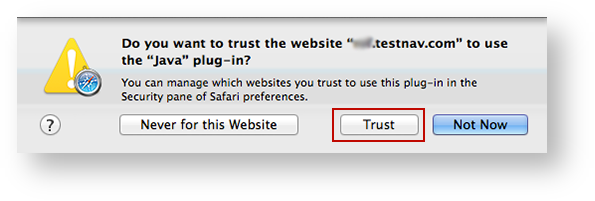
If a notification appears asking you whether to trust your secure test website to use Java, click Trust.
|
Click Security, and deselect the Block pop-up windows check box.
|
TestNav must run in unsafe mode in Safari. After you trust your secure test website to use Java and enable pop-ups for TestNav:
|
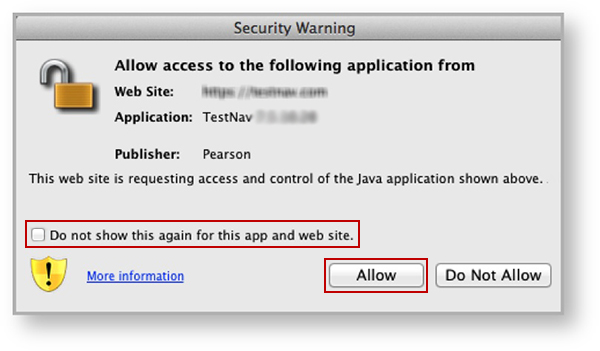
When you start TestNav, you may also see one of the following Java notifications depending on which Safari version you use.
If you see the Security Warning notification:
Click Allow to continue to TestNav and TestNav SystemCheck.
|
If you see the Do you want to run this application? notification:
Click Run to continue to TestNav and TestNav SystemCheck.
|
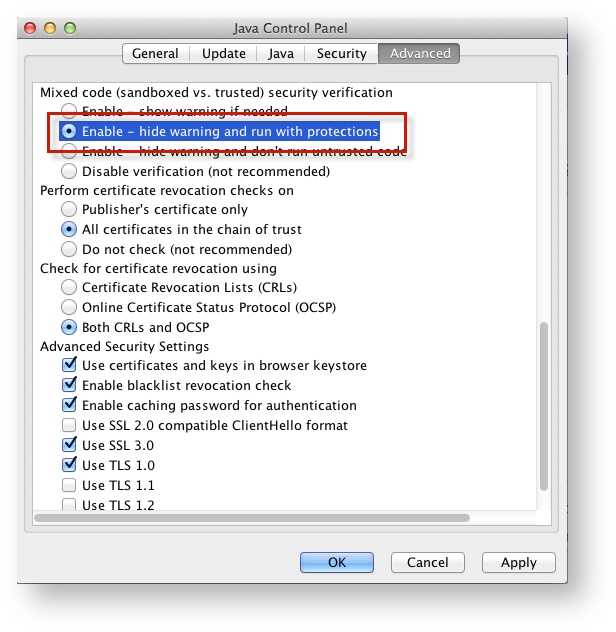
Complete the following steps for Mac OS X, regardless of which browser you choose:
Click Advanced.
Select Enable - hide warning and run with protections:
|
| Operating System | SRF Location | Log File Location |
|---|---|---|
| Mac OS X | Users/username/Pearson/Users/username/Pearson/first name-last name-identifier/srf | Users/<username>/Pearson/first name-last name-identifier/logs For example: /Users/UserA/Pearson/User-A-1234/logs |
You can learn more about SRF and log files on the following pages: