This page describes how to assign a group to students who already have test assignments.
To assign a group to a student who already has a test assignment, follow these steps:
From Setup > Students, search to find student(s), or click the down arrow next to the Search button and select Show all results. Select the student tests you want to associate with a group.
Open the task list and select Manage Groups. Click Start.
Find an existing group(s) or create a new group to associate with the student test.
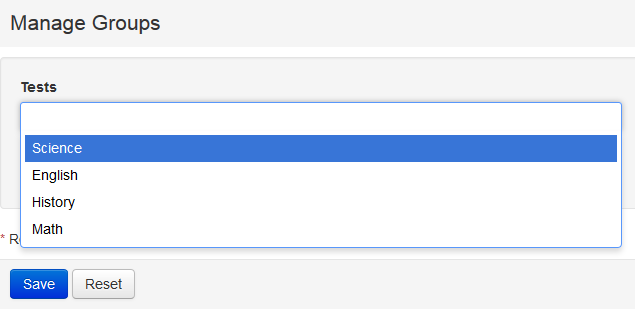
To find an existing group, under Groups, click in the search area to search for existing group(s).
|
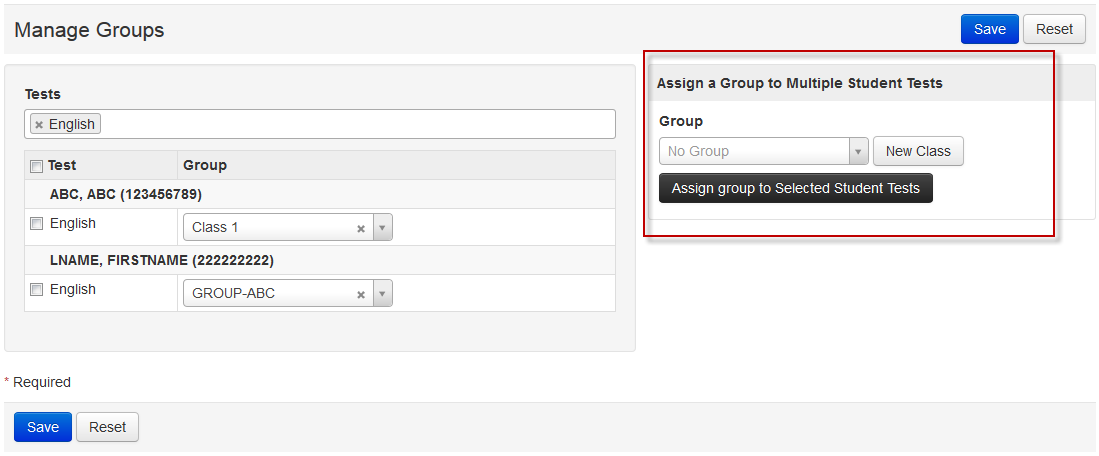
To create a new group, under Assign a Group to Multiple Student Tests, click New Class and enter details. Click Save.
|
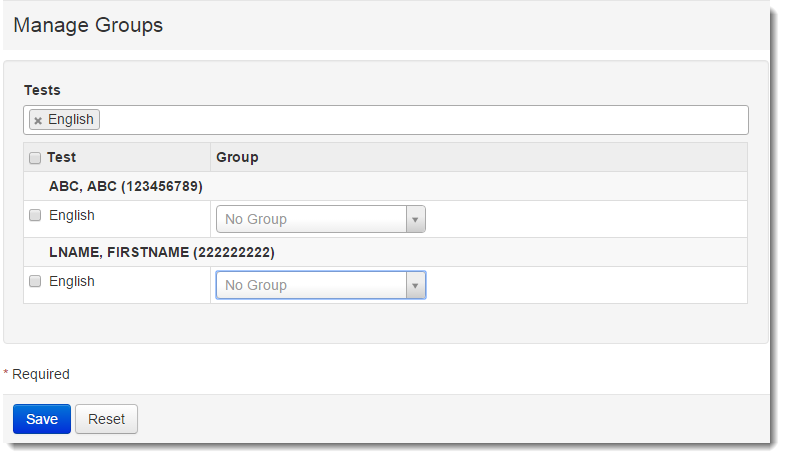
Under Tests, select a student test, click the Group drop-down, and then select a group. Click Save.
|
To assign a group to multiple students who already have test assignments, follow these steps:
From Setup > Students, search to find student(s), or click the down arrow next to the Search button and select Show all results. Select the student tests you want to associate with a group.
Open the task list and select Manage Groups. Click Start.
Under Assign a Group to Multiple Student Tests, select a group from the Group drop-down.
|
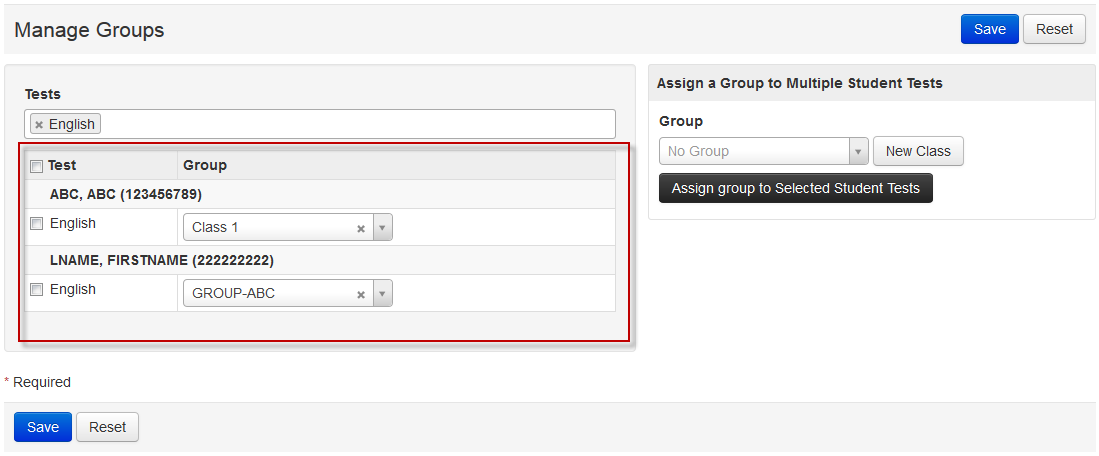
Under Tests, select the student test.
|
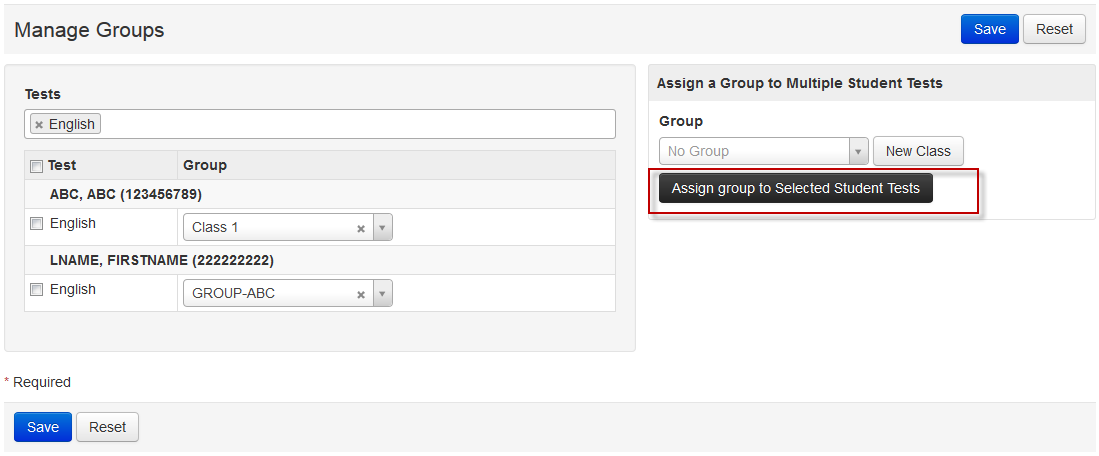
Under Assign a Group to Multiple Student Tests, click Assign group to Selected Student Tests.
|
Click Save.