Use Role Display Name; Default role names can be customized as needed. The configured Display Name value will appear across the application.
Role Notes: This field is visible only to users who can see the Role Permissions page, and is a helpful place to jot down notes to explain what types of users should be assigned this role, a summary of the permissions for this role, etc.
Roster Integrations: Do not enable this for any roles except System Admin. Customer users do not need to have this level of visibility into the nightly data feed outcomes for the automated import jobs.
Single File Upload: This permission controls the display of the Data Import > Single File Upload tab, as well as the Data Import > Student Update Only tab. "Edit" access allows the user to see the Upload File button on the tab. Which data types they can import will depend on what checkboxes are selected (Orgs, Non-Student Users, Students). Additional note: the "Roster Data" permission must also be set to View in order for single file uploads to function as expected.
can specificy - in wida - they will allow soem higher roles to upload orgs, other users can only do students, etc.
This permission should be assigned to limited users. End users do not need to see configuration details for the authentication provider on their client account.
This will normally be disabled for all roles. It is rarely needed to be able to search on these record types independently from the user record to which they are tied, and it is confusing for users to see these records in a list.
Launchpad Setup: The LaunchPad setup page controls the configuration of the apps that appear on the LaunchPad home page, to rostered users.
Role Permissions
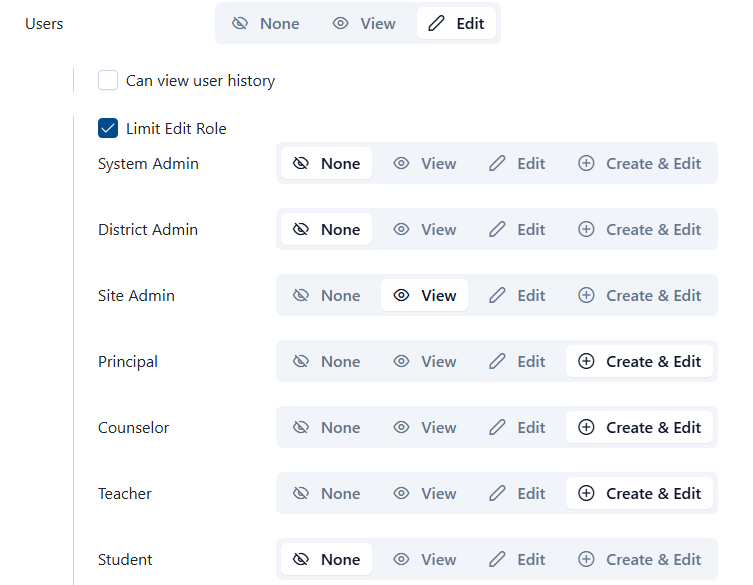
Account role permissions set up has been enhanced. Upon selecting View or Edit for Users (under the Roster Data heading), the Limit Edit Role option displays all available roles. Administrators can then designate which user role groups are visible or editable for this particular role. This configuration restricts the available role and actions when users navigate to the User page under Roster Data. This should be used when the client wishes to restrict certain roles from having access to view certain user types.
Roster Data
Tiny Link: