For assessments delivered via ADAM Player, there are three things that impact the font and font size of an item:
- If the item has a font or font size applied to text, either manually or with a paragraph style, this overrides the default system fault as well as any applied style sheet.
- A style sheet can apply to the whole item, or individual components such as the prompt, answer choices or rationales. The style sheet is created at the bank level, but must be applied to the item individually, or can be bulk applied. Any specified components will override the default system font and size, but not any settings made as described above. A style can do things like make all main headers a certain font size, font and color. You can add any style that has been set up previously. If multiple items need the same style added, consider bulk applying later rather than adding individually to each item.
- 16 pt. Poppins is used for any text that has neither a style sheet rule or font/size applied in the editor. If the font family is not available to the viewer, Roboto, Helvetica, Arial or a sans-serif font are used (in this order).
Bulk Change Styles
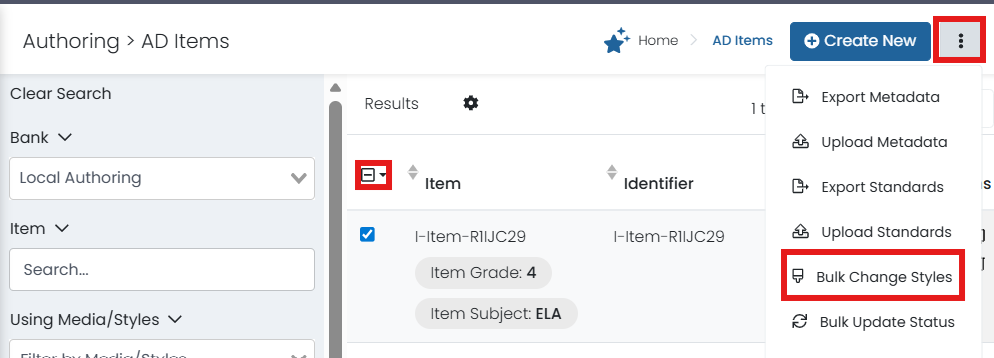
Permissioned users can bulk remove styles from the item list interface. The style must already be set up in AD Authoring > Media/Styles.
- Navigate to AD Authoring > AD Items.
- Select the items to change.
- In the Actions menu, select Bulk Change Styles.
- Select Replace, Add or Remove.
- Select a style.
- Select Update.

Create a New Style
Contact your Pearson Delivery team for support. Familiarity with .css files is needed to create a new style.
- Prepare the stylesheet file.
- Navigate to AD Authoring > Media/Styles.
- Select Create New.
- Enter a name and select Stylesheet.
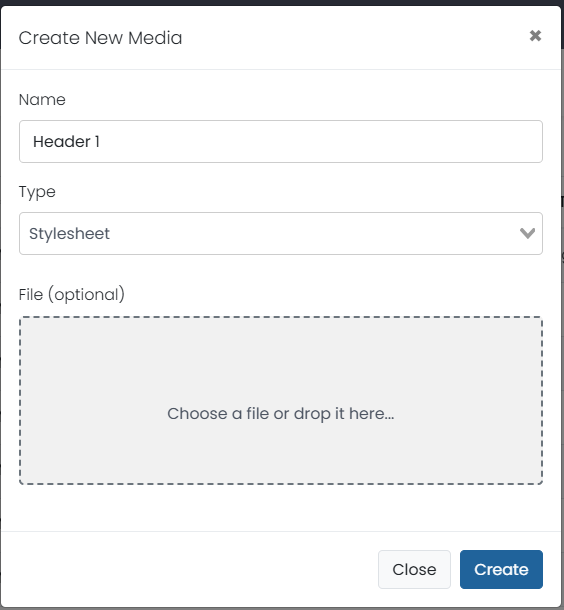
- Upload the .CSS file.
- Select Create.
Tiny Link: https://support.assessment.pearson.com/x/CYD8Bg