Users with the proper role permissions can create Academic Sessions, which represent periods of academic instruction, such as semesters or school years. Date ranges may overlap; for example, you might have Fall, Winter and Spring for interims and use marking periods for another type of assessment. They may also vary by school type. Customers using LaunchPad should typically not create Academic Sessions in ADAM.
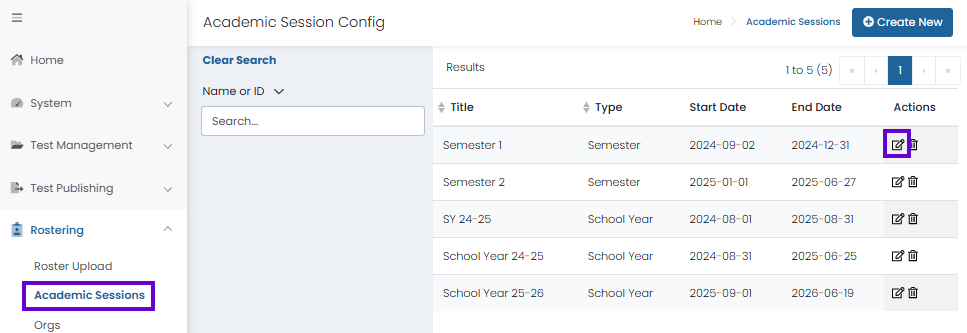
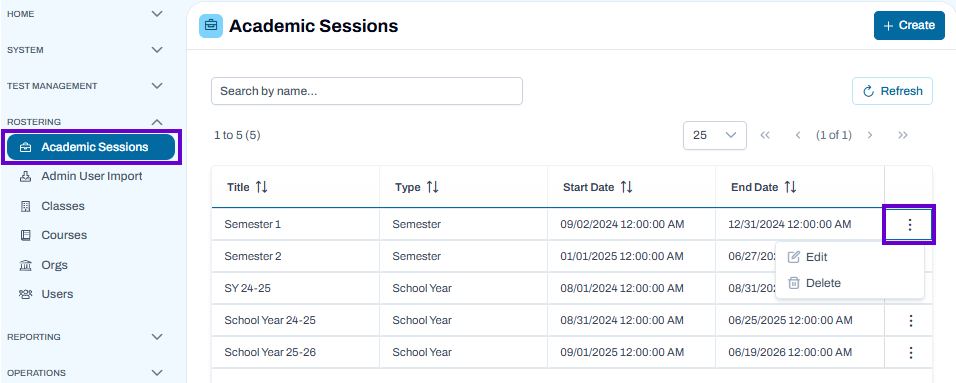
- Go to Rostering > Academic Sessions.
- Click the Create New button.
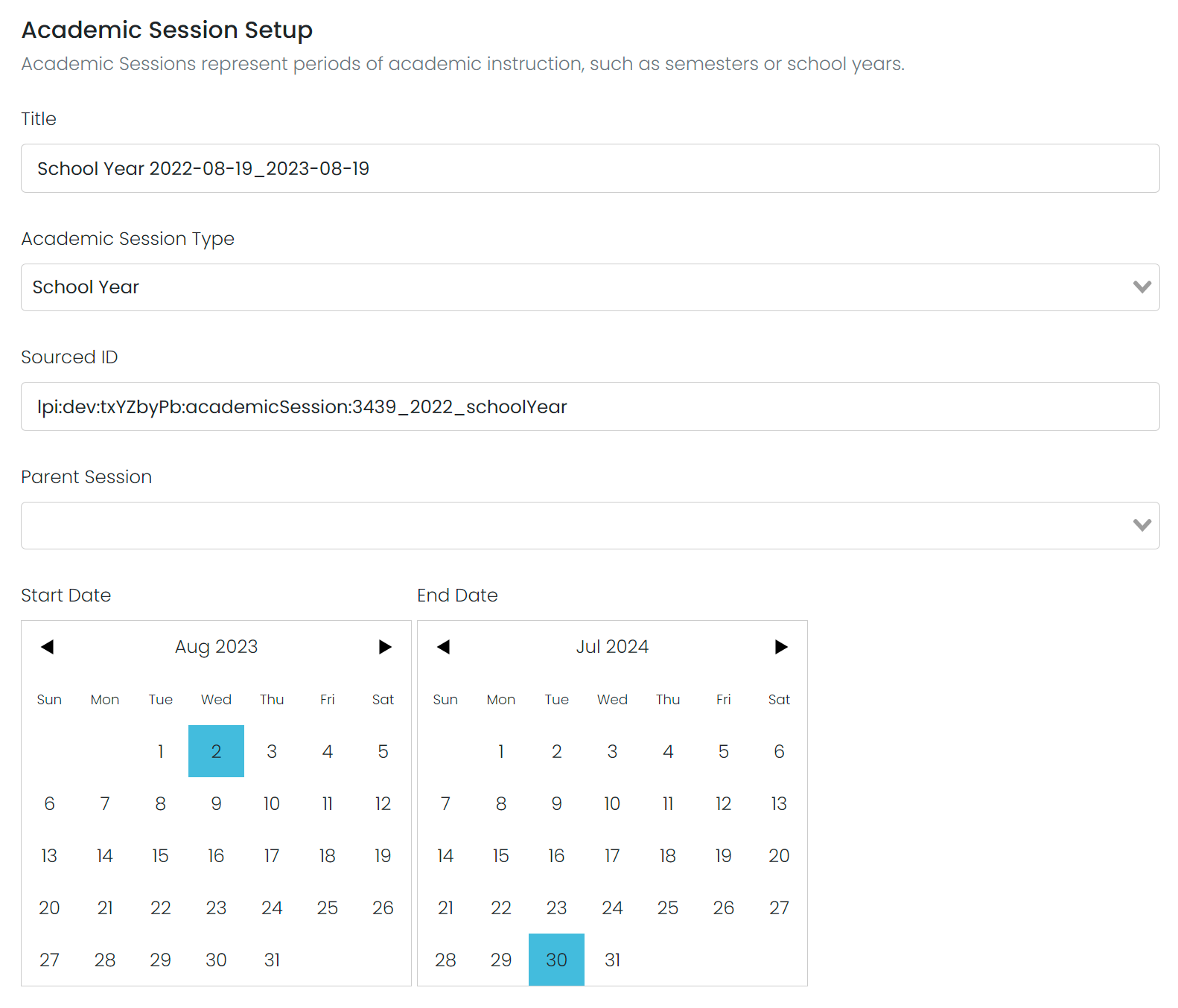
- In the Academic Session Setup window, enter the following:
- Title
- Academic Session Type: Select Grading Period, Semester, Term, or School Year.
- Sourced ID
- Parent Session: Unless you are creating a School Year, you must select a Parent Session. School Years are the highest level and cannot have a Parent Session.
- Start and End Date: Select dates from the calendars.
- Click Submit.
Classic User Interface:
Updated User Interface:
Edit Academic Session
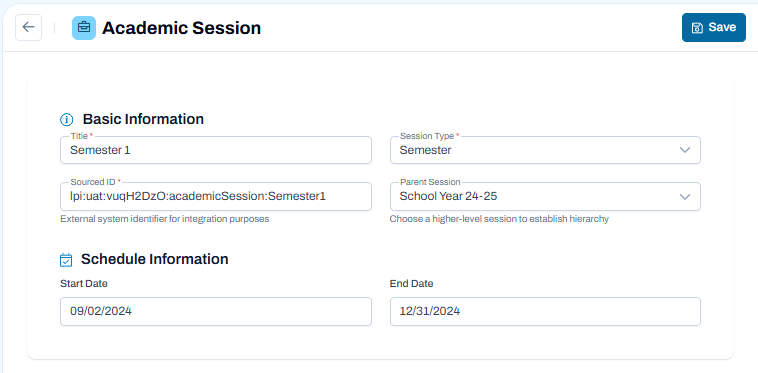
The Edit Academic Session page is used to update an academic session's details, including its name, type, parent session, and schedule dates. Academic sessions help organize school years, semesters, terms, and other instructional periods.
- Navigate to Rostering > Academic Sessions and select the session you want to edit.
- In the Basic Information section:
- Title – Update the session name.
- Sourced ID – Review or modify the session's unique identifier, if permitted.
- Session Type – Select the appropriate session type (for example, School Year, Semester, Term, or Quarter).
- Parent Session – Select a higher-level academic session to establish the session hierarchy.
- In the Schedule Information section, review or update:
- Start Date – The first day of the academic session.
- End Date – The last day of the academic session.
- Verify that the date range aligns with the selected parent session and academic calendar.
Save Changes
- Review all information for accuracy.
- Select Save to apply the updates.
Best Practices
- Maintain a consistent naming convention for academic sessions.
- Ensure session dates do not overlap incorrectly with other academic periods.
- Verify that the correct Parent Session is selected to maintain accurate academic hierarchies.
- Update session information before creating related courses, classes, or enrollments whenever possible.
Classic User Interface:
Updated User Interface:
Tiny Link: https://support.assessment.pearson.com/x/YoEpBw