Some accommodations may be set up to require approval. Any user who is set up as an approver can manage requests.
If you are set up to approve requests:
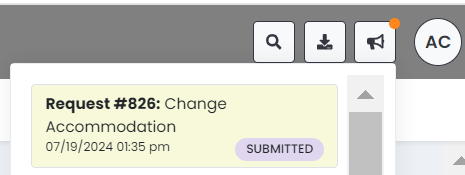
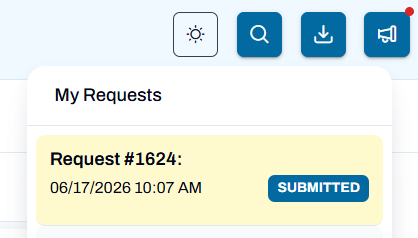
1. Select the My Requests (megaphone) icon.
Classic User Interface:

Updated User Interface:

2. Select the accommodation change request.
Classic User Interface:
Updated User Interface:
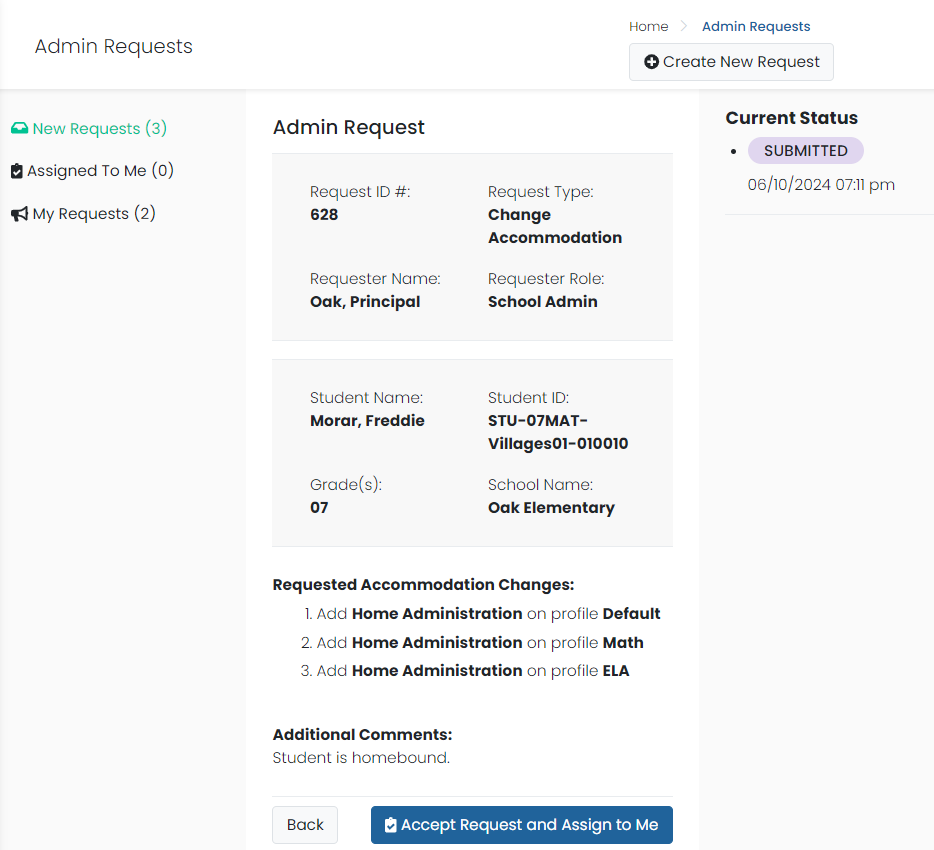
3. Review the request.
Classic Interface:
Updated User Interface:
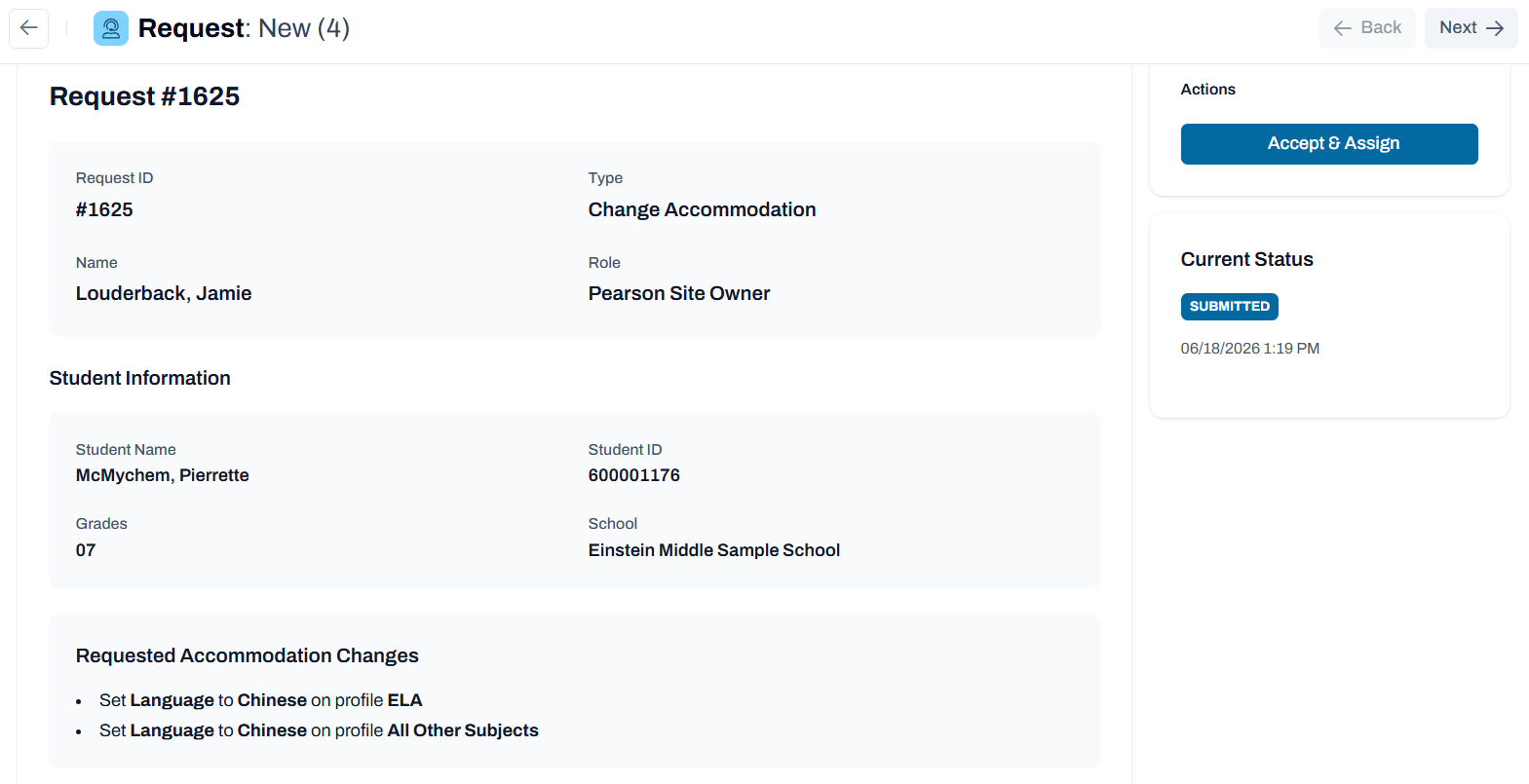
4. Select the Assign Request and Assign to Me button (you may need to scroll down to view) if you will handle this request, or select the Back button to allow another approver to assign instead.
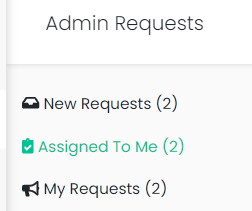
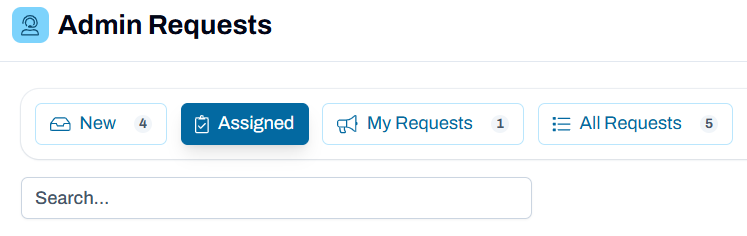
5. The Assigned section contains all the submissions now assigned to you for approval.
Classic User Interface:
Updated User Interface:
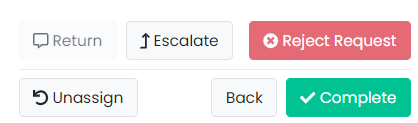
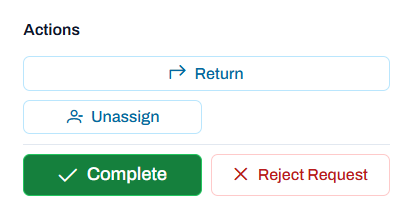
6. You have the following options for each submission assigned to you:
Approve: The student will be assigned the accommodation and the submitter will receive an alert.
Reject Request: The submitter will receive an alert with your entered reason for rejection.
Escalate: This is based on the organization level of the approval team. Escalation moves the ask up one org level. This is primarily used to move approval where the first approver doesn't have the correct org authority to approve.
Unassign: Remove the assignment for your queue (which will allow another approver to pick up).
Classic User Interface:
Updated User Interface:
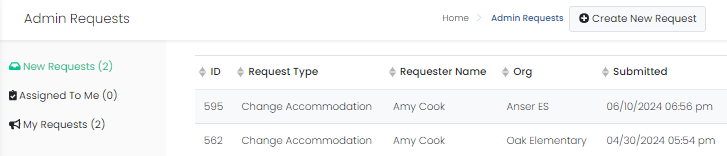
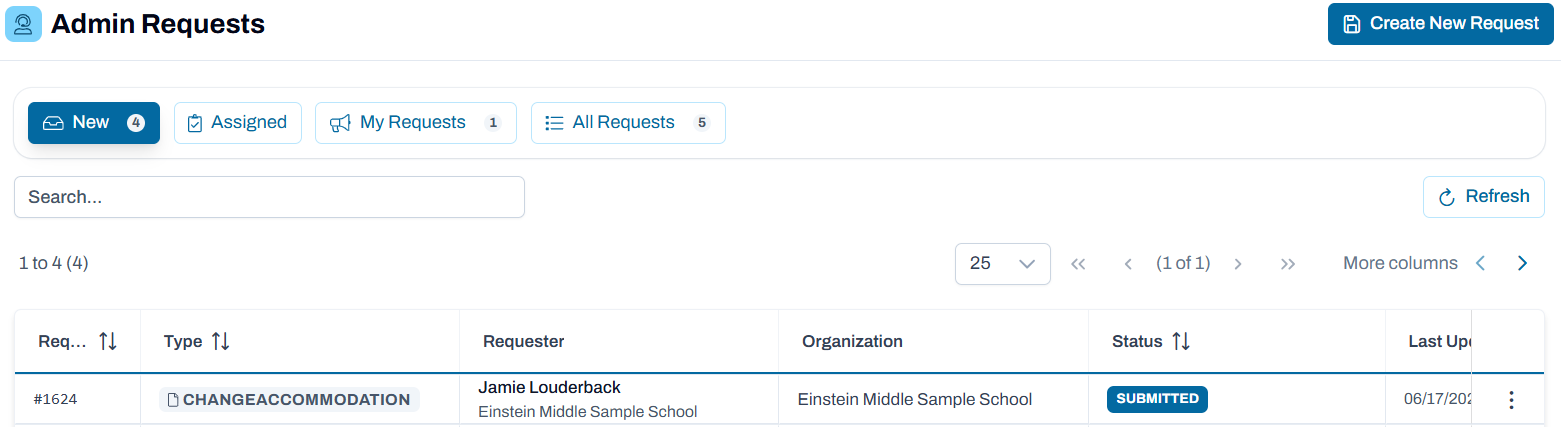
7. To view any additional new submissions, select New.
Classic User Interface:
Updated User Interface:
Tiny Link: https://support.assessment.pearson.com/x/i4GNC