Client Settings: Program Configuration
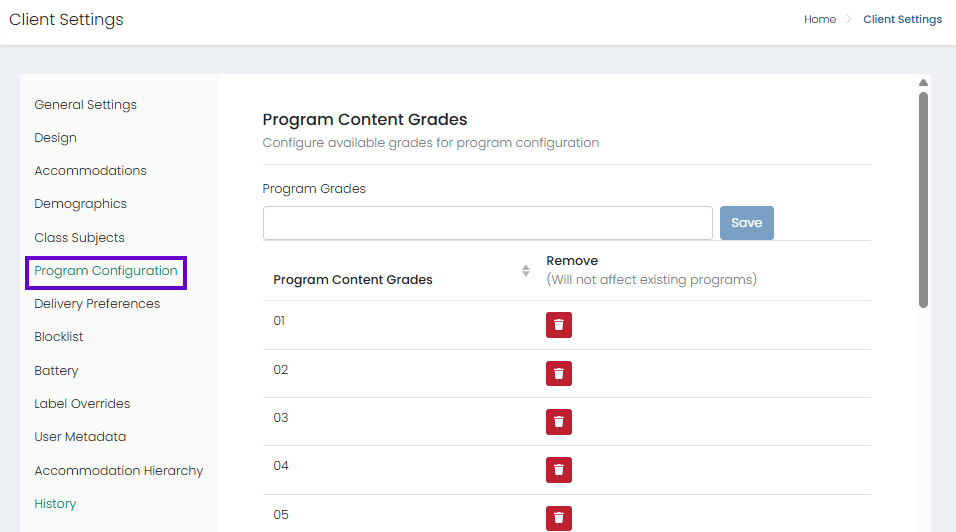
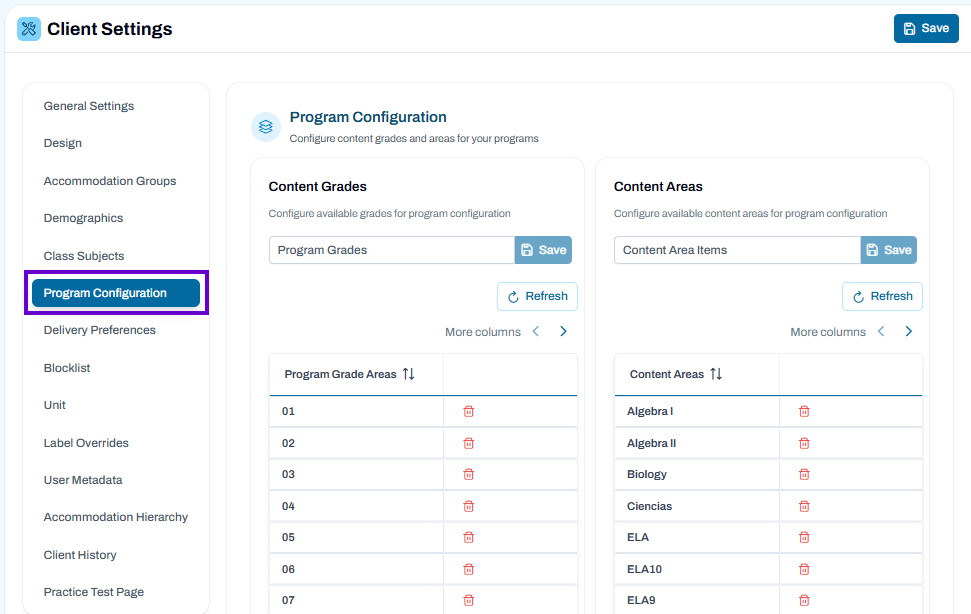
Use the Program Configuration page to manage the Content Grades and Content Areas available within your ADAM instance. These settings help define the grade levels and subject areas that can be used throughout programs, assessments, reporting, and other administrative workflows.
Classic User Interface:
Updated User Interface:
Content Grades
The Content Grades section allows administrators to create and manage the grade levels available for program configuration.
Add a Content Grade
- Navigate to Client Settings > Program Configuration.
- In the Content Grades section, enter a grade value in the Program Grades field.
- Select Save.
- The new grade is added to the Program Grade Areas list.
View Existing Grades
- Existing grades are displayed in the Program Grade Areas table.
- Use the sorting controls in the column header to reorder the list.
- Select More Columns to view additional available information, if applicable.
Delete a Grade
- Locate the grade you want to remove.
- Select the Delete (trash can) icon next to the grade.
- Confirm the deletion if prompted.
Refresh the List
- Select Refresh to reload the current grade list and display any recent updates.
Content Areas
The Content Areas section allows administrators to manage the subject and content area values available for programs.
Add a Content Area
- In the Content Areas section, enter a content area name in the Content Area Items field.
- Select Save.
- The new content area appears in the Content Areas list.
Examples may include:
- Mathematics
- ELA
- Biology
- Algebra I
- English
- Spanish
View Existing Content Areas
- Existing content areas appear in the Content Areas table.
- Use the sorting controls to organize the list.
- Select More Columns to display additional information when available.
Delete a Content Area
- Locate the content area you want to remove.
- Select the Delete (trash can) icon.
- Confirm the action if prompted.
Refresh the List
- Select Refresh to reload the content area list and view the latest configuration changes.
Save Changes
After making updates:
- Review your content grades and content areas.
- Select the Save button in the upper-right corner of the page.
- Wait for confirmation that your changes have been successfully saved.
Best Practices
- Use consistent naming conventions for grades and content areas.
- Avoid creating duplicate content area names.
- Periodically review unused entries and remove outdated values.
- Confirm that content grades and content areas align with your organization's current programs and reporting requirements.
Note: Changes made in Program Configuration may affect how grades and content areas are displayed and selected throughout other areas of the system.
Client Settings vs Test Management - Program Configurations
The Program Configuration page under Client Settings manages the available Content Grades and Content Areas used throughout the system. The Program Configuration page under Test Management is used to create and manage testing programs, assessments, and related program settings that utilize those configured grades and content areas.
| Client Settings > Program Configuration | Test Management > Program Configuration |
|---|---|
| Configures the master lists of available Content Grades and Content Areas. | Creates and manages programs that use those grades and content areas. |
| Defines reference data used throughout the system. | Defines testing programs and their associated configurations. |
| Used to add, edit, or remove values such as Grade 03, Grade 04, ELA, Biology, Algebra I, etc. | Used to create programs such as Spring Summative 25-26, Common Classroom, or Assessments. |
| Primarily an administrative setup page. | Primarily a test management and program administration page. |
| Changes affect the available options users can select when configuring programs. | Changes affect how tests, objectives, and program settings are organized and delivered. |
How They Work Together
Think of the Client Settings page as the place where you create the building blocks:
- Content Grades: 03, 04, 05, 06
- Content Areas: ELA, Biology, Algebra I, English
The Test Management page then uses those building blocks to create actual testing programs:
- Spring Summative 25-26
- Benchmark Assessments
- Common Classroom
For example, an administrator might:
- Add Biology as a Content Area in Client Settings > Program Configuration.
- Create a new program called High School Science Assessments in Test Management > Program Configuration.
- Associate Biology content and related tests with that program.