Use the Clone Test page to create a copy of an existing test. Cloning allows you to quickly create a new test using an existing test's configuration, content structure, reporting settings, and program options as a starting point.
Pay attention to the names you give to each of these pieces, as names might contain subtle differences.
Prerequisites:
- Confirm you are signed in as a role with permissions to add tests and publish tests.
- Form(s) are available.
To clone a test:
Open the Clone Test Window
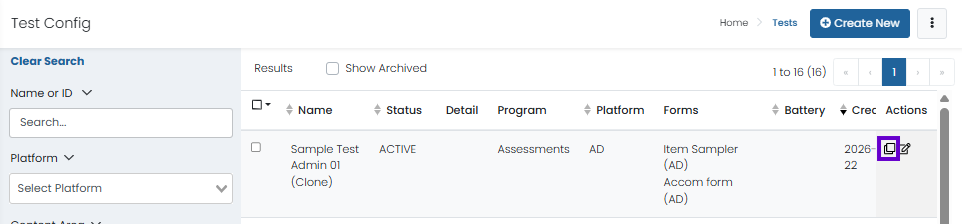
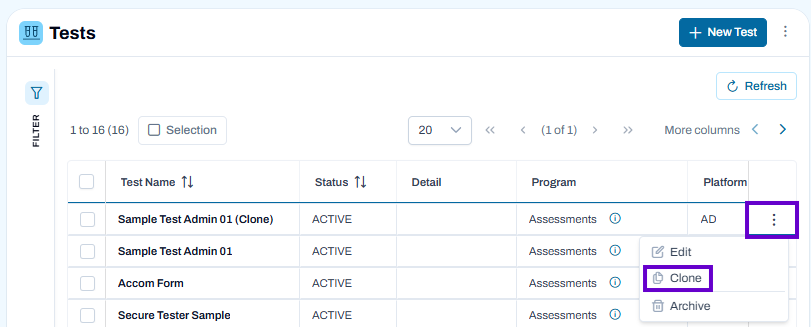
- From the Tests page, select the More Actions menu (⋮) next to a test.
- Choose Clone to open the Clone Test page.
Classic User Interface:
Updated User Interface:
Review the Source Test
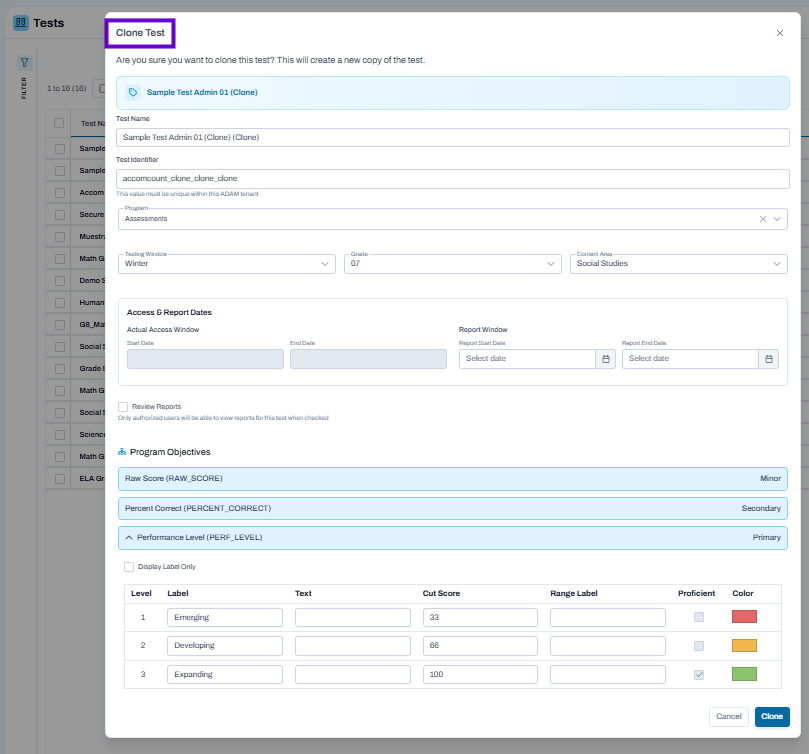
- The original test appears at the top of the page.
- Verify that you are cloning the correct test before making changes.
Update Test Information
- Enter a unique Test Name for the new test.
- Enter a unique Test Identifier. This value must be unique within the ADAM tenant.
- Review the Program, Testing Window, Grade, and Content Area values and update them as needed.
Configure Access and Report Dates
- Set the Actual Access Window start and end dates to determine when the test will be available.
- Configure the Report Window dates to control when reports can be accessed.
- Select Review Reports if reports should be available to authorized users.
Review Program Objectives
- Verify the configured reporting objectives, such as:
- Raw Score
- Percent Correct
- Performance Level
- Adjust objective settings if modifications are required for the new test.
Review Performance Levels
- Verify performance level labels and cut scores.
- Update labels, descriptions, proficiency indicators, or score ranges as needed.
- Confirm that the performance levels align with the intended reporting model.
Create the Clone
- Review all settings carefully.
- Select Clone to create the new test.
- Select Cancel to exit without creating a copy.
Best Practices
- Use descriptive test names that clearly distinguish the clone from the original test.
- Verify that the Test Identifier is unique before saving.
- Review testing windows and report dates, as cloned tests may inherit values that are no longer appropriate.
- Confirm performance levels and cut scores before using the cloned test in production.
- After cloning, review all test settings to ensure they meet the requirements of the new assessment.
To learn how to publish tests, visit: Test Publishing
See also: Two Options for Publishing a District Level Test; Test Publishing; Tests: Create a Test
Tiny Link: https://support.assessment.pearson.com/x/T4EsDw