Score Resets
During the course of a project, it may be necessary to delete one more scores on a response. In OSCAR, deleting a score is referred to as a score reset. Scores can only be reset in OSCAR through the Auditing interface. There are three ways to reset a score. Once a score is reset, it cannot be recovered, though there will be a record of the action.
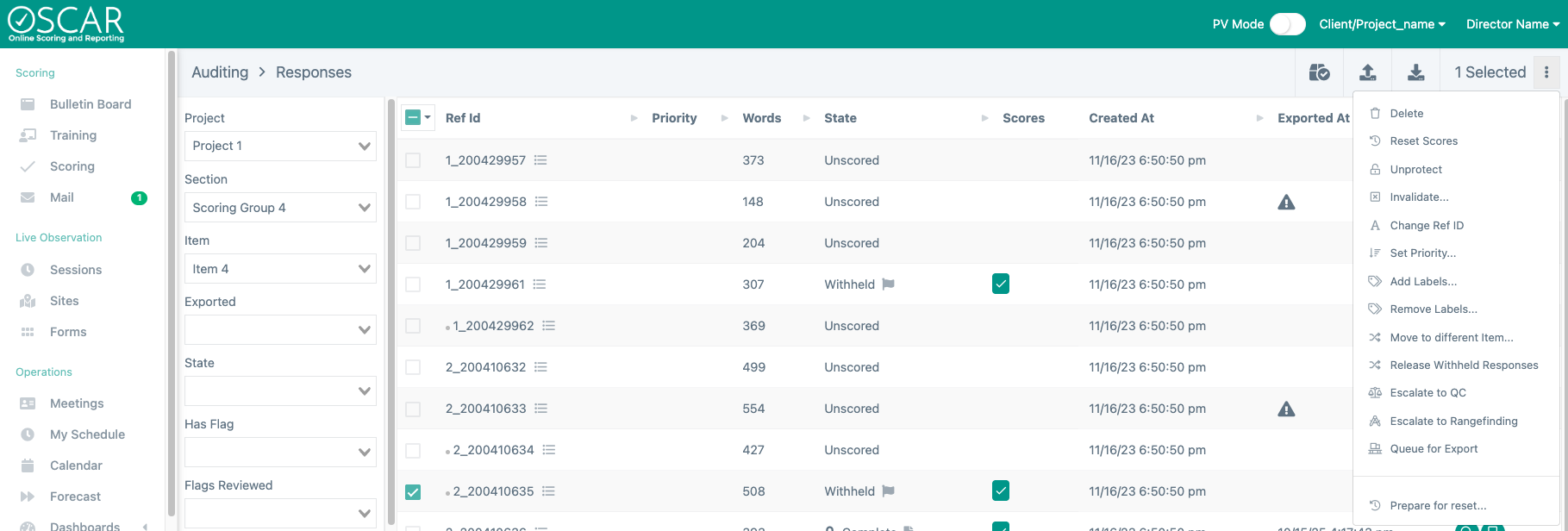
- Select responses in Auditing> Responses and use the “Reset Scores” option.
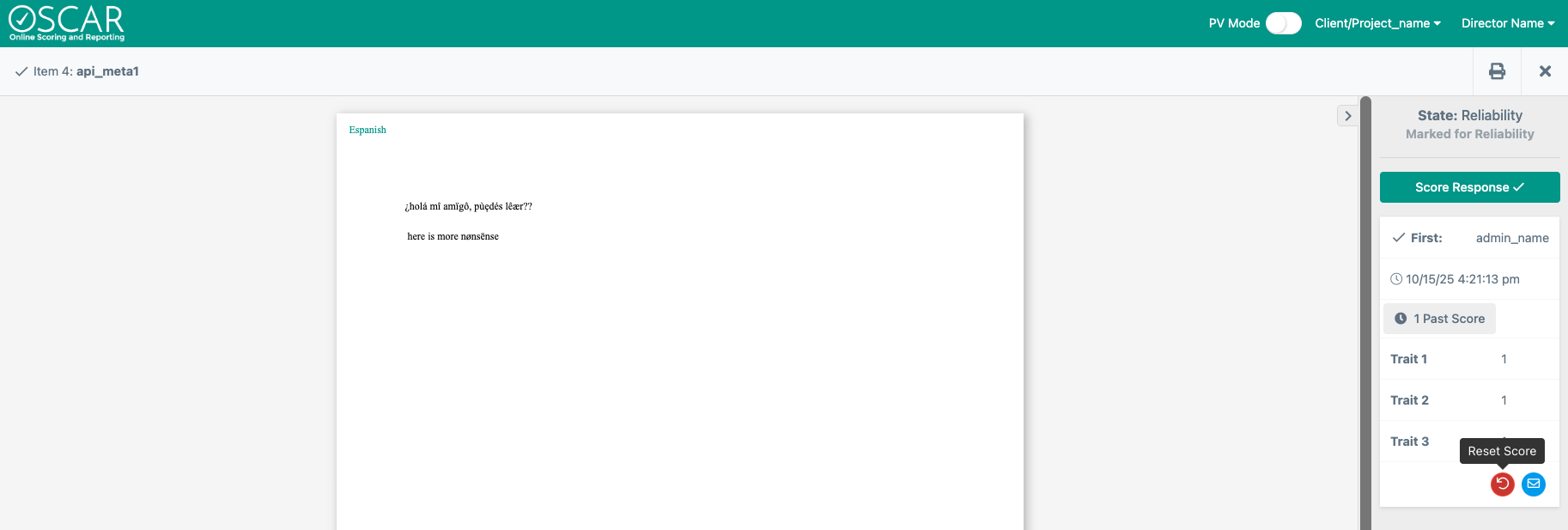
- View a response in Auditing> Responses. Then, use the reset button on the score card to delete the score. This option is also possible in Flag Queue scoring (a limited version of Auditing) and Candidate> Auditing if the user has the correct permissions.
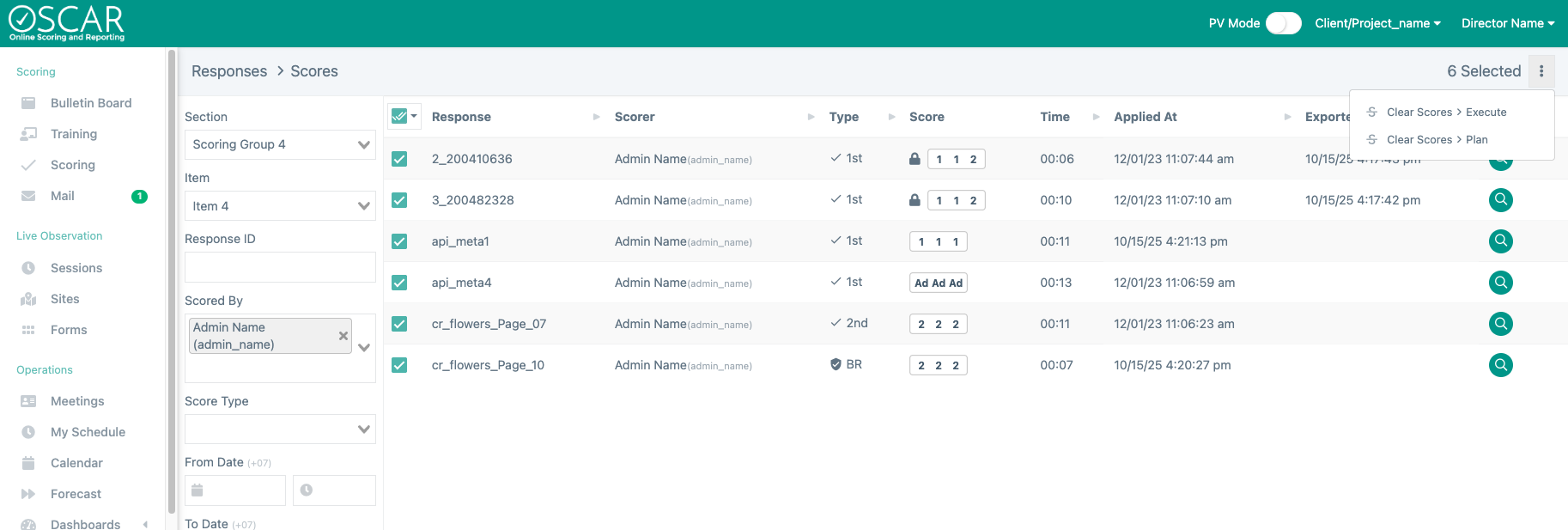
- Select the score(s) in Auditing>Scores and use the “Clear Scores > Execute” or “Clear Scores > Plan” option and then execute the planned reset from the Reset History page.
Reset Scores
Using this option will reset all scores on the selected response(s). Any number of responses can be reset this way. This reset action will always return the response to the Unscored state. Additionally, the response’s priority will be reset to 0 and any flags on the response will also be deleted.
Reset while Viewing
Selecting the red reset button will only reset the individual score the reset button is found on. All other scores and flags will remain. Note, scores cannot be reset on Protected responses. When this is the case, the reset button will be replaced with a lock icon.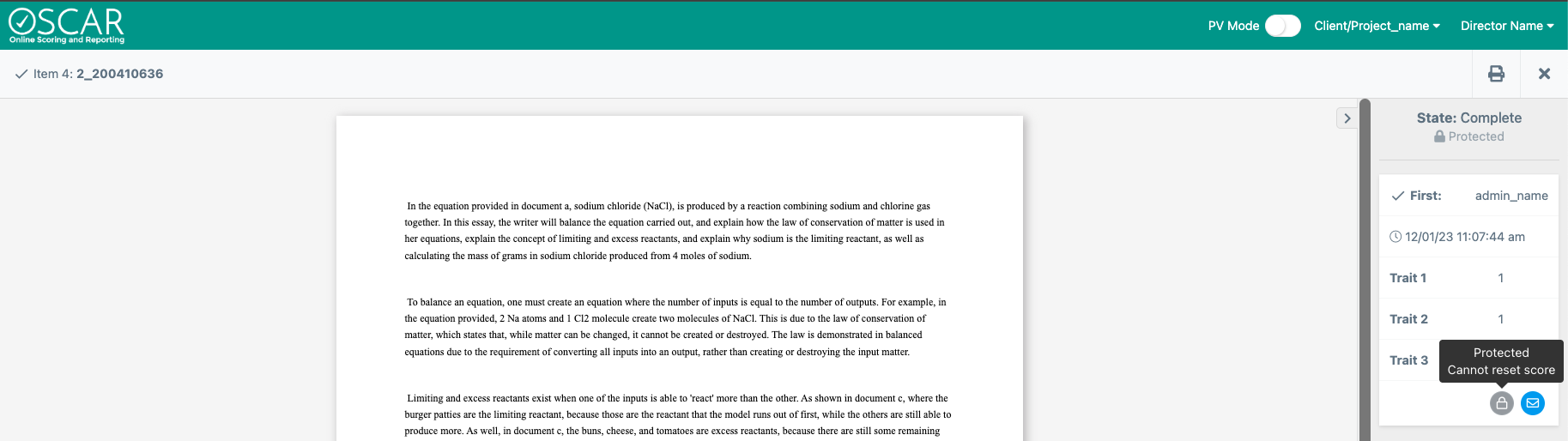
Clear Scores
This option will only reset the selected score but will allow the user to select any number of individual scores to reset. The filters in Score> Auditing can be used to find a specific list of scores and then the “Select All” button on the top left can be used to select all scores that match the filters used. Use the “Plan” option to see how the potential reset job will affect the item’s IRR and frequency distribution on the Reset History page. Then, the play button must be used to perform the resets. Planned resets can instead be discarded using the trash can icon.
Viewing Resets
When a score is reset using any of the above options, there is a record stored on the Reset History page. This log contains the Section and Item where the response is located, date of the reset, the number of resets performed, and the user who reset the score(s) (reset reason will be added in future development, ~Jan 26).
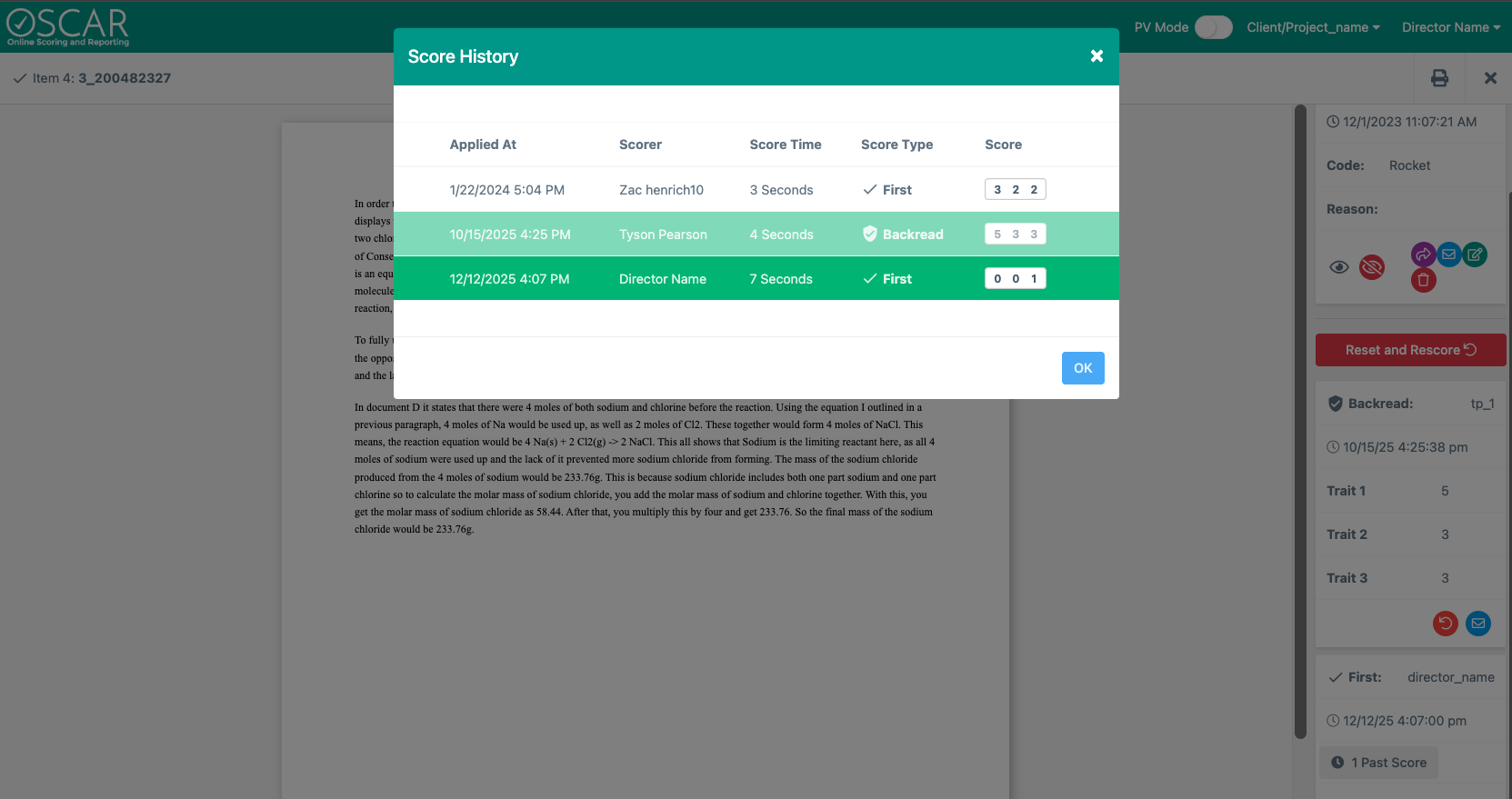
Reset scores will be saved in the Score History on a response. Users with access to the Score History can view all previous scores on the response by viewing the response in Auditing> Responses and selecting the Past Score button. This will display all scores given to the response in the chronological order in which they were applied. Deleted scores will appear with a white background while current scores will have a green background.
For a wider view of resets, the Completion Report can be used to see the number of resets across all projects and items. The report will show a total number of resets performed for each item as well as Section and Project level totals. Unlike other values in the Completion Report, users cannot click on the number of resets to view them in Auditing, because those reset scores no longer exist.
To view the number of resets by user, use the Scorers Report where the number of resets is shown, regardless of whether the user has any scores remaining. When filters are applied, only the number of resets completed within the parameters will be shown. But note, the date filters are based on when the score was applied and not when the reset was done. For example, if a score is applied on 12/15 and then reset three days later on 12/18, a date filter that begins on 12/18 would not display the given reset.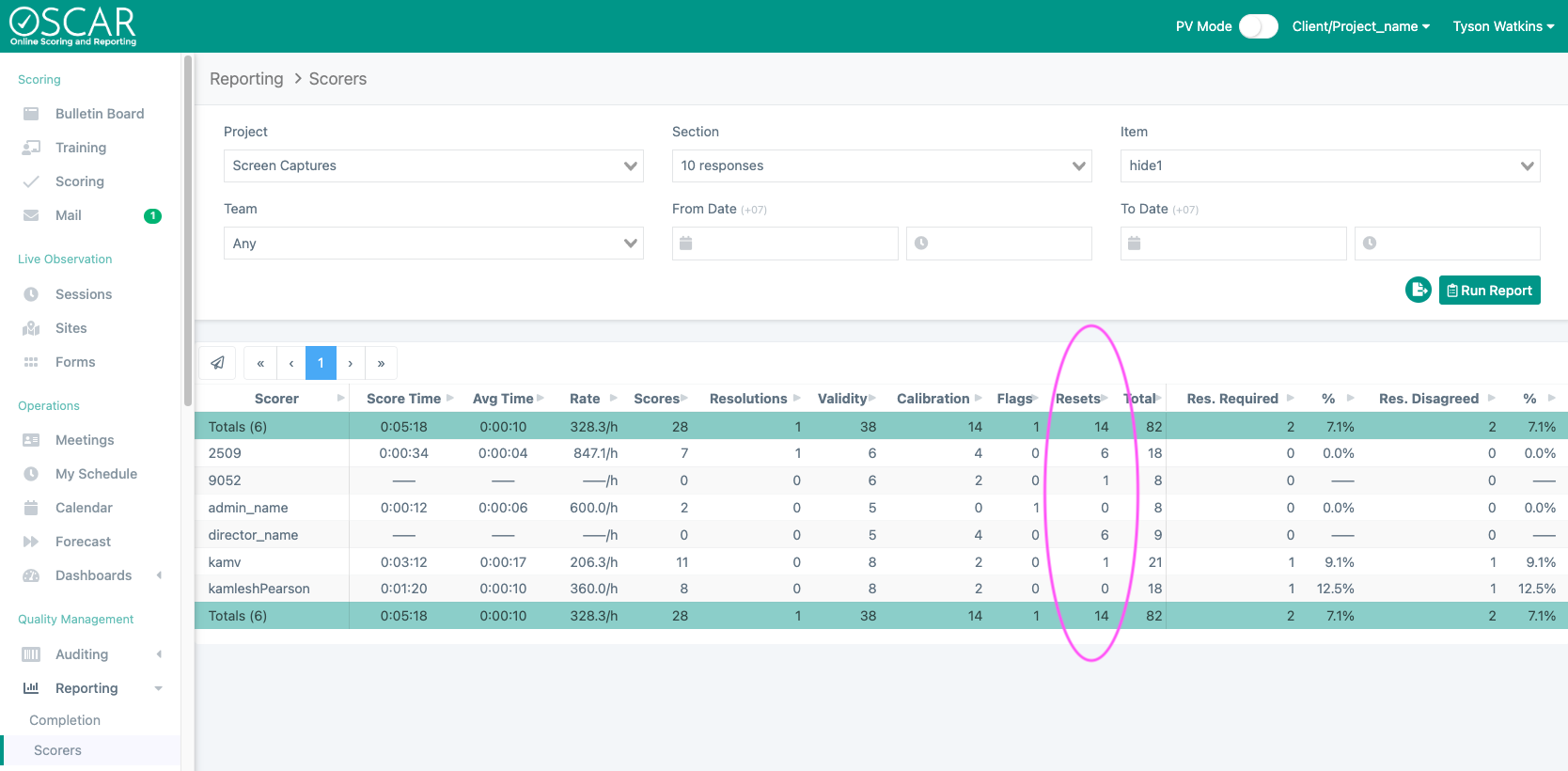
Deleting Individual Scores
Whenever any score is reset on a response, the response will change state and some scores could change position. The state of the response will change to its previous state. So, a response with two scores and in the Resolution state would move down to Reliability if the First or Second score was deleted. If another score was then deleted, the response would move back to the Unscored state.
When a response with more than one score has a score deleted, the scores can change position to match the new state of the response (see Score Movement). Just like the state change, scores will move back to a previously required score position. Both of these behaviors ensure a response cannot be in a position where it is impossible to complete the response or the type of scores on the response are incongruent with the state.
Score Movement
Only Second and Resolution score types can move down to a different position. All other score types will remain static. Below are the possible scenarios of score movement during a reset.
Resetting a First score:
- If a Second score exists, it moves to the First score slot.
- If a Resolution score exists, it moves to the Second score slot.
Resetting a Second score:
- If a Resolution score exists, it moves to the Second score slot.
Resetting a Resolution score:
- No change in any score position.
Resets and Score Reporting
While the reset itself is reported in a few different reports, the score itself that was reset will no longer appear in almost all reports. This means when viewing the IRR for an item, the score time, or frequency distribution, the score that was reset will not be included. Once reset, the score will essentially not exist as far as most reporting is concerned. However, there are two exceptions to this rule.
On the Personal Dashboard, a reset score will still appear in the totals for Scoring. This could mean a user’s own tally for scoring on their Dashboard would be incongruent with other reports that show the user’s number of scores like the User Summary page.
The Payroll Report will also include scores that were reset in the “Scores” column as well as the time spent in the “Scoring Time” column. These values reflect what was or will be used for compensation purposes and match the automatic compensation file that is generated each day (Pearson clients).
Score Resets and IEA
For items that are integrated for IEA scoring, resetting a score will result in an invalidation message being sent to IEA for the score that was reset. This tells the IEA team that the score no longer exists in OSCAR. Additionally, any score that moved positions as a result will be sent to IEA again with the new score type. This will occur for all responses in an IEA integrated item, regardless of what state the response is in when the reset occurs and is done automatically, requiring no action by the user.