
-
Created by
 user-0bdbe, last updated by user-6d962 on Jan 29, 2016
5 minute read
user-0bdbe, last updated by user-6d962 on Jan 29, 2016
5 minute read
This page includes expandable text. If you cannot find your topic, click to display expandable text, and then control-F (command-F on Mac) to search the page again.
After you download TestNav and ProctorCache, complete the following:
These ordered steps correspond to sections below or a related setup page. You can click each link to go directly to the corresponding processes.
- Install TestNav using the instructions below.
- Turn off auto-correct and predictive text.
- Set Up ProctorCache on your proctor caching computer(s).
- Run App Check on each device.
- Start TestNav to verify app opens and that you can start your test.
- Review the Find and Set Up Response File Backups section to prepare yourself to find saved response files (SRF) and log files before the testing session.
- Communicate SRF and log file locations and download information to test proctors.
- Run an infrastructure trial.
During BOTH the infrastructure trial and the actual test, note which specific iPad each student uses during each test. The TestNav app saves SRFs to only one designated place on the testing device. If an error occurs, you can locate files only on that specific device.
Install TestNav
You can set up TestNav on an iPad for secure testing using one of the following methods:
After you install TestNav, you must also turn off HTTP Proxy for your wireless network.
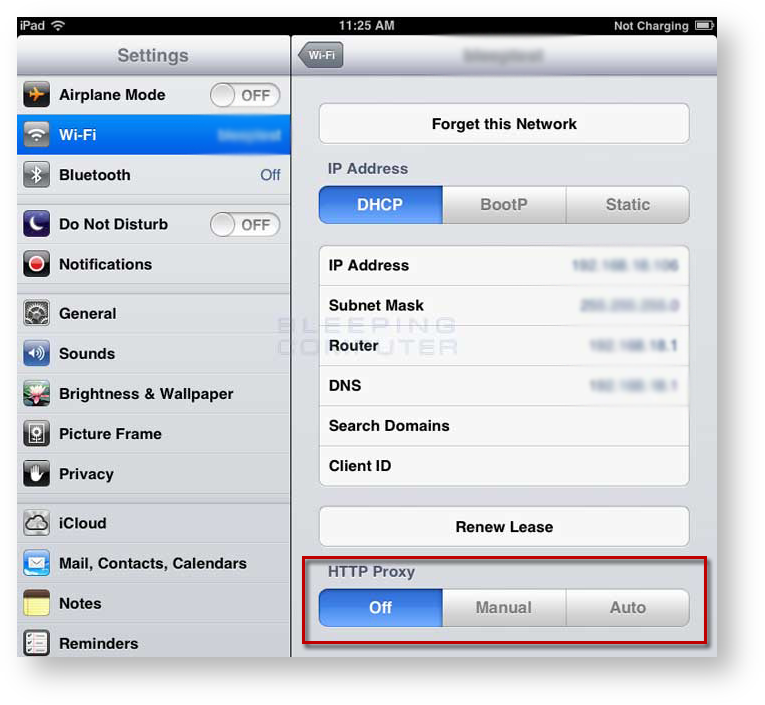
To turn off HTTP Proxy, complete the following steps:
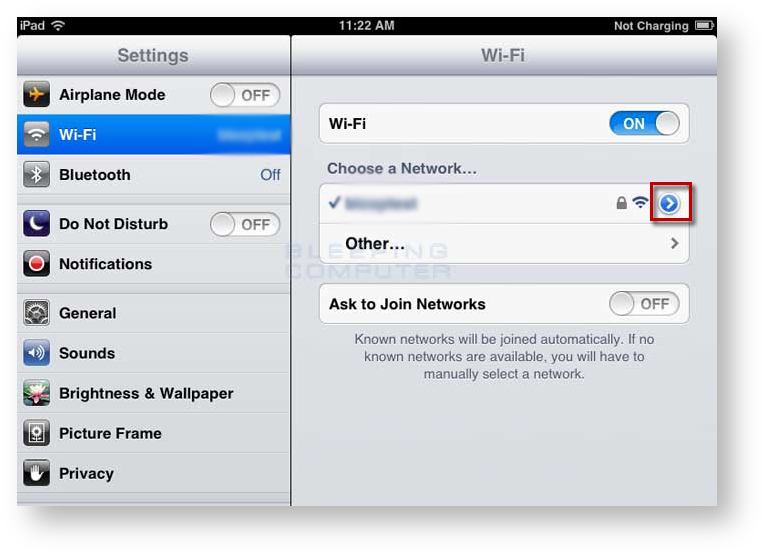
- Tap Settings, and then, tap Wi-Fi.
Tap the arrow to the right of the connected Wi-Fi network.
Under HTTP PROXY, if Auto is selected, tap Off.
When using iPads for secure testing, turn off Auto-Correction and Predictive text:
- Tap Settings > General > Keyboard > Auto-Correction, and slide left to turn off.
- See Predictive on the same screen, and slide left to turn off.
Do not connect iPads to computers during testing.
Run App Check
To run App Check, on each device:
- Click or tap the appropriate icon for your test from the home page, if you have not done so already.
Click or tap the user drop-down menu, and select App Check.
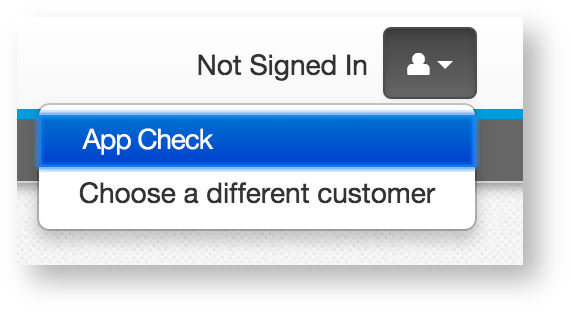
- On the Confirm App Self Lock message, click or tap Yes to continue.
Passing systems display a green success message at the top-right of the page.
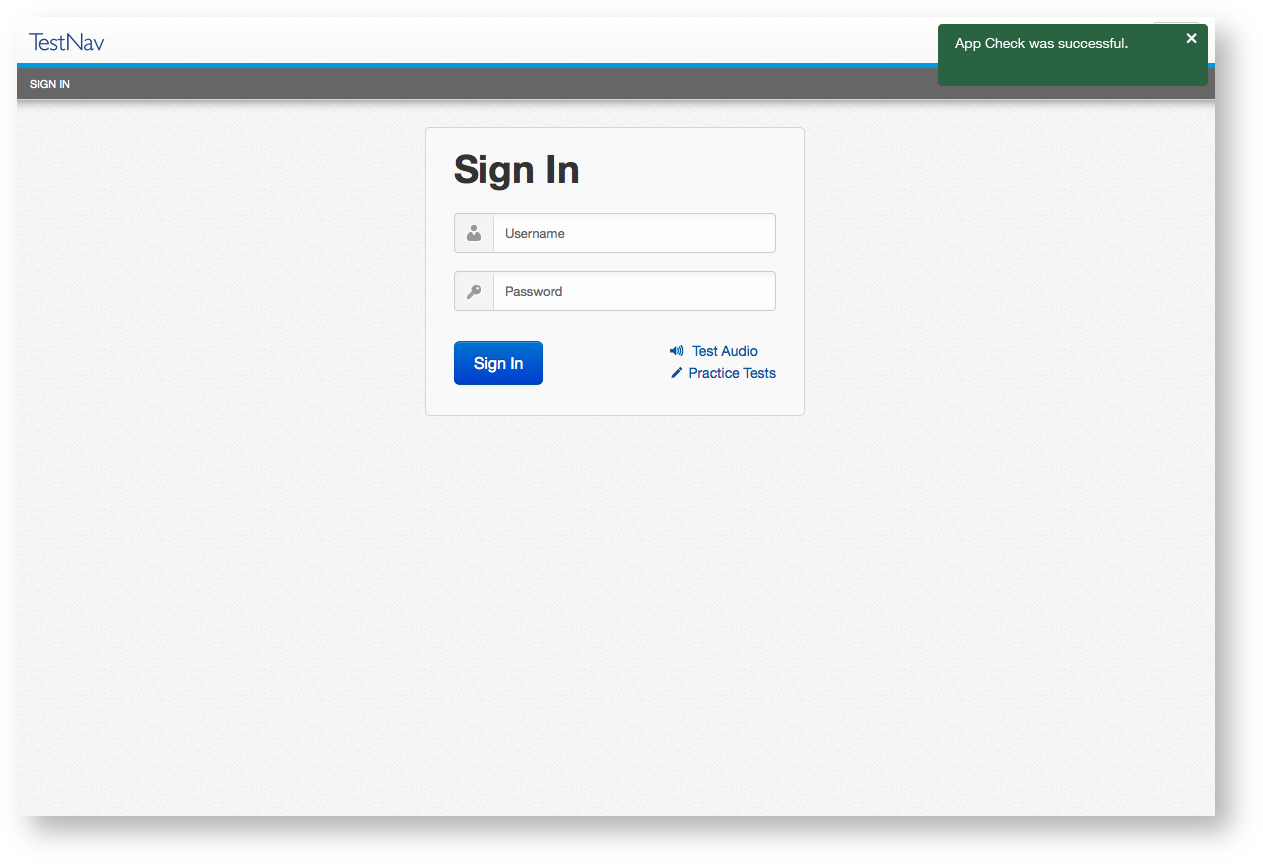
Failing systems display a red failure message at the top-right of the page.
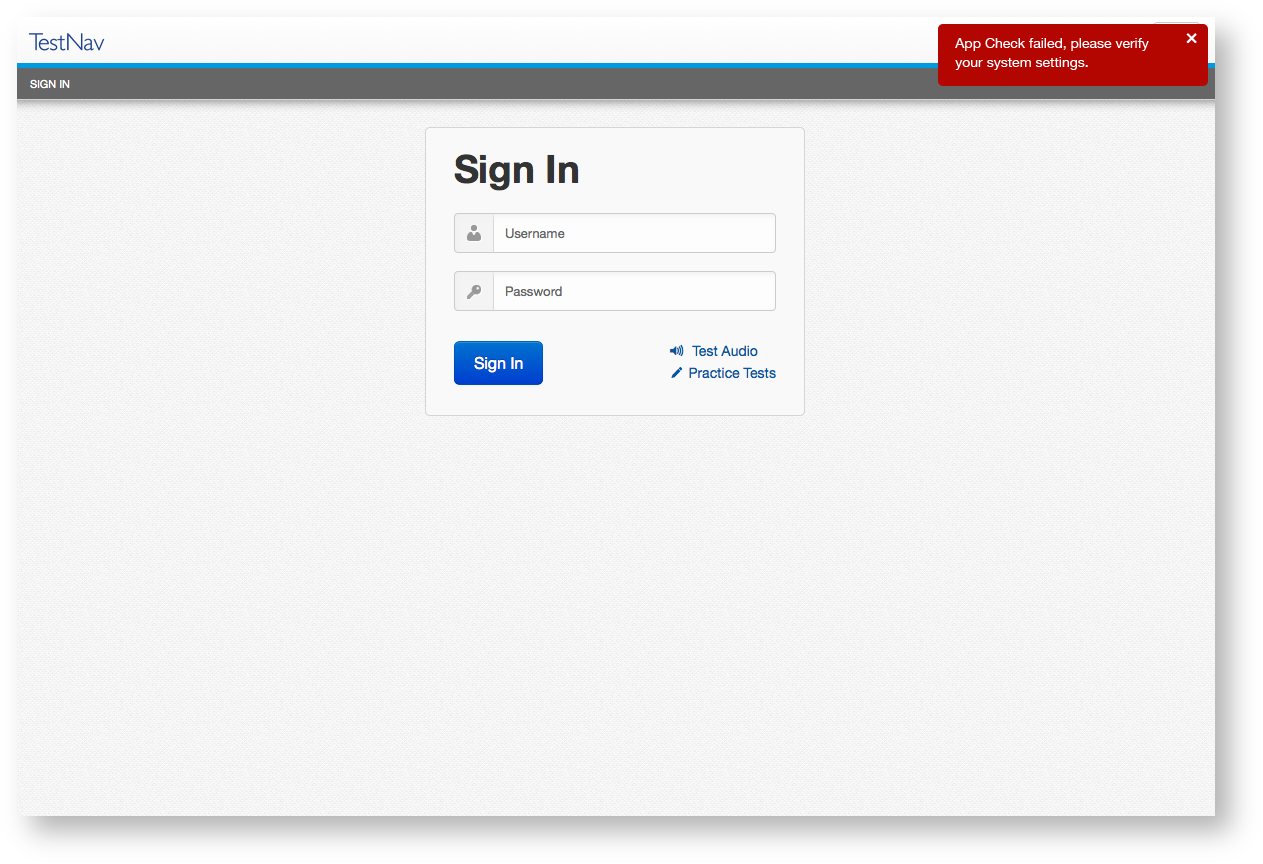
Run App Check
To run App Check, on each device:
- Click or tap the appropriate icon for your test from the home page, if you have not done so already.
Click or tap the user drop-down menu, and select App Check.
- On the Confirm App Self Lock message, click or tap Yes to continue.
Passing systems display a green success message at the top-right of the page.
Failing systems display a red failure message at the top-right of the page.
Start TestNav
If you have not already done so,
- Start the TestNav app.
Tap the appropriate icon for your test on the home page. If your test was selected before the test session, you see the Sign In page, rather than the home page.
If you need to select a different test, tap the user drop-down menu at the upper-right of the page, and tap Choose a different customer.
Tap the appropriate icon for your test.
Input your username and password on the Sign In page to begin your test.
Find and Set Up Response File Backups
SFTP configuration is not supported by all assessment management systems. Consult your assessment management system user guide to determine whether the SFTP option is available.
Familiarize yourself with the default primary save location.
Configure the secondary save location through your assessment management system.
The same secondary save location applies to all computers and devices. You only need to set this configuration one time.Communicate SRF and log file locations/procedures to proctors (see Primary Save Location below).
Note which student tests on which device during infrastructure trials and on test days.
Primary Save Location
On iPads, the SRF default primary save location is not customizable.
| You can find SRF and log files two ways on iPads - using Safari or a USB cable. | |
|---|---|
| Safari |
|
| USB |
|
Run an Infrastructure Trial
Pearson strongly recommends running an infrastructure trial to verify the technology setup is complete and to familiarize teachers and students with the test. Use your training site through your assessment management system to complete the trial before the actual test day.
Run an Infrastructure Trial
Pearson strongly recommends running an infrastructure trial to verify the technology setup is complete and to familiarize teachers and students with the test. Use your training site through your assessment management system to complete the trial before the actual test day.
Related Information
You can learn more about SRF and log files on the Set Up and Use TestNav page.