
-
Created by
 user-6d962, last updated on Aug 11, 2015
1 minute read
user-6d962, last updated on Aug 11, 2015
1 minute read
Complete the following processes to set up your online testing environment.
Allow Java to Run
If the screen below appears when the TestNav or TestNav SystemCheck java applet attempts to download, select the Do not show this again for this app and web site checkbox, and then click the Allow button to continue to run TestNav and TestNav SystemCheck. This ensures that the warning screen will not appear again.
Eliminate the Java prompt when testing
- Click the Apple icon > System Preferences > Java.
Click Advanced.
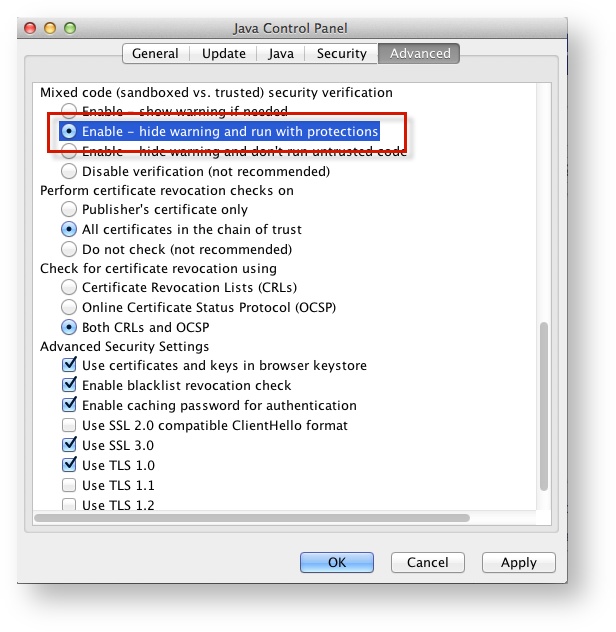
Select Enable - hide warning and run with protections:
Set Response File Back Up Save Locations
Unable to render {include} The included page could not be found.
Default Primary Save Location
| Operating System | SRF Location | Log File Location |
|---|---|---|
| Mac OS X | Users/username/Pearson/... | /Users/<username>/Pearson/first name-last name-identifier/logs For example: /Users/UserA/Pearson/User-A-1234/logs |