Install and set up TestNav using the sections below.
Install TestNavDownload TestNav for iPad. - Do not connect iPads to computers during testing.
- Note that iPadOS does not support Co:Writer and Read&Write extensions.
|
|
Find and Set Up Response File Backups
When a student responds to a test question, TestNav sends the response to the Pearson server. If the network experiences a connectivity issue, or the student encounters an error, TestNav saves the response to a saved response file (SRF). For configuration details, see: Set Up and Find Saved Response Files (SRF).
Run App Check
It is essential to run the App Check on each student device before testing. For details, see App Check. If presented with a Confirm App Self Lock message, click or tap Yes to continue.
Sign In to TestNav
When you are ready to start a test:
Start the TestNav app.
The first time TestNav is launched, it displays the Enable Microphone Permission message, as well as the TestNav would like to Access the Camera message.
Tap or click OK to grant permission for both.
If the student taps or clicks Don't Allow, TestNav displays another prompt, shown below:
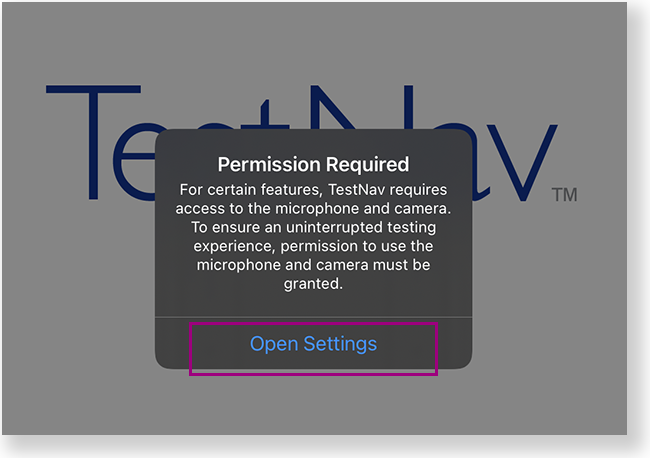
Tap or click Open Settings to enable the microphone and camera.
Tap or click the appropriate icon for your test on the home page. If your test was selected before the test session, you see the Sign In page, rather than the home page.
If you need to select a different test, tap or click the user drop-down menu at the upper-right, and Choose a different customer.

Tap or click the appropriate icon for your test.

Start a test to ensure that you can do so without error.
- If you see a Practice Tests link on the Sign in page, click Practice Tests and start a test.
- If you do not see a Practice Tests link, use an authorization ticket from your student management system and start a test.
- When starting a test that requires kiosk mode, the student should:
- Enter a username and password, and tap or click Sign In.
On the Confirm App Self Lock message, click or tap Yes to continue testing.
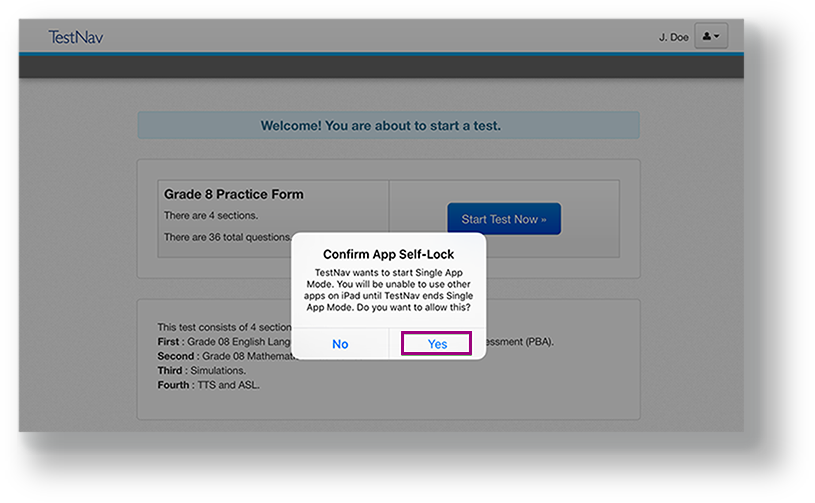
- Students that click or tap no, cannot continue testing in the secure test.
- Students can test in kiosk mode for a maximum of 8 hours from the time the student signs in. If the time limit expires, kiosk mode stops and the student is exited from the test.
The proctor, then, must:- Resume the student in the assessment management system.
- Restart the iPad.
- Have the student sign in again.
|

Tiny Link: https://support.assessment.pearson.com/x/OAccAQ