Set Up TestNav on macOS

Important:
It is important that Mac users download the correct version of the TestNav app for their device. If you download the incorrect version for your device, TestNav will not run properly.
- If you are using an Intel based device, you must continue to use the Intel TestNav app.
- If you are using a newer Apple Silicon based device, you must use the ARM TestNav app.
If you are unsure what type of device you have, go to the "About" page of your device for details.
Install TestNav
TestNav program files are saved in Applications/TestNav.
Double-click the .dmg file (for example, testnav-1.4.1.dmg) that you downloaded. The TestNav install window appears.
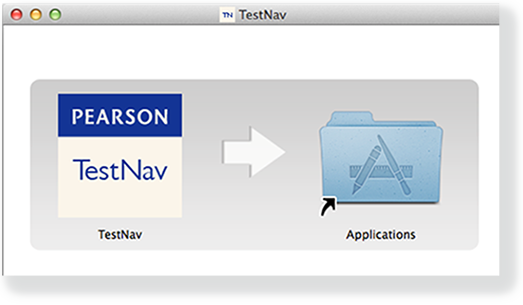
- Drag the TestNav icon into the Applications folder.
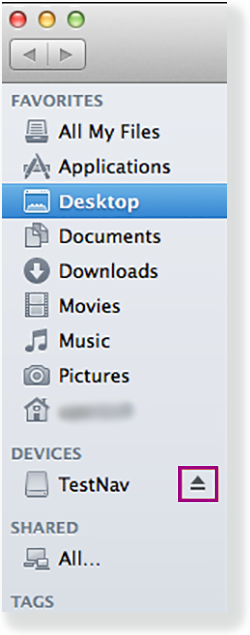
Eject the TestNav installer from Devices in the Finder sidebar. You can also eject it from the Desktop.
TestNav App Updates
TestNav program file updates are saved in {user_home}/Library/Application Support/Pearson. You must give students write access to the update directory.
- Any necessary patch updates automatically install whenever TestNav starts or when a student attempts to log in. This ensures the update is implemented even if schools leave TestNav running over the course of a few days.
You can also push the latest TestNav update, rather than waiting until each student opens TestNav. To push an update, take a snapshot of the Pearson folder, and push that folder to all student computers. - Updates that require reinstallation are scheduled for winter and summer breaks.
- Pearson will communicate all updates with instructions in advance.
When you install TestNav, it creates the TestNav folder within the Pearson folder shown in the path above. The TestNav folder contains the following:
- The update file folder, named with the update version number (for example, 1.4.1)
- The default file, which stores the customer login preference for the next login
The login preference stored in the default file can change if you select a different customer from the Sign In page. You can set the default file to read-only to prevent students from overwriting it after you set your test preference.
If you encounter any issues during an update, you can find the errorlog folder within the update folder (for example: 1.4.1 > update > errorlog). The errorlog folder logs any issues TestNav may encounter when it attempts an update. You can also delete the Pearson folder to reset TestNav, clearing out any updates stored in that directory.
You can copy the TestNav application and push it to student computers for mass installation.
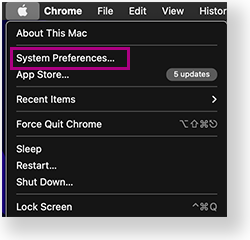
For macOS 10.14+, you must grant TestNav full privacy & accessibility control to administer secure tests. Click or tap System Preferences > Security & Privacy > Privacy. Scroll to Accessibility, and add or select TestNav.
Disable Siri and/or Dictation services before attempting to sign in to TestNav.
If you use computer restoration or imaging software (for example, Deep Freeze), exclude the Pearson directory and the logs directory, as these contain student backup files and logs for troubleshooting.
Prepare Macs for Screen Reader Users
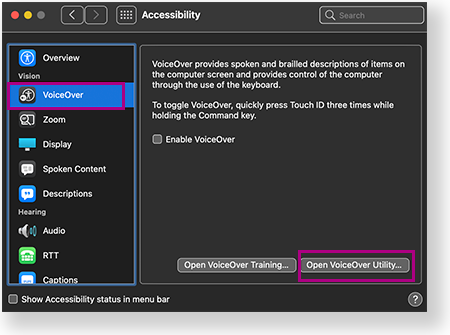
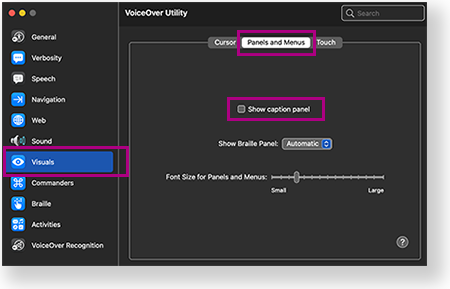
Before signing in, deselect Show Caption Panel in the Accessibility settings for VoiceOver use during a TestNav test:
- Go to System Preferences > Accessibility.
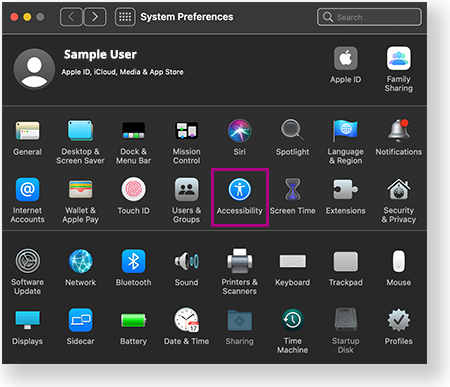
- Select VoiceOver > Open VoiceOver Utility.
- Select Visuals > Panels and Menus, and then deselect Show Caption Panel.

Student Response File Setup
When a student responds to a test question, TestNav sends the response to the Pearson server. If the network experiences a connectivity issue, or the student encounters an error, TestNav saves the response to a saved response file (SRF). For configuration details, see: Set Up and Find Saved Response Files (SRF).
Run App Check
It is essential to run the App Check on each student device before testing. For details, see App Check.
Sign in to TestNav
Start a test to ensure that you can do so without error. For details, see the instructions in Sign in to TestNav.
Run an Infrastructure Trial
Pearson strongly recommends running an infrastructure trial to verify the technology setup is complete and to familiarize teachers and students with the test. Use your training site through your assessment management system to complete the trial before the actual test day.