Add a New Item
Navigation: Setup/Configuration> Item Setup> Edit Item (button)
Overview
Items in OSCAR can be configured in a large multitude of ways. Some item settings offer so many features that additional support articles exist to help configure them (ex: Qualification, Validity, Reliability and Resolution). This article is intended to serve as a reference for the definitions of the various options available along with some details about using the nine categories of settings. Item setup can be a very important part of ensuring a scoring project goes smoothly, so please reach out to an OSCAR support agent if you need help after reading this article.
Item List Features
For items that are already created, the Item list on the Item Setup page contains some key information about the Item Details and a few functions. The Item list will appear in order of when the item was created by default. By clicking on the arrow button to the right of the column header, the Name, Reference ID, and Active columns can be used to sort the list alphabetically. The search bar can also be used to find a specific item, searching by name or ID.
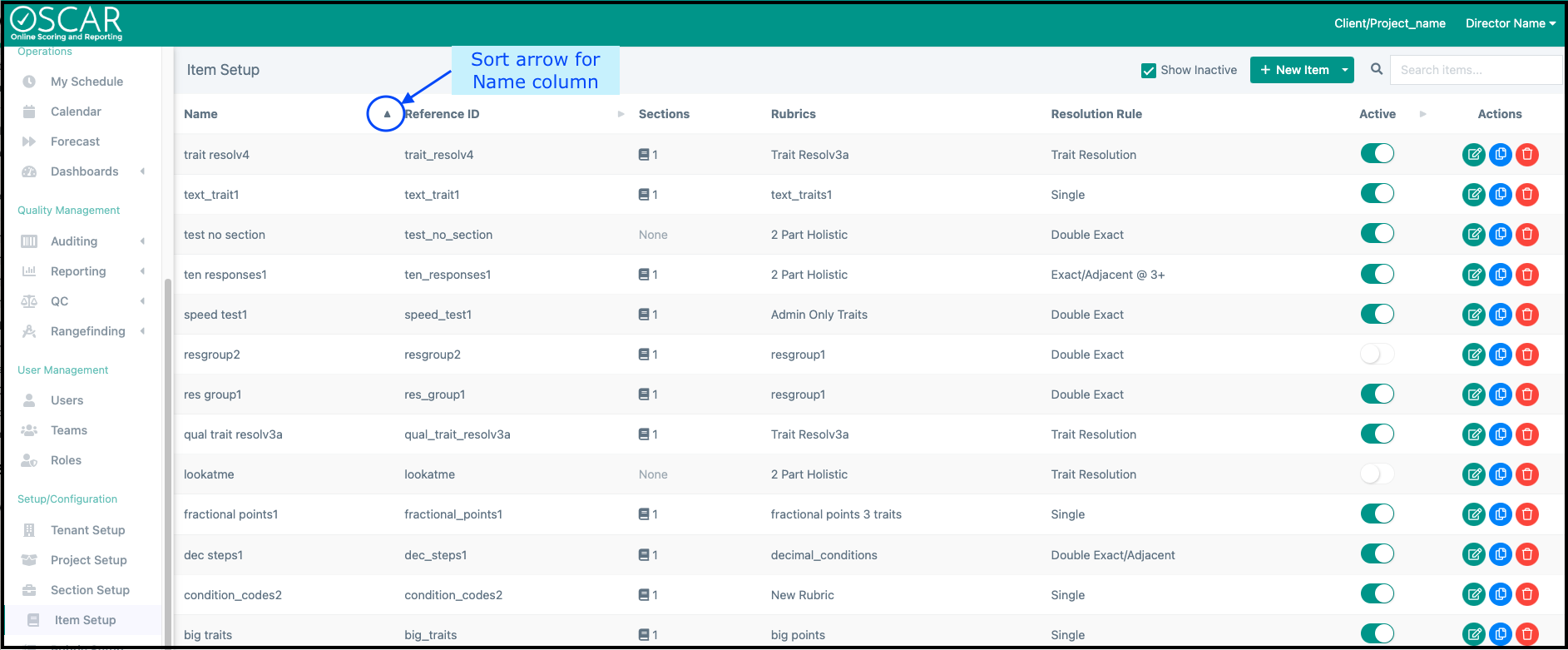
Available Item Actions on this Page
| Toggle/Icon | Action | Notes |
|---|---|---|
| Active/ Inactive | An Inactive item cannot be scored. |
| Copy | Copied items retain all the same settings, except for the Section assignment, and have "copy" added to the name and ID. |
| Delete | Delete removes the item from the system, but this button can only be used so long as there are no responses at all associated with the item. |
| Edit | Change the settings of the item. See the next section for details. |


Edit Settings for an Item
To edit item settings:
- Log in into an OSCAR account as a user with the "Item Setup" permission.
- Select the Item Setup tab on the left-hand menu.
- A list of your items displays: find the item you want to update and select Edit.

- Update the item by choosing a tab and changing some of the settings. New settings will not take effect unless the Save button is used before exiting. Please note that once scores exist, the following settings cannot be changed:
- Item Reference ID
- Rubric
- Flag Codes
Item Details
Information used for identifying and referencing the item.
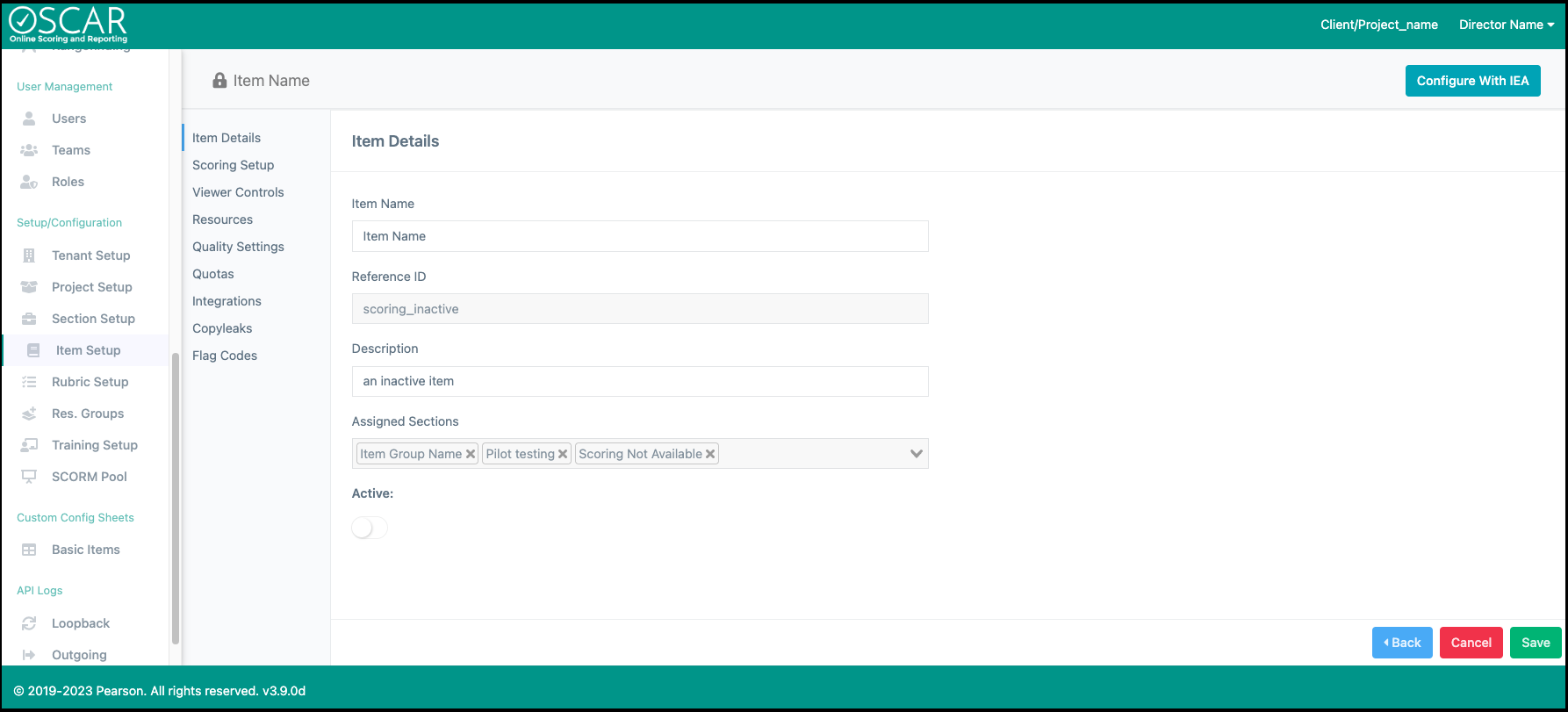
- Item Name: This is can be any text but is required and should be unique for ease of use.
- Reference ID: This is auto-populated by the item name but editable. It cannot contain spaces.
- Description: An optional field that can only viewed from the Item Details tab.
- Assigned Sections: The Sections the item is assigned to for scoring. An item can be assigned to any number of Sections.
- Active (Toggle): Make the item available or unavailable for Scoring.
Scoring Setup
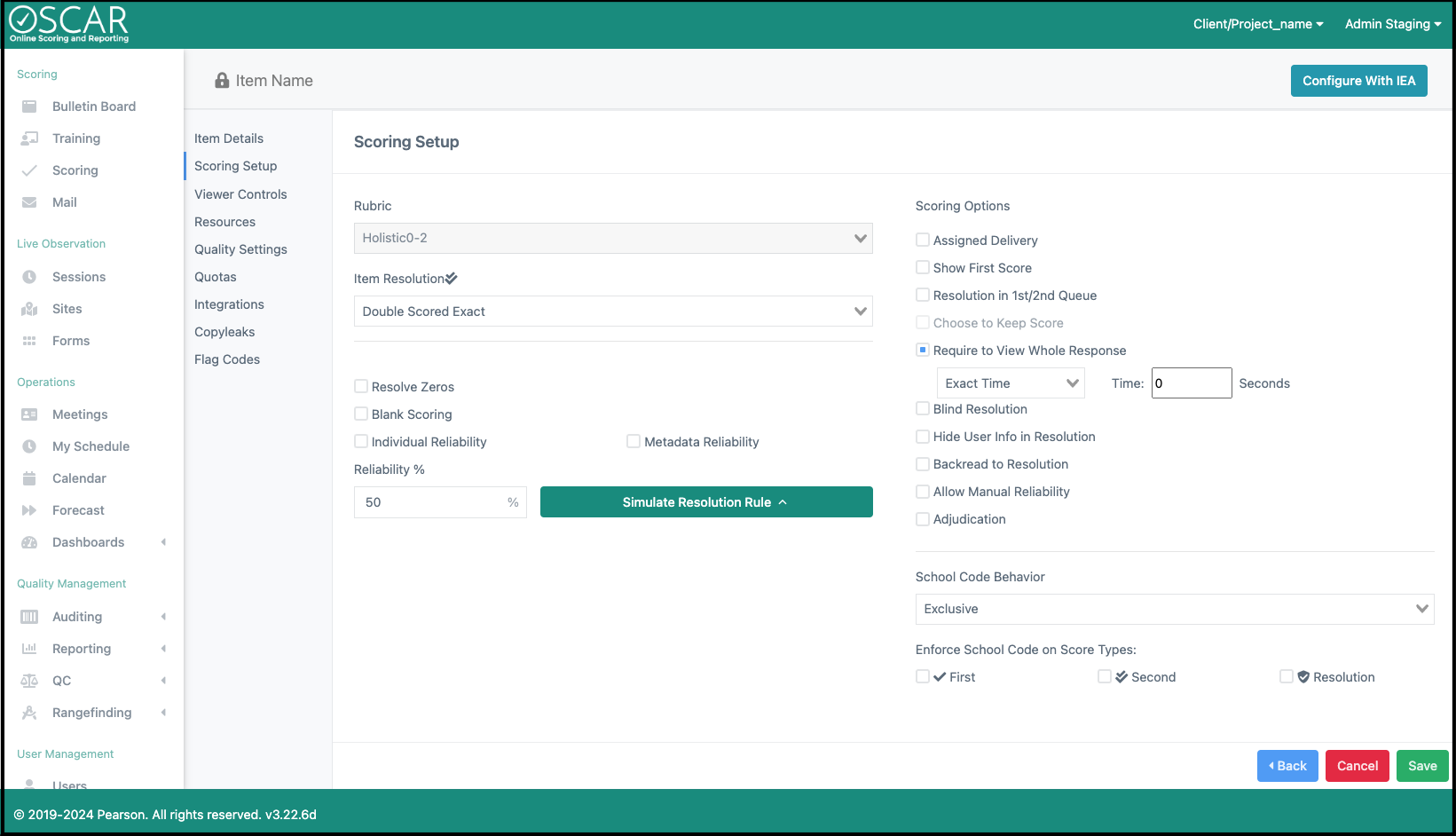
Configure the rules that will define how Scoring is accomplished on the item. All rules except the Rubric and Choose to Keep Score can be changed after scoring has begun.
- Rubric: The rubric that will be used for Scoring. Once scores are created for the item, the rubric becomes locked.
- Item Resolution: Determines the scoring workflow for the item's responses. More about resolution types

- Resolve Zeros: Any responses with a trait that receives both a zero and no-zero during first and second scoring will be sent to resolution, regardless of other rules.
- Blank Scoring: For text responses, automatically apply a flag or condition code to blank responses when the responses are loaded. Set a user(s) to be the blank scorer of record.
- Individual Reliability: This option changes the calculation for Reliability so that each response loaded has an independent chance of being set for reliability. The percentage chance will be the Reliability %.
- Reliability %: Set the % of responses that will receive a 2nd Read (Reliability Read). This percentage will be based on all responses loaded in the item and the responses chosen for reliability will be randomized (if less than 100).
- Recalculate Reliability: This option only appears if you change the value in the Reliability % box. When checked and the item is saved, all unscored responses will checked again against the new Reliability percentage and their reliability status changed to meet the new percentage.
- Metadata Reliability: Stratify which responses are set for Reliability using the metadata key on the response. Each set of responses with a unique value for the metadata key will have the reliability percentage applied.
- Scoring Options:
- Assigned Delivery: Manually assign which rater will score a response.
- Deliver in Either Order: When a both a 1st and 2nd rater are assigned to a response, either rater can score it first.
- Show Other Assigned Scorer ID: Display the ID of the other assigned rater to the rater currently scoring the response.
- Show First Score: The second rater will see the 1st score applied while scoring.
- Resolution in 1st/2nd Queue: Resolution Responses will be delivered in the main Scoring queue, with the highest priority.
- Choose Keep Score: A setting that if turned on will require the resolution reader to pick either the 1st read, the second read or double their read as the 2 scores that will be applied to the response.
- Require to View Whole Response: Forces all raters to scroll to the bottom of the response page before a score can be submitted.
- Time: Users can specify a minimum viewing/listening time for video and audio responses before scoring is allowed. Options include Full Time in seconds, Exact Time, and Percent
- Blind Resolution: No information about the 1st and 2nd scores will be provided to the resolution rater.
- Hide User Info in Resolution: The names and ids of rater 1 and 2 will not be displayed to the resolution rater, though their scores will be displayed.
- Backread Resolution: When a Backread is applied and is non-adjacent to rater 1 and rater 2, the response will be routed to resolution.
- Allow Manual Reliability: In addition to the Reliability % set, admins in Auditing can manually mark or unmark a response for reliability.
- Adjudication: Allows an Adjudication type to be set that will force a 4th read on the response if the resolution rater does not agree with rater 1 and 2 based on the Adjudication type.
- Assigned Delivery: Manually assign which rater will score a response.
- School Code Options:
- School Code Behavior: Exclusive will prevent raters from scoring a response that shares a school code with them. Inclusive will only allow raters to score a response that shares a school code with them.
- Enforce School Code on Score Types: Select which types of scores the School Code Behavior will be enforced.
Viewer Controls
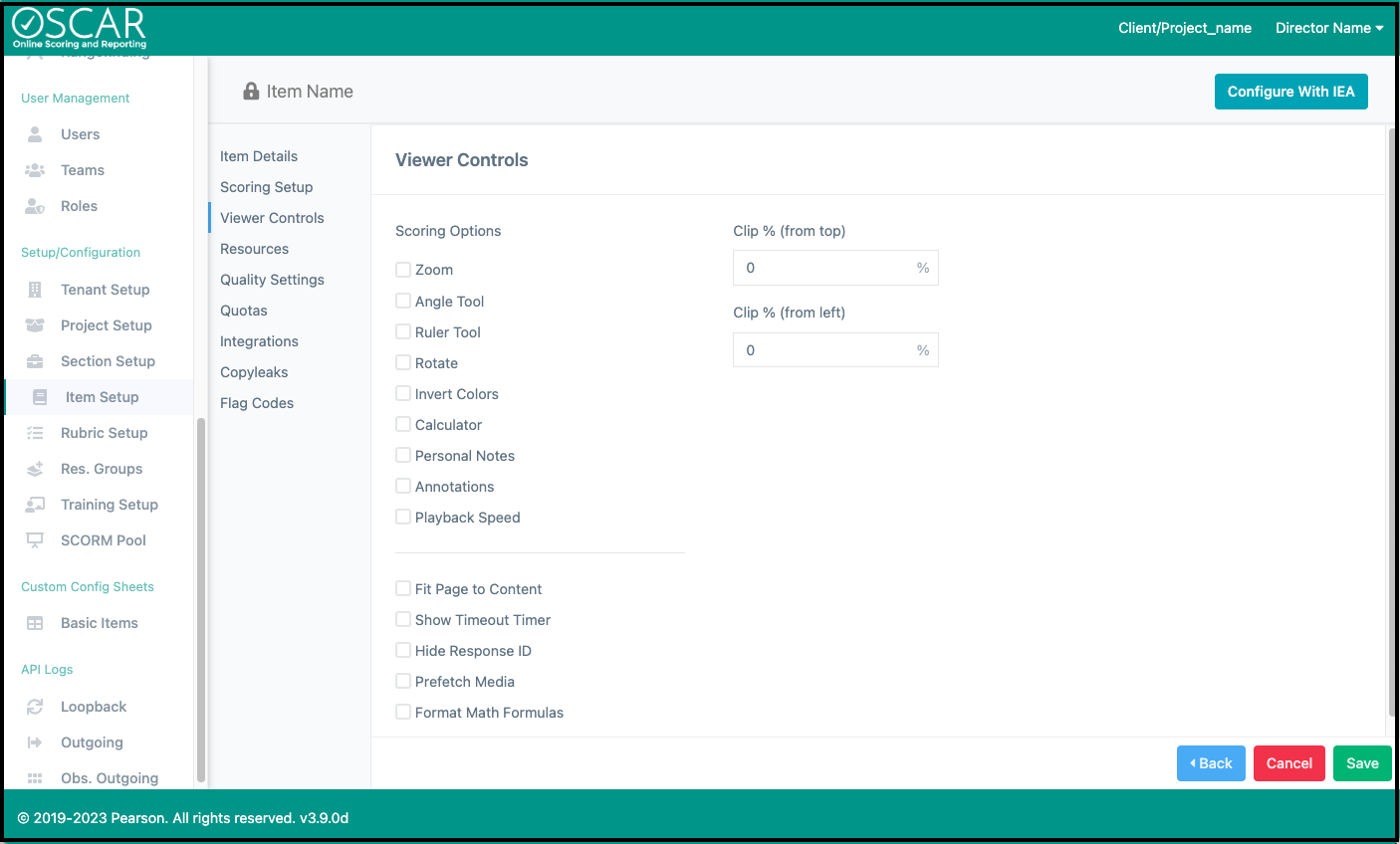
All viewer controls apply to responses while Scoring and most options have a button the user can click to enable the feature. The viewer control panel is on the left of the response and can be moved to the right side by the rater.
- Zoom: Enables a zoom in and zoom out button with a maximum of 200% and minimum of 50%.
- Angle Tool: Allows raters to create angles overlayed on the response.
- Ruler Tool: Button to create a ruler overlay on responses.
- Rotate: PDF and images can be rotated 90 degrees.
- Invert Colors: PDF and image responses can be inverted to a black background for poor scan/image quality responses.
- Calculator: Enables an in-application calculator with basic operations functionality.
- Personal Notes: Allows raters to keep running scoring notes that are available for any response in the item.
- Annotations: Raters can create highlighting/annotations on sections of text, pdf, and image responses that are saved on the response.
- Playback Speed: In-application controls to adjust playback speed by .33 time.
- Fit Page to Content: Response page will fit the size of the text/media in the response.
- Show Timeout Timer: Displays the time remaining before logout due to inactivity.
- Hide Response ID: Raters will not be able view the response ID while scoring. Users assigned a role with the View Hidden Response ID permission can see the Response ID when viewing or scoring responses via Auditing.
- Prefetch Media: Preload large response files like video for faster scoring.
- Format Math Formulas: Response media that uses Mathjax will be supported.
- Clip % (from top): Vertically clip PDF and image responses, using negative number to clip from the bottom.
- Clip % (from left): Horizontally clip PDF and image responses, using negative number to clip from the right.
Resources
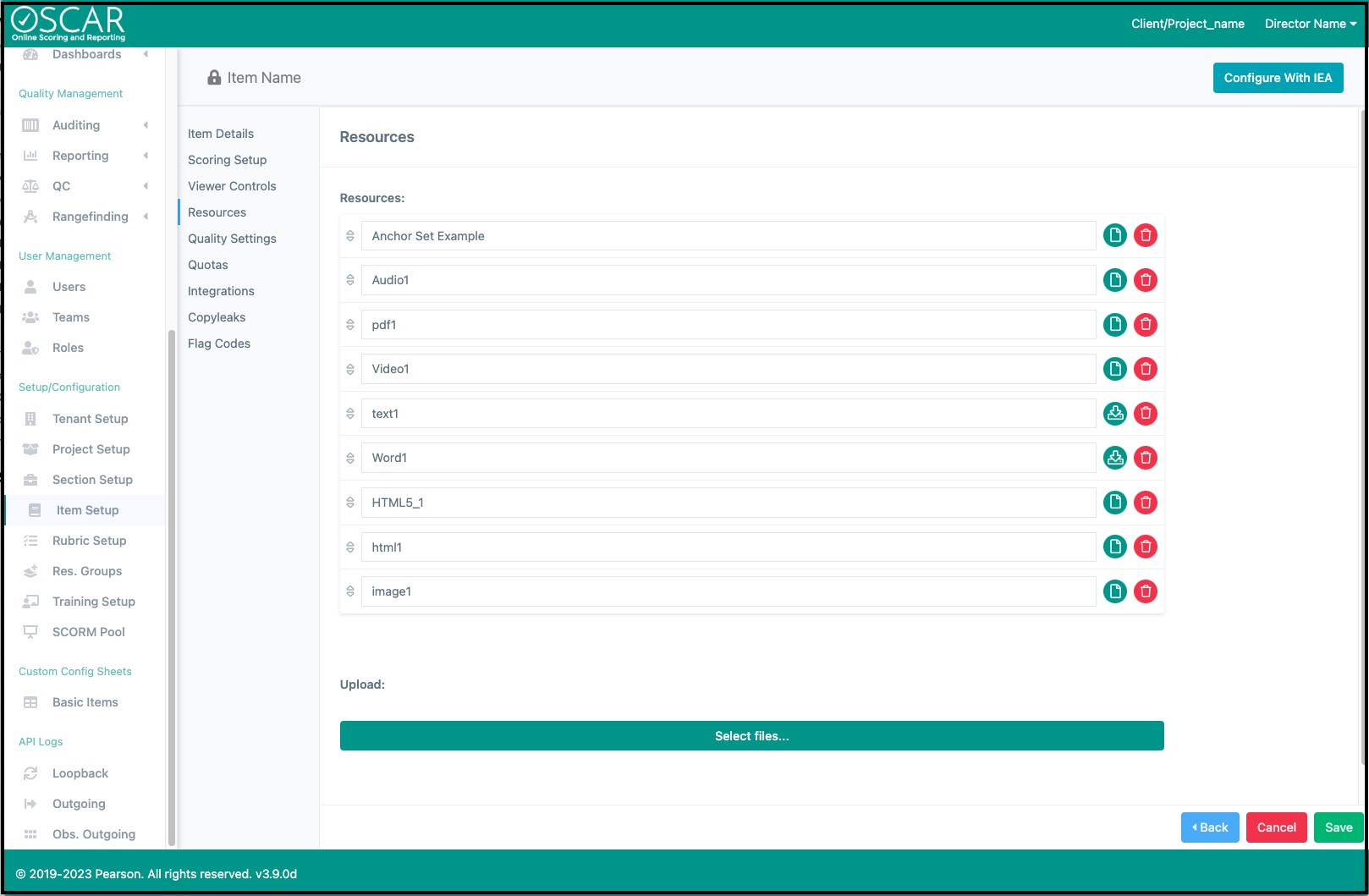
Upload files to use as resources for the item. The resources will be available on the Scoring page or during Scoring and can be opened in another tab. Most files types will be rendered directly in OSCAR though some types of files can only be used a "download only" type of resource, where the file will only be available to the rater as a downloadable link.
Fully supported file types: text, html, html content package, pdf, jp(e)g, png, img, xls, csv, mp3, mp4
Supported but download only: docx, pptx, zip
Quality Settings
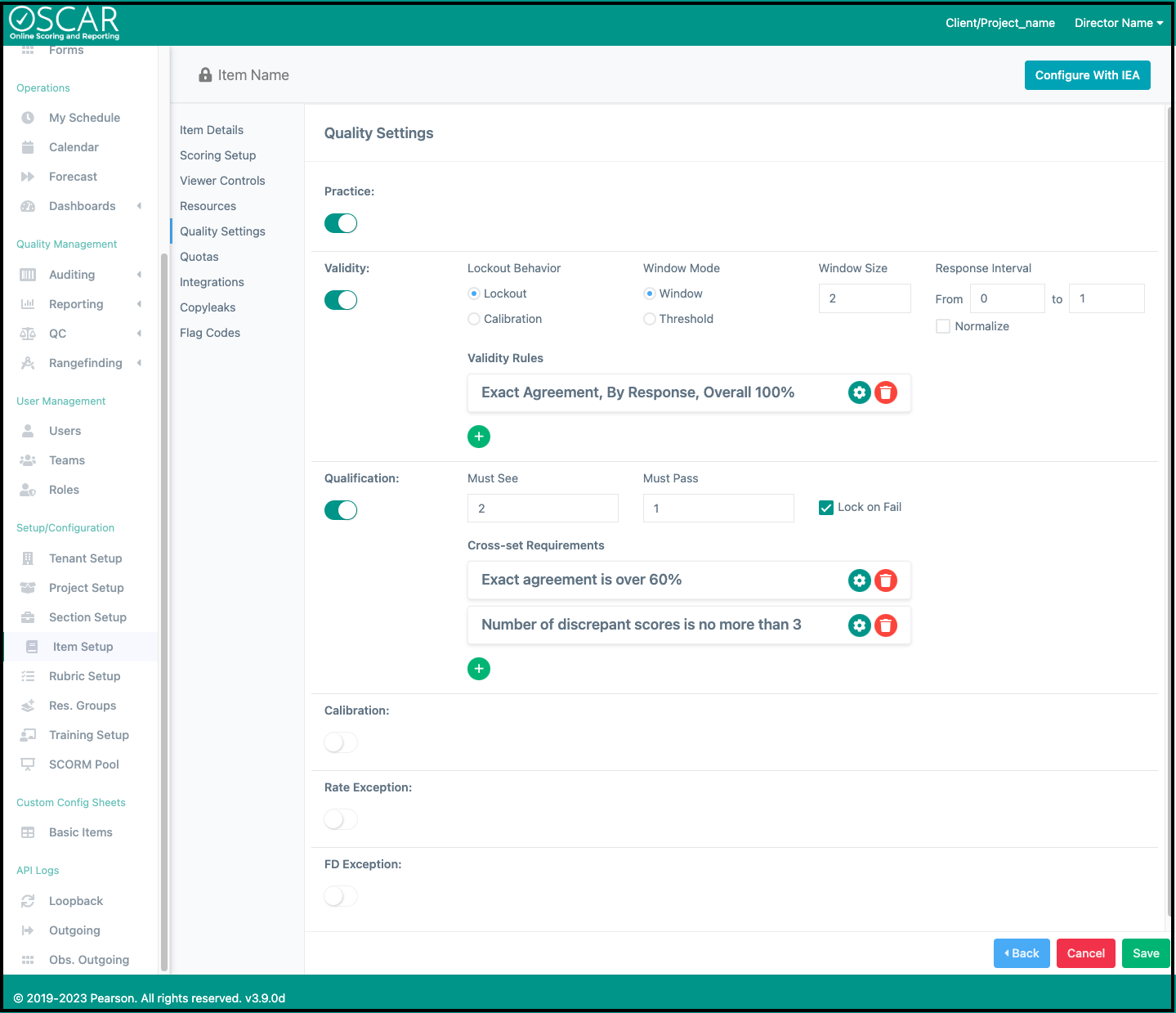
Enable the various Quality Control (QC) options for the item as well as create setting configurations. Though all QC Sets are created in QC Setup, the item has to have that QC type enabled for the Sets to be available for raters. Note that QC sets of the relevant type must be created and active for the item Quality Settings to take effect.
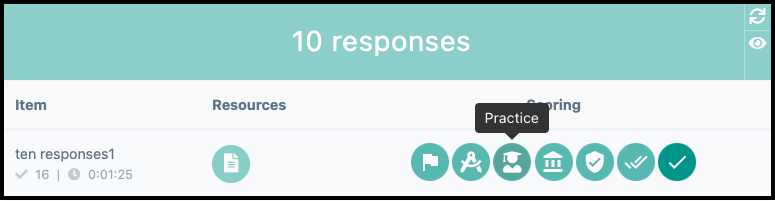
- Practice: Enables the Practice Scoring button on the Scoring page and allows raters to access Practice sets for the item.
- Validity: Enable Validity for Validity responses to be delivered to raters during Scoring. Learn more about Validity Settings.
- Qualification: Turn on or off Qualification for the item which will require that raters meet the pass settings to be able to enter Scoring. Learn more about Qualification Settings.
- Calibration: When enabled, Calibration can be auto-delivered as feature of Validity Settings or manually delivered from the QC Reporting page.
- Rate Exception: Turning on this feature will allow for automatic controls on rater speed. Learn more about Rate Exceptions.
- FD Exception: Not currently available
Quotas
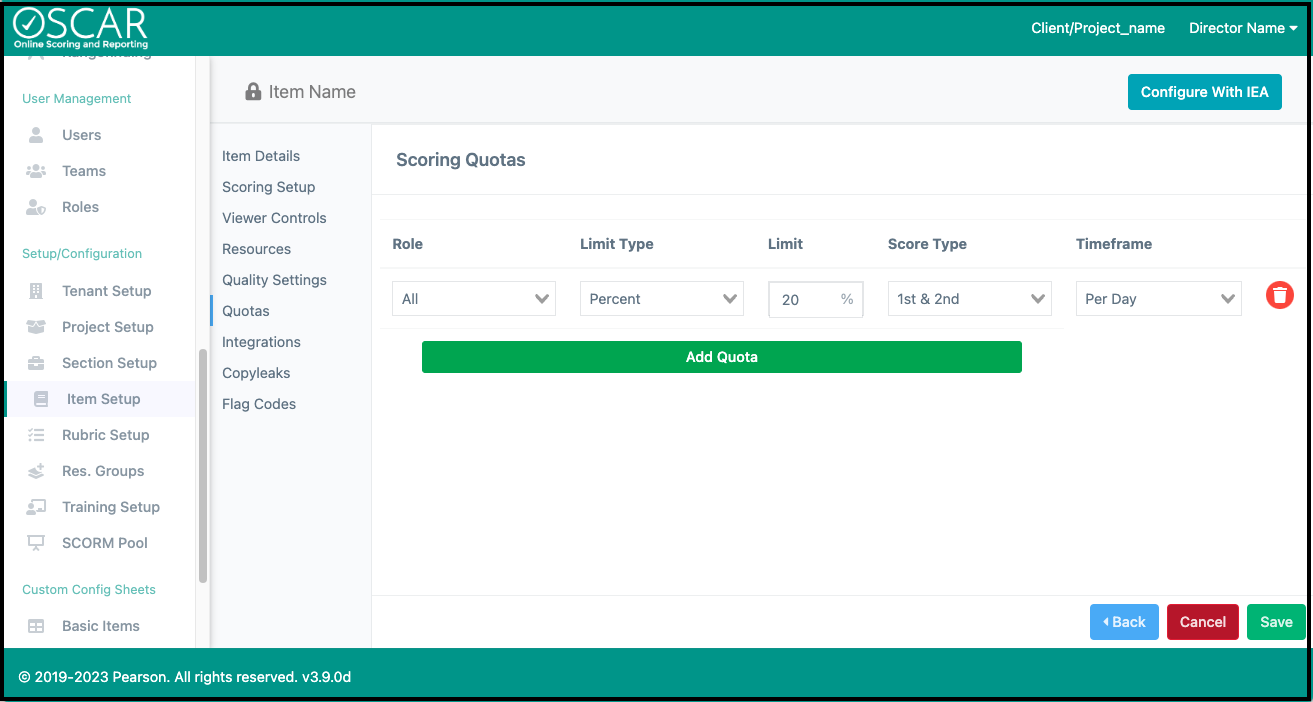
Create Item Quotas that will enforce a maximum number of responses raters will be allowed to score on the item. Quotas are specific to rater roles, score types, and timeframes. Multiple Quotas can be created for an item and each one will be checked independently. Once a rater meets the quota, they will not be able to score anymore responses on the item until the timeframe expires or the quota is removed. Rater progress on Quotas can be viewed on the Quotas Reporting page.
Integrations
From this tab, external APIs can be enabled to transfer data with OSCAR. Speak to an OSCAR representative if you want to know more about setting up a specific integration.
Copyleaks
This is a unique integration that will allow responses to be sent to the plagiarism detection service, Copyleaks. Speak to an OSCAR representative if you'd like to know more about using this service.
Flag Codes
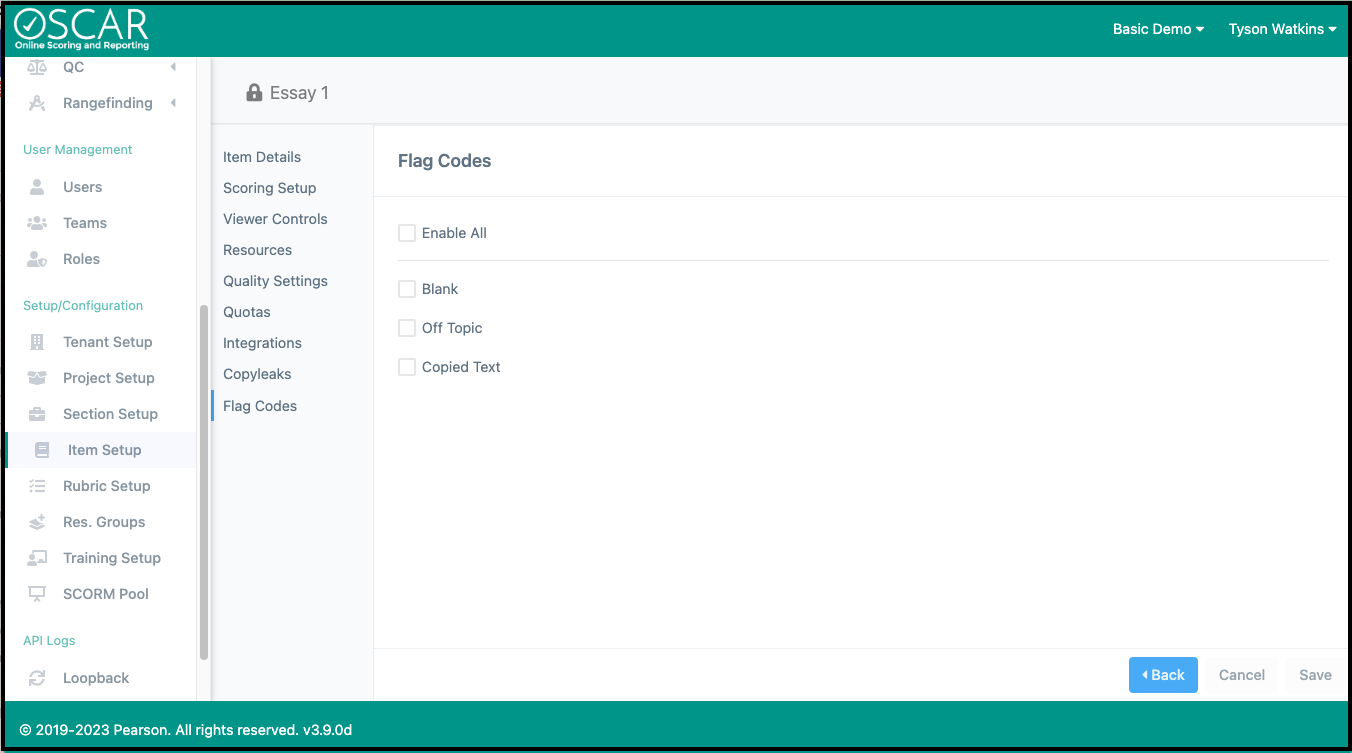
Either Enable All flags for the item or choose individual flags that should be enabled. Once enabled, a Flag will be an available choice for raters while Scoring. Flags are configured in Tenant Setup. Once a flag has been enabled, it will be locked and cannot be disabled as soon as the item has any responses loaded.