This page provides a high-level step-by-step process to start scoring. Setup is completed within OSCAR.
Typically start in the User Management section to create and manage users, teams and roles. Then move to the Setup/Configuration section to define and manage the tenant, project, section, items and rubrics.
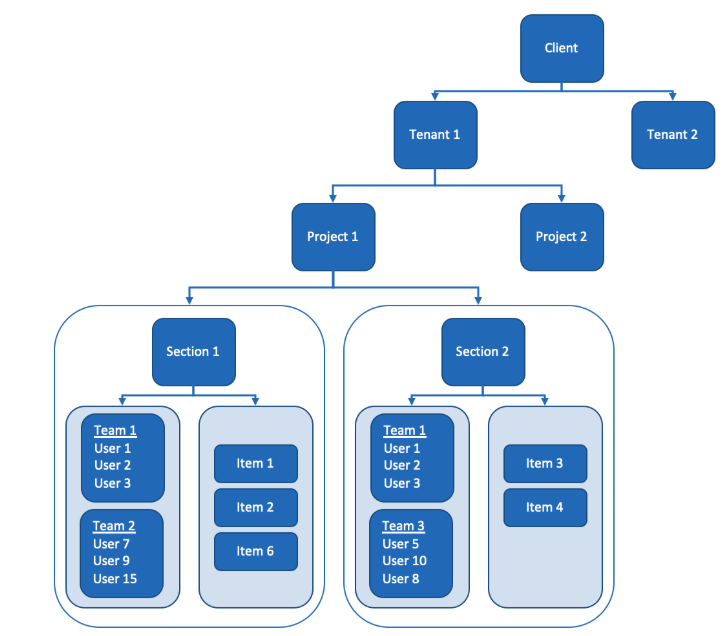
Review the definitions and the overview flowchart below to help determine the best set up for you. As you review the information below, please feel free to contact the Pearson OSCAR team to discuss how best to create your projects and sections to handle the immediate scoring and reporting requirements while looking ahead to the next round of scoring.
Useful Definitions
Tenant: A complete separation of data. Used for customer that have multiple projects serving different clients.
Project: A grouping of sections. Projects can be used to quickly turn off scoring for an entire grouping of sections.
Section: A grouping of items that you assign teams. This allows specific scorers to have access to specific items.
Teams: A grouping of scorers that you assign to sections.
Items: A unique prompt in an assessment (question). Items can be reused across sections but responses are tied to an item + section combination. All scoring settings are created at the item level.
Order of Setup Tasks
- Create a project(s): Items can be used in multiple projects.
- Create a team(s): Users can have access to one or more tenants with different roles in each tenant.
- Create scorers(user): Users not added to a section will not have access to score items.
- Create a rubric(s).
- Create an item(s): Projects and items can be deactivated/activated preventing scorer access.
- Create a section(s):
- Assign items to a section(s).
- Assign teams to a section(s)
- Upload responses to item (from auditing).
If you are stuck on any of the steps above, please navigate to the supporting content.