A section is a grouping of one or more items. By creating a section, you can assign a Team of specific scorers (users) to score an item or group of items. Only users in Teams assigned to a section are allowed access to score items found in that section.
Example
I have 20 scorers and 2 items (Item 1 and Item 2). I want 10 scorers to score Item 1 and 10 different scorers to score Item 2. To do this I would create two Sections (Section 1 and Section 2). I then would add Item 1 to Section 1 and Item 2 to Section 2. I would then create two Teams (Team 1 and Team 2), assigning 10 scorers to each team. Then add Team 1 to Section 1 and Team 2 to Section 2.
By creating a section, the following functionality is made available:
- Ability to assign specific teams to an item or a group of items.
- Ability to report by section using the scorer report.
Note: An item can exist in more than one section, however the same item cannot exist in the same section. The uniqueness is section/item.
When an item is added to multiple sections all item settings and QC materials will remain intact for the item and reporting will be available for the item across sections.
Section Creation
To create a new section:
- Log in as a user who has Section Setup permissions enabled.
- Click on the Section Setup menu option on the left navigation bar.
- Select +New Section.

- Enter the New Section information.
- Section Details: Complete Section Name, Reference ID and Project.
- Save the Section (items cannot be added to a section unless it has been saved).
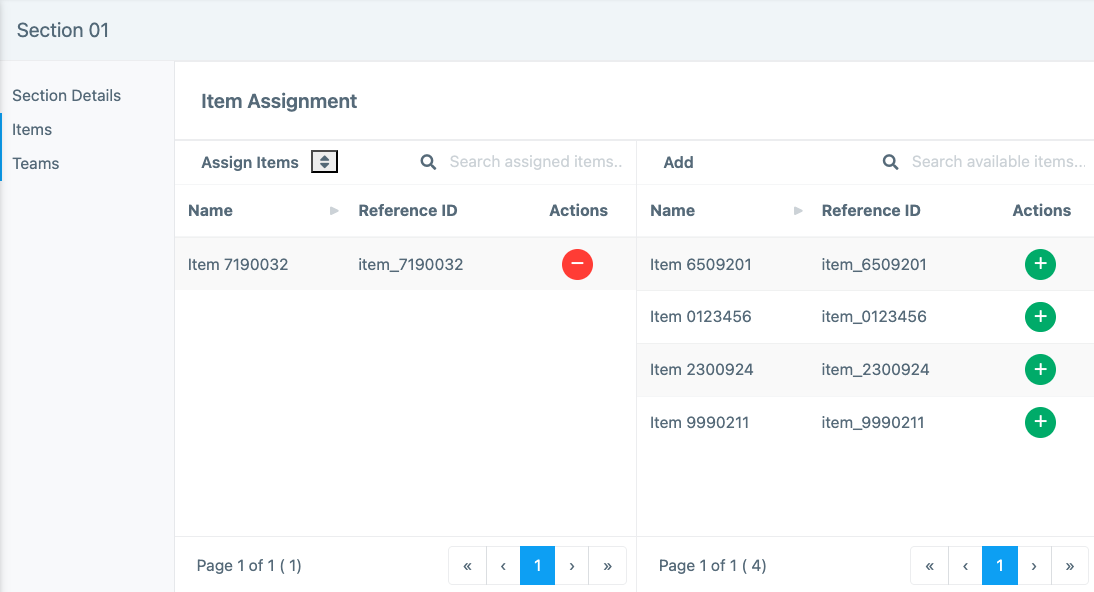
- Items: If you have already created your items, move them from the right side of the screen to the left side of the screen by choosing the
 Action. If your items have not been created, come back later to add them.
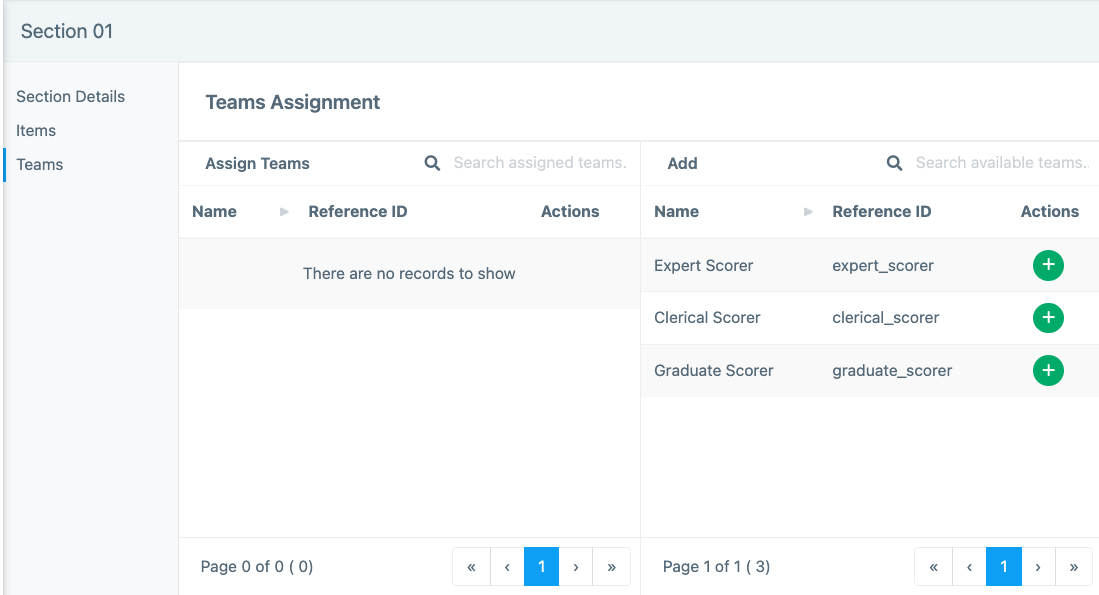
 - Teams: If you have already created your teams, move them from the right side of the screen to the left side of the screen by choosing theAction. If your teams have not been created, come back later to add them.
Tiny Link: https://support.assessment.pearson.com/x/fYC4D