Resources in OSCAR represent files and content used to support scoring. Some common examples of resources are the item prompt and scoring rubric. As a scorer, resources can be accessed from two locations.
Scoring Landing Page
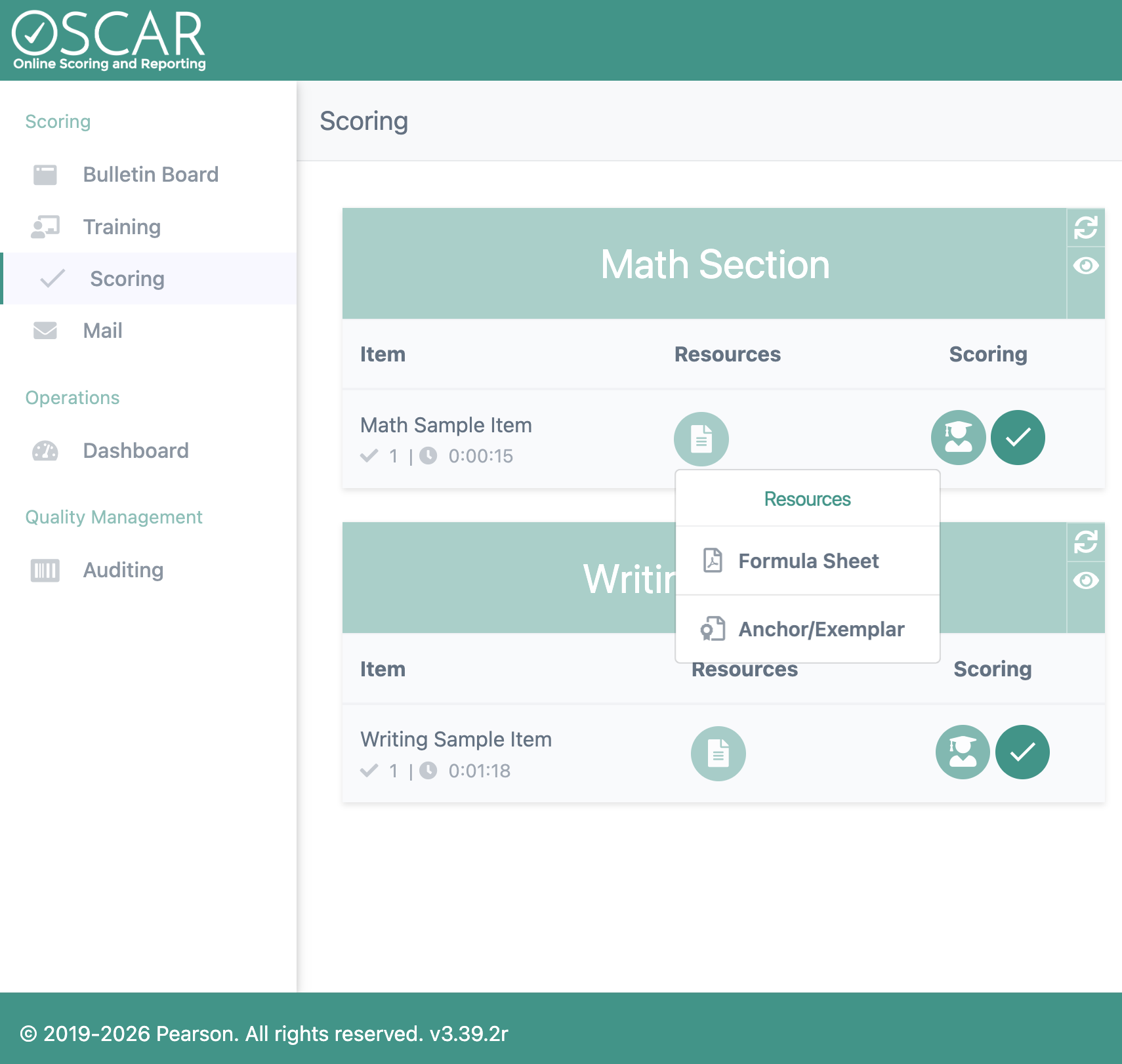
While on the Scoring page, navigate to the desired item. Selecting the Resources button will display all available resources for an item. Then, select the resource you wish to view.

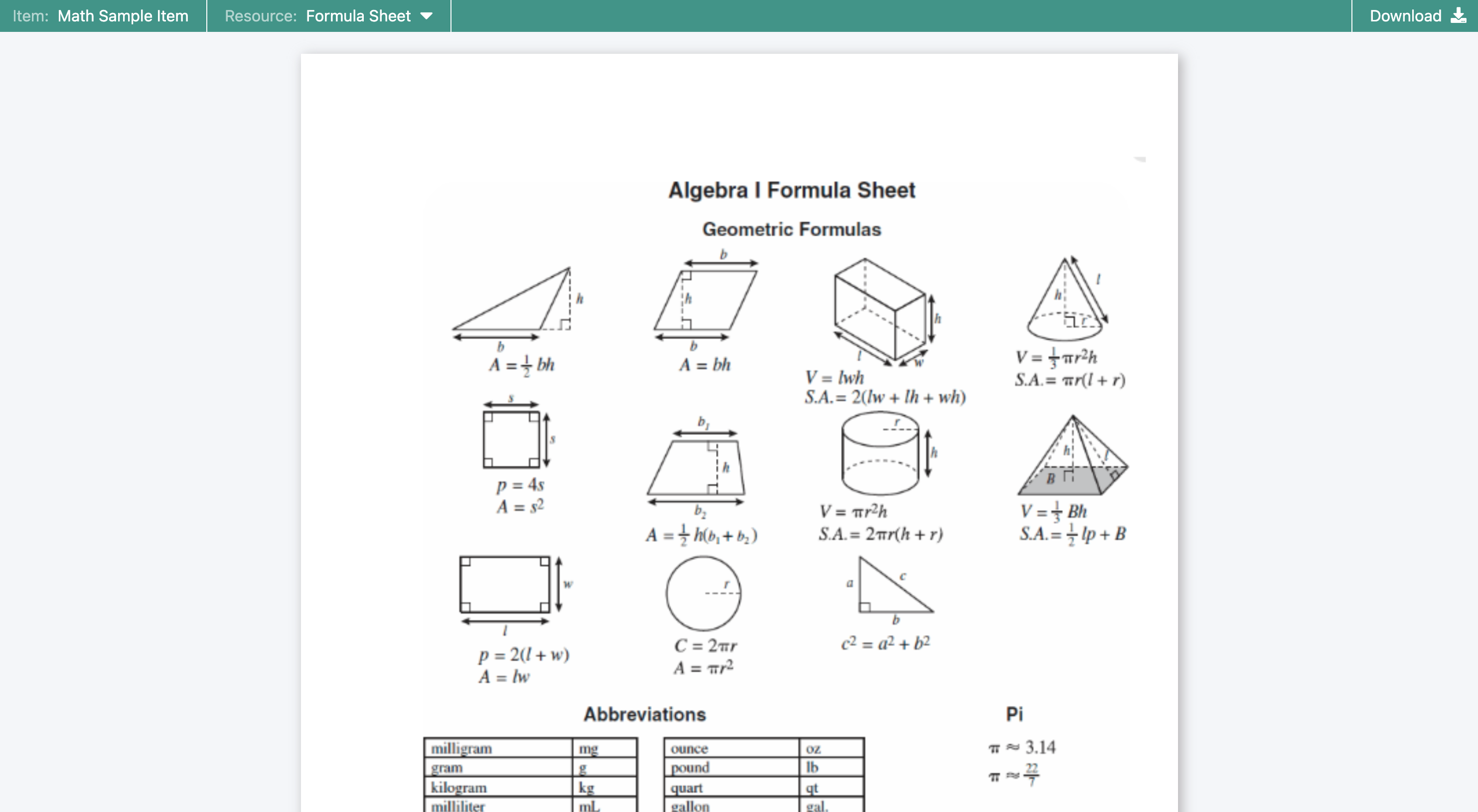
Once selected, the resource will appear in a new tab where you can choose any available resource for the item. This tab can remain open while another tab has the OSCAR scoring page or viewer open and it will remain open as long as you stay logged into OSCAR. Select the dropdown button to choose which resource to view. An icon will be displayed that represents the file type of the response and the download button on the top right will download the file through the browser being used. Note, the download button may not available for certain scoring projects.
Scoring Viewer
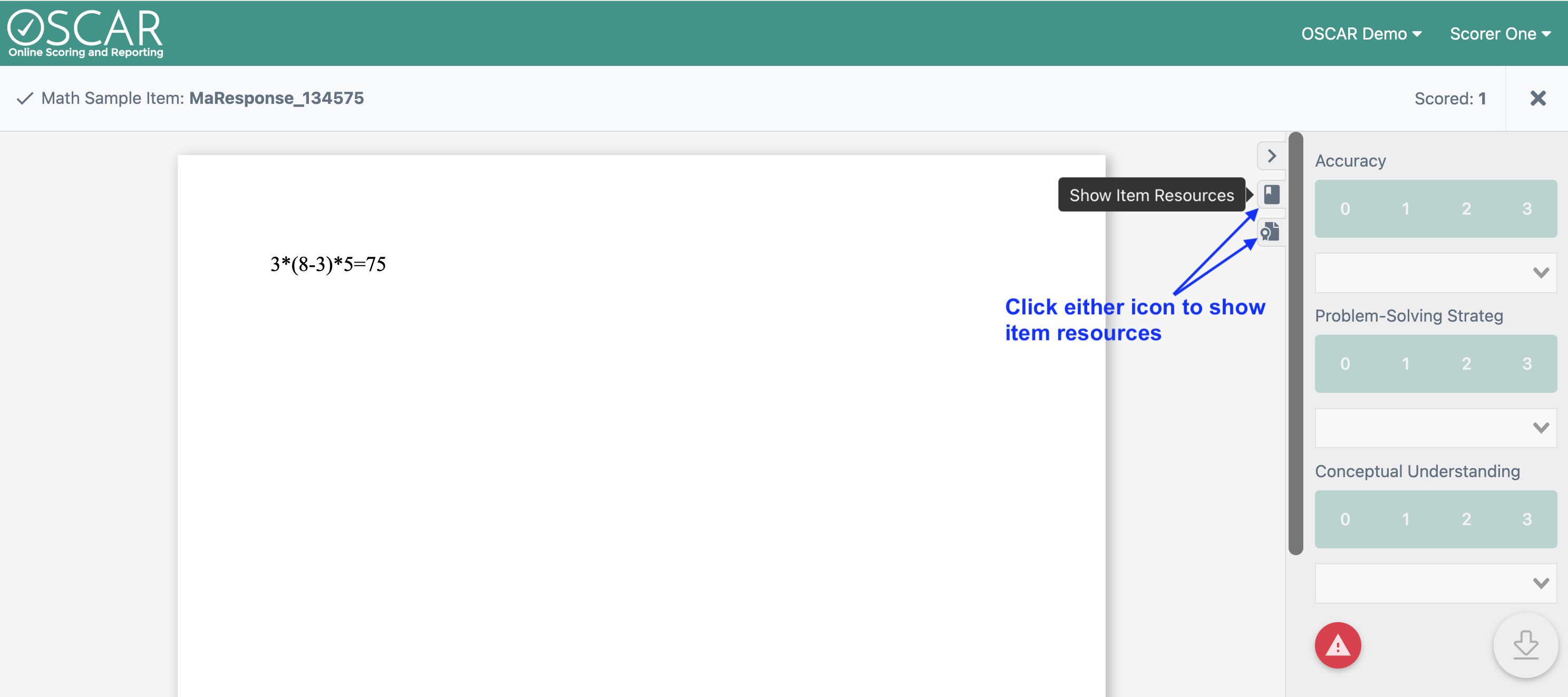
While scoring responses, the Item Resources icon can be clicked to open up the resources in split screen mode with the response.
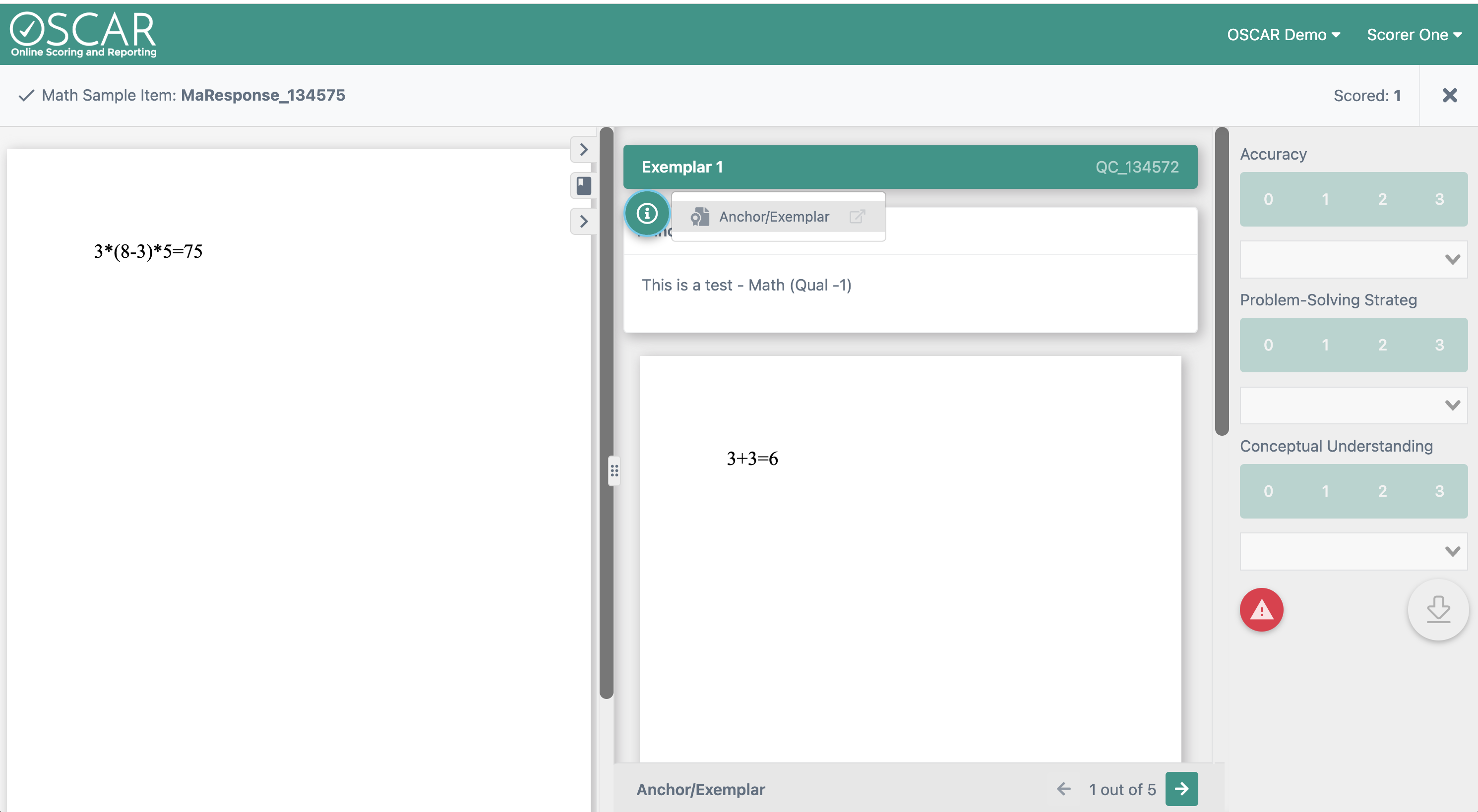
The window can be resized by clicking and dragging the middle tab icon  left or right to have the resource take up as much or as little of the screen as desired. Resources can also be opened in a new tab of the browser by using the pop-out icon
  to the right of the resource name. The scoring pane will be hidden when the Item Resources button is used, but the scoring controls can be returned by using the checkmark icon
  for Show Scoring Controls.
This button can also be used to hide the scoring panel again if desired.
Tiny Link: https://support.assessment.pearson.com/x/ioCwCg