
...
| Tip | ||
|---|---|---|
| ||
Note which specific device each student uses during each test. TestNav saves SRFs to only one designated place on the testing device. If an error occurs, you can locate files only on that specific device. |
Step-by-Step
Prior to testing, a proctor, test coordinator, or technology personnel should run App Check on each testing device to ensure that they pass requirement and system checks.
| Digi Accordion | ||||||
|---|---|---|---|---|---|---|
| ||||||
|
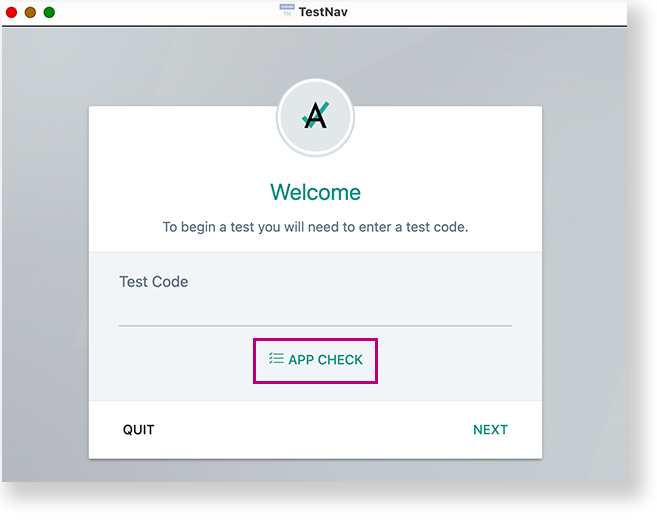
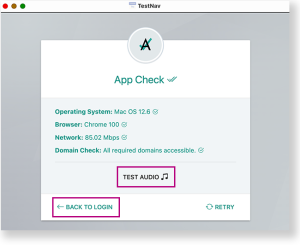
A test proctor should give each student Your test proctor should have given you a test card with details to enter into TestNav.
- Select the ADAM icon on the TestNav home page. If your test was selected before the test session, you see Welcome the page, rather than the home page.
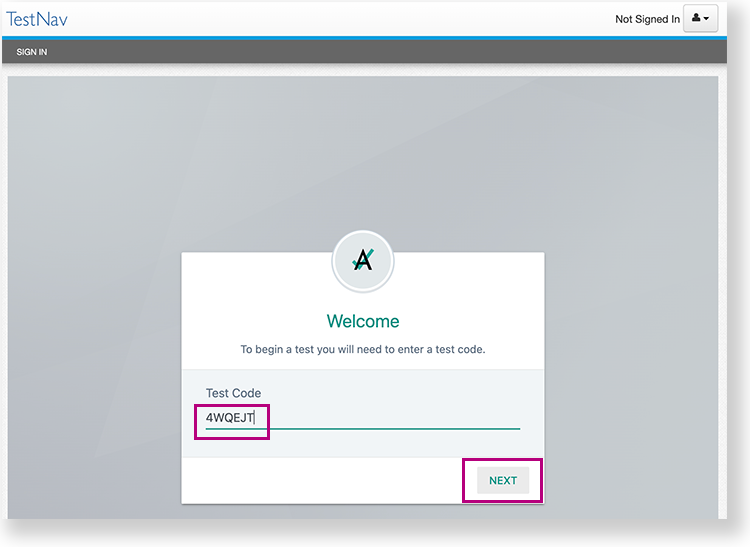
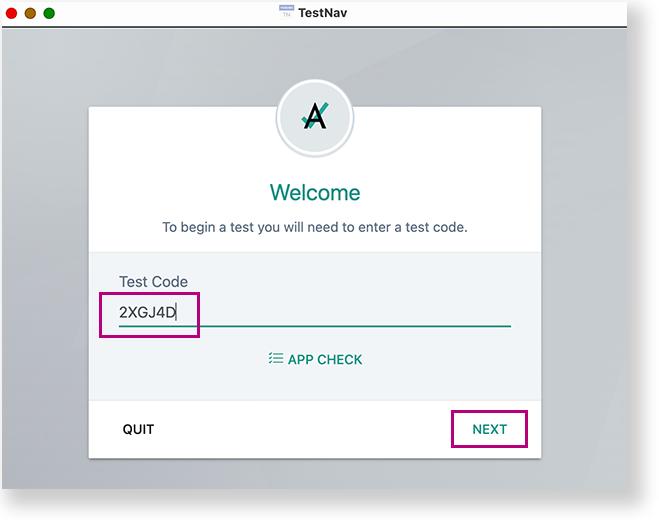
Include Page IR:_TN_graphic_installHome IR:_TN_graphic_installHome - Enter the Test Code, and then select Next.
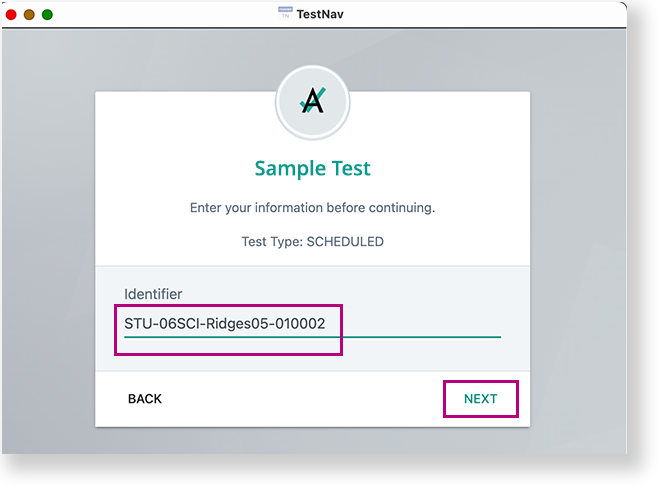
- Enter the student ID in the Identifier fieldConfirm or enter your Identifier, and select Next.
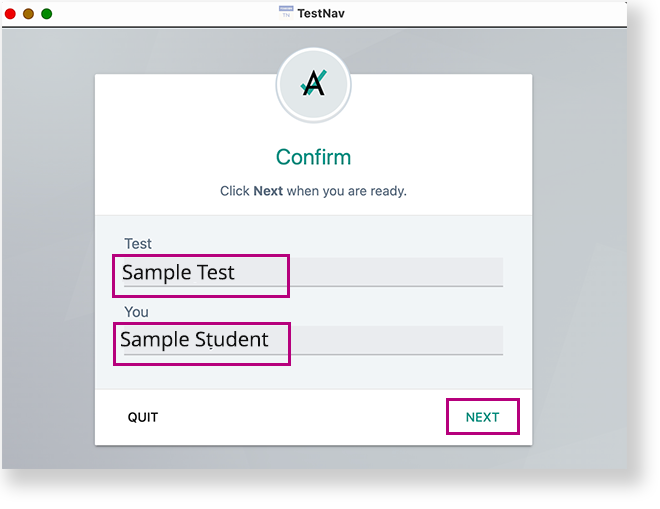
- Confirm the Test and your name, and select Next.
To shut down and exit kiosk mode after the app launches, hold down the buttonTestNav opens and the student can begin testing.
...