
-
Created by
 user-6d962, last updated on Jun 21, 2023
2 minute read
user-6d962, last updated on Jun 21, 2023
2 minute read
This page pertains to ONLY ADAM tests being delivered through TestNav.
Note which specific device each student uses during each test. TestNav saves SRFs to only one designated place on the testing device. If an error occurs, you can locate files only on that specific device.
Step-by-Step
Your test proctor should have given you a test card with details to enter into TestNav.
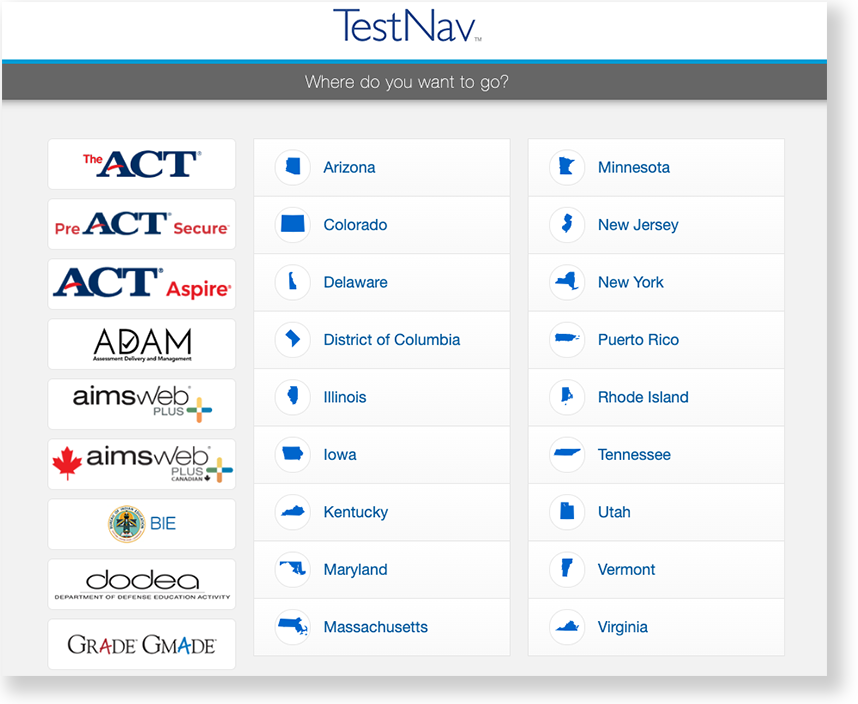
- Select the ADAM icon on the TestNav home page. If your test was selected before the test session, you see Welcome the page, rather than the home page.
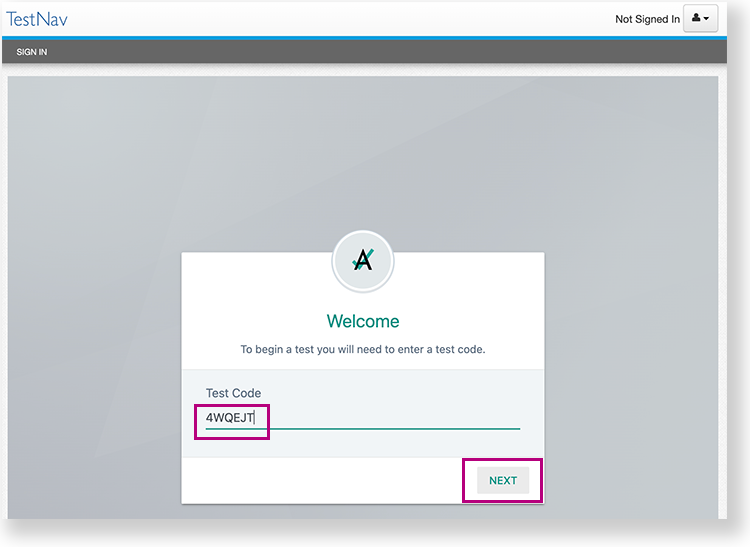
- Enter the Test Code, and then select Next.
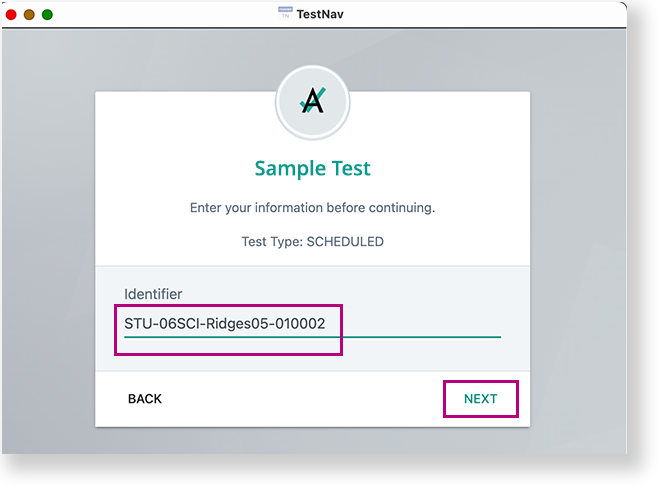
- Confirm or enter your Identifier, and select Next.
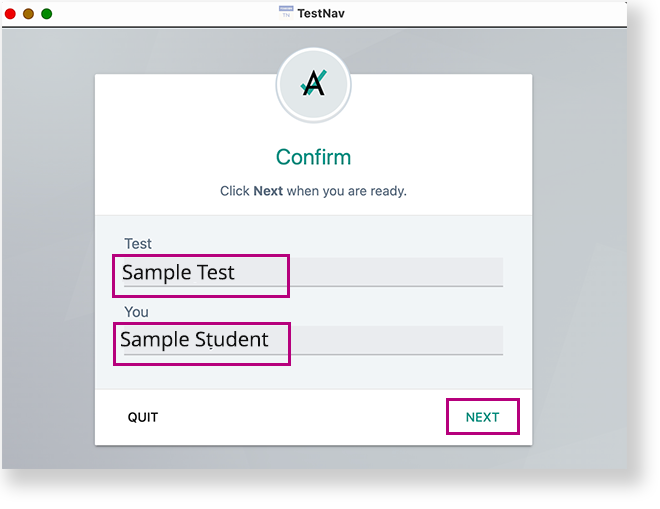
- To shut down and exit kiosk mode after the app launches, hold down the button.