Page tree

Versions Compared

Key

  • This line was added.
  • This line was removed.
  • Formatting was changed.

AnchorTOPTOP AnchorRIRIYou can track your order status, and review and resolve shipping issues. 

AnchorInstructionsInstructions


AnchorEffectsEffectsEffects

Step-by-Step

ui-text-box

sizemedium

Image Removed

(Click Image Removedto view image)
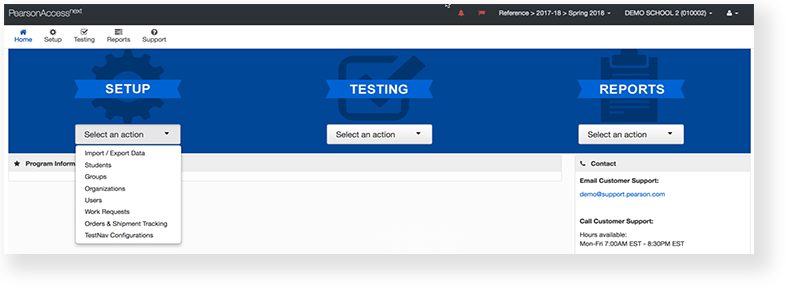
  1. From Setup, go to Orders & Shipment Tracking.
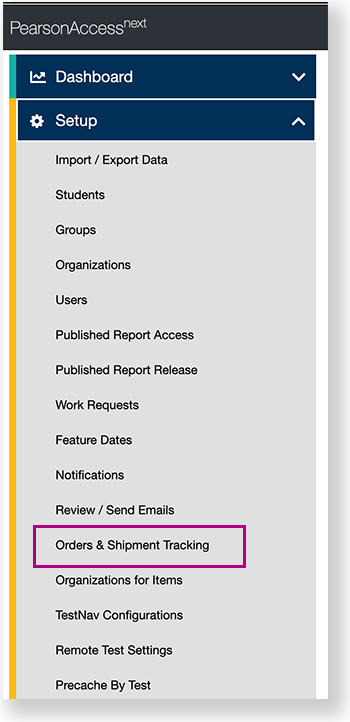
Image Removed
  1. Image Added

    Expand
    titleView center navigation...
    Image Added


  2. Under Find Orders Placed and Updated in, select a period of time during which reports occurred, and click Search.
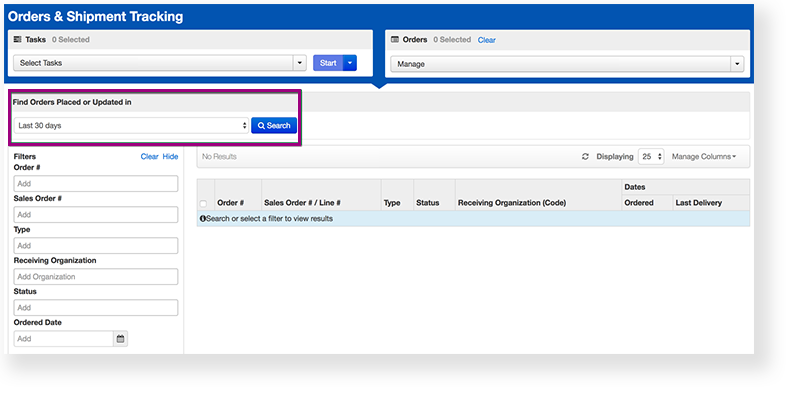
Image Removed
  1. Image Added

  2. Click the checkbox next to the order.
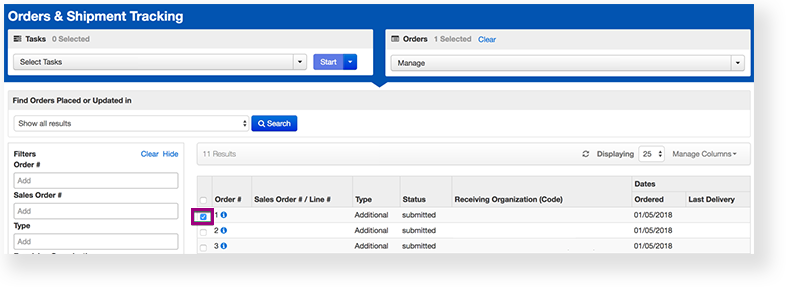
Image Removed
  1. Image Added

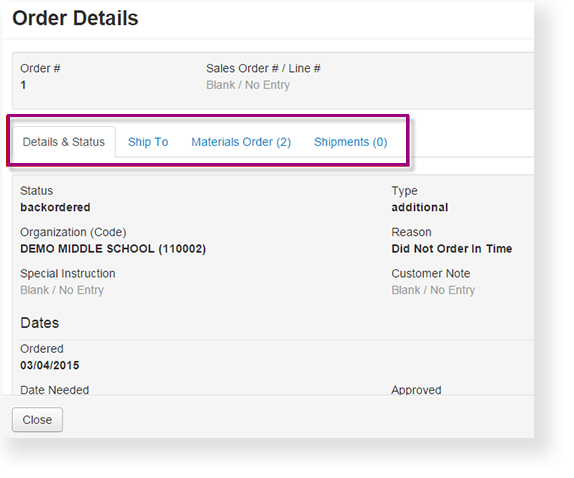
  2. Click the information iconImage Modifiednext to the order number.

  3. To view order details, click one of the available tabs.

Image Removed

UI Text Box
typeinfo
  1. Image Added


Effects

Expand
titleTo view shipment tracking reports...

From Reports, select Operational Reports > Orders & Shipment Tracking.

Expand
titleTo view order details...

Click the information iconImage Modifiednext to the order number. The status indicates where the order is in the delivery process. To see more detailed order information, click Show Order Details

UI Text Box
typetip
AnchorWhat’s Next?

What’s Next?

What's Next? (Optional)

Expand
titleIf there are problems with a shipment...

You can report the problems to Pearson for issue resolution:

  1. From Setup, select Orders & Shipment Tracking.

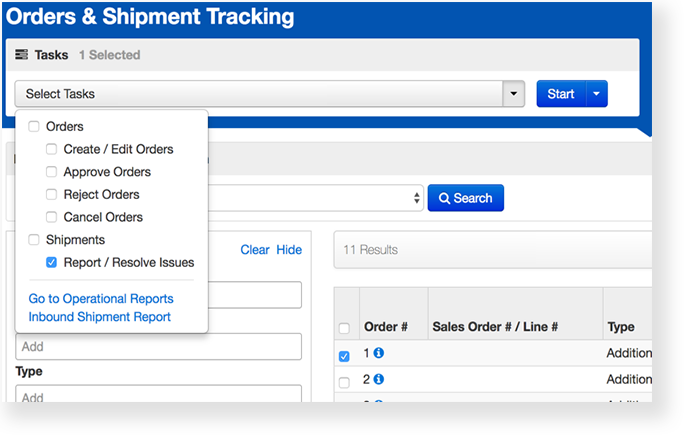
  2. Click the checkbox next to the order with issues to report. Orders must have already been processed and shipped, with a Transit or Delivered status.

  3. Click Select Tasks, select Report / Resolve Issues, and click Start.

Image Removed
  1. Image Added

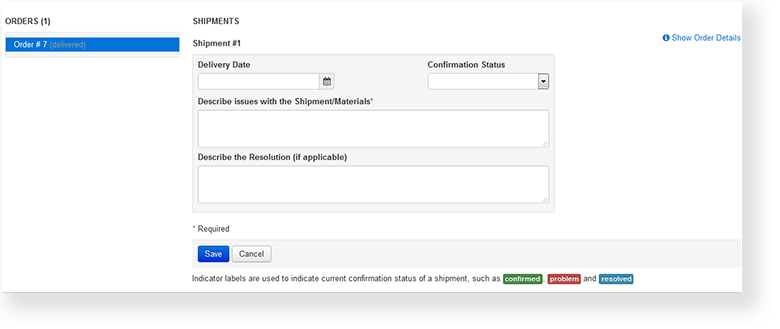
  2. Type/select the required details.

Image Removed
  1. Image Added

  2. Click Save.
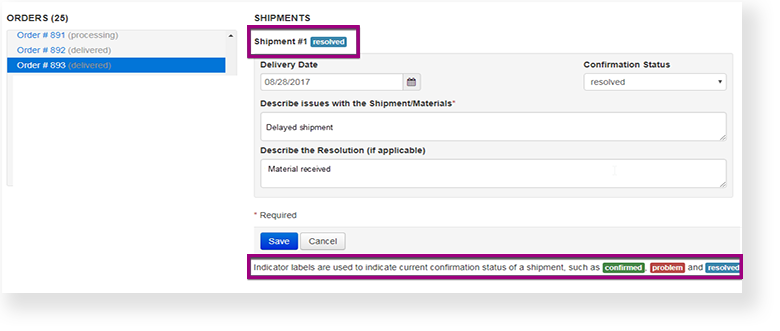
    After a user reports a shipping issue, an indicator icon displays next to the Shipment details.

Image Removed
Back to the top
  1. Image Added