| Anchor | ||||
|---|---|---|---|---|
|
| Anchor | ||||
|---|---|---|---|---|
|
You can enter monitor scores to compare
...
the scores entered by teachers and test proctors
...
. This helps you to monitor the accuracy of score
...
To enter monitor scores, follow the steps on this page:
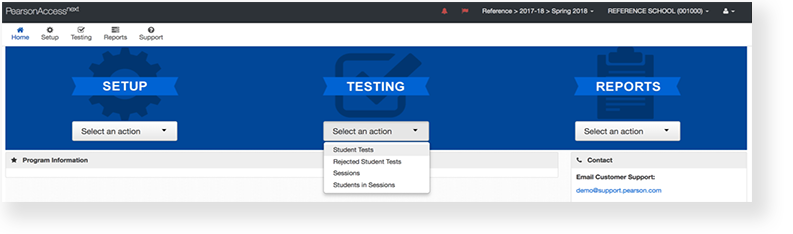
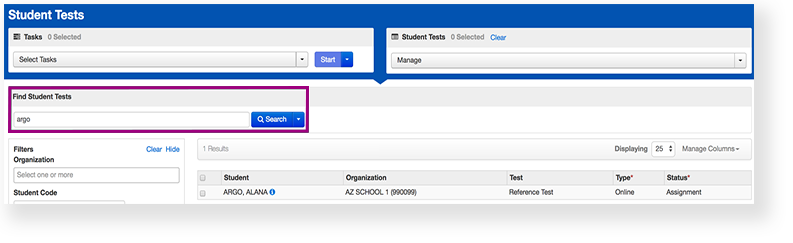
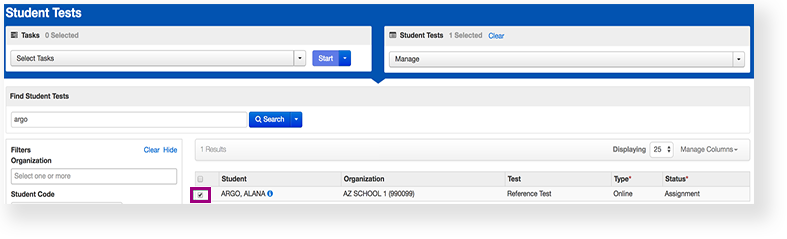
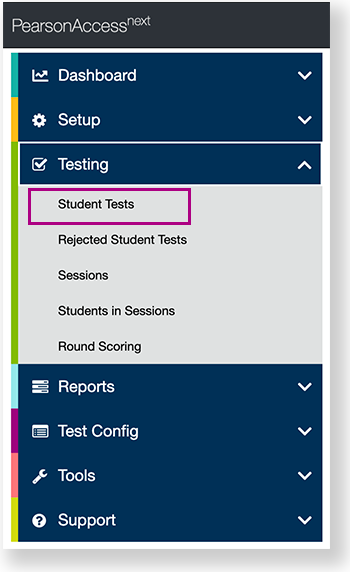
From Testing > Student Tests, search to find the student test(s) you want or click the down arrow next to the Search button to reveal and select the option to show all results. Select the student test(s) you want to edit.
...
| title | Click here to view screenshots... |
|---|
...
entries. This task is similar to hand-entering scores; however, these scores are entered by a non-involved third party.
| Anchor | ||||
|---|---|---|---|---|
|
| UI Text Box | ||
|---|---|---|
| ||
(Click to view image) |
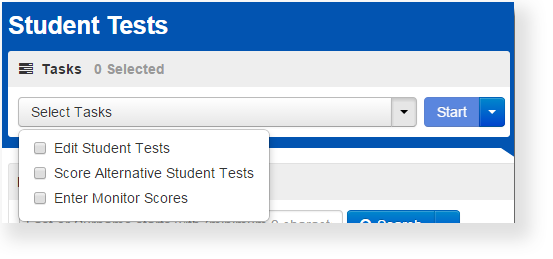
Open the task list and select Enter Monitor Scores and click Start.
...
| title | Click here to view a screenshot... |
|---|
...
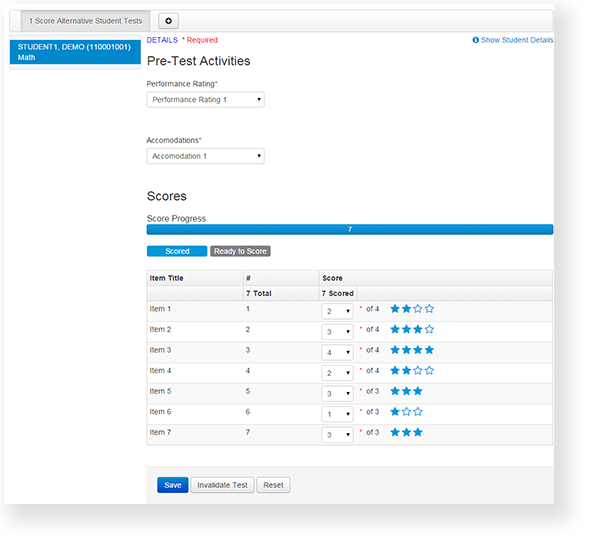
Select the student on the left and enter the required details and scores. Click Save to finish. If you want more detailed information about the student test, click Show Student Details. To see when changes have been made to a student account and who made them, click Show Audit Trail.
| Expand | ||
|---|---|---|
| ||
|
...