
...
Add or Remove Student Tests for Students in a Group
To add or remove student tests, for students in a group, follow these steps:
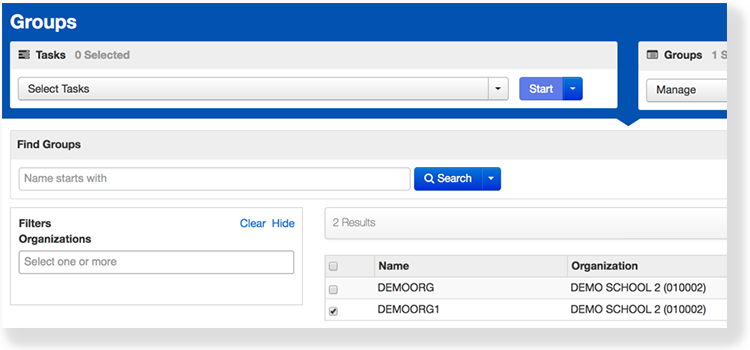
From Setup > Groups, search to find group(s), or click the down arrow next to the Search button and select Show all results. Select the group(s) you want to edit.
...
| title | Click here to view a screenshot... |
|---|
...
You can group student tests to more easily locate and add multiple student tests to a session.
Pearson recommends that you import a student registration file to create groups and add students to them; however, you can also manually add a group after the initial import.
Prerequisites
Before you can add a student test to a group:
- The student must exist in the system and be assigned a test(s).
- And the group must exist.
Step-by-Step
From Setup, select Groups.
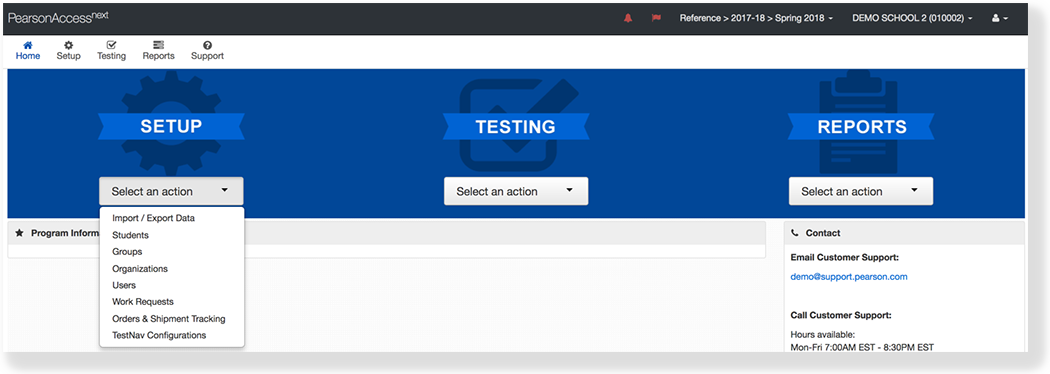
Click the checkbox next to a group.
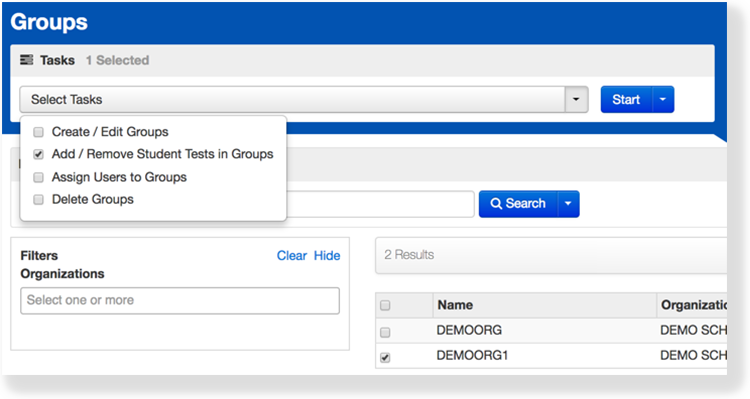
- Click Select Tasks, select
- Add/Remove Student Tests in Groups
...
- , and click Start.
...
| title | Click here to view a screenshot... |
|---|
...
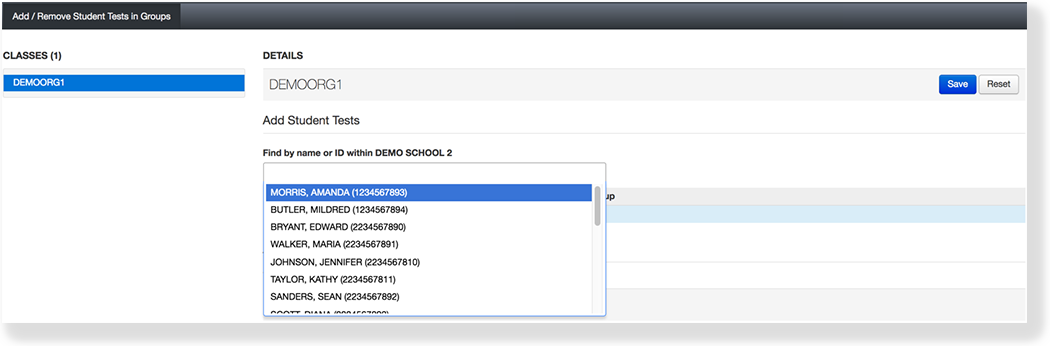
Enter text in Find by name or ID within to begin searching for students or toggle the search box to search by organization.
| Expand | ||
|---|---|---|
| ||
...
Select a student(s).
| Expand | ||
|---|---|---|
| ||
- Type a student name and select the student.
- Click the checkbox
...
- next to the student test
...
- .
| Expand | ||
|---|---|---|
| ||
To remove a previously assigned test, under Assigned Student Tests, clear the check box next to the student test. Click Save.
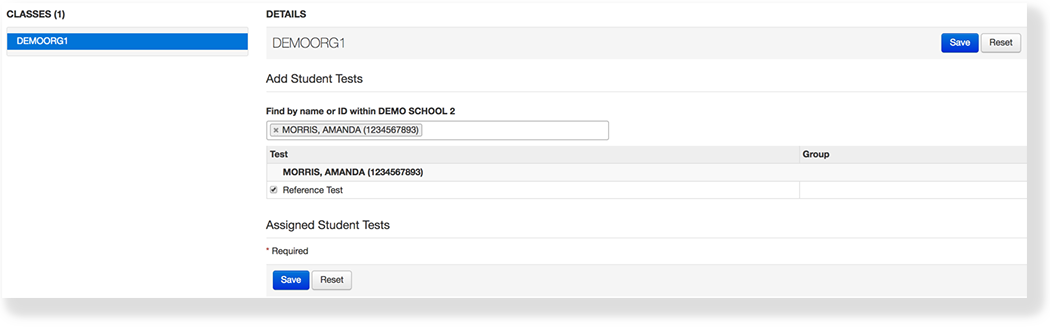
- Click Save.
What's Next?
Assign users to the group.
| Expand | ||
|---|---|---|
| ||