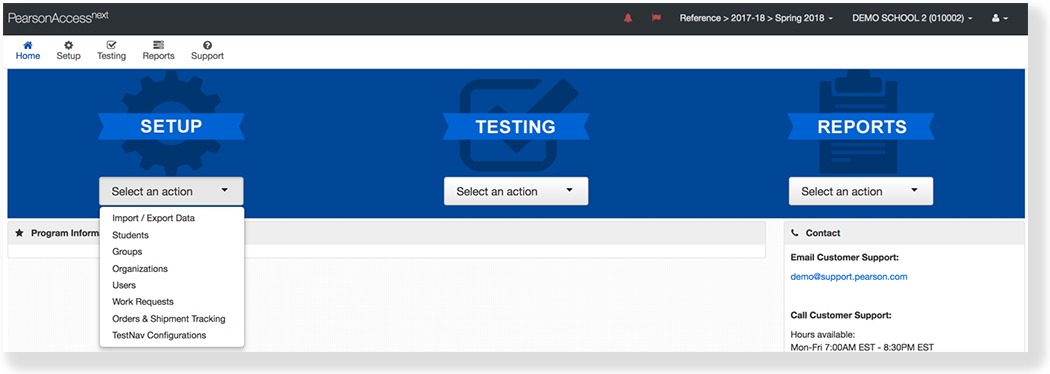
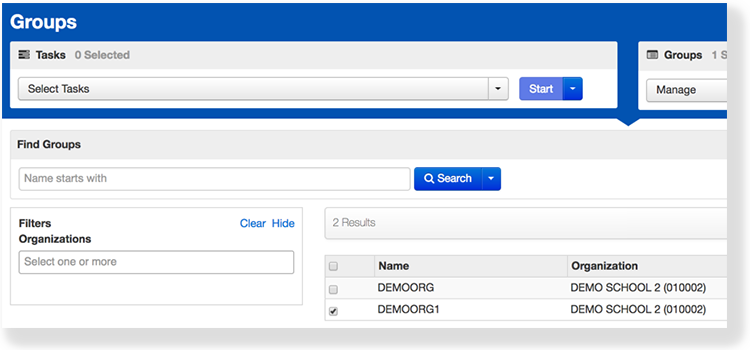
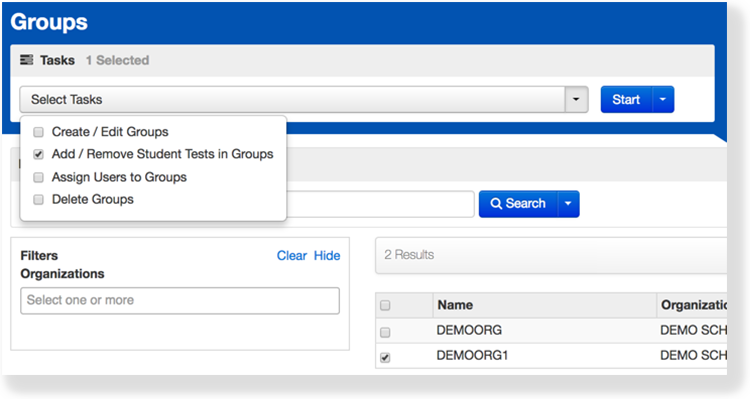
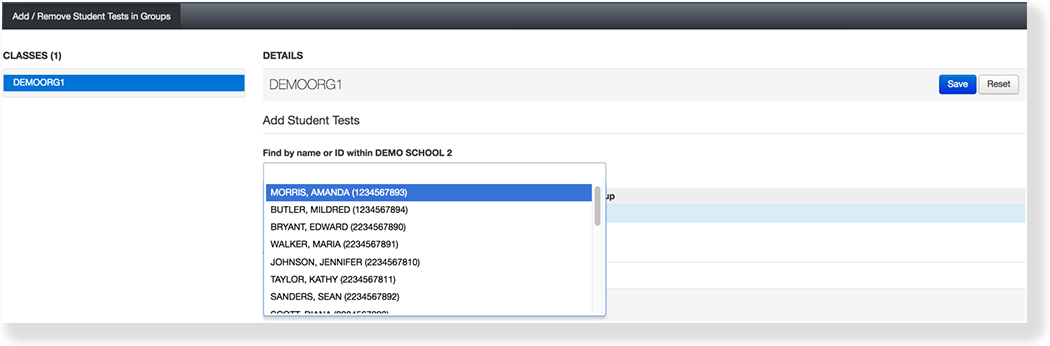
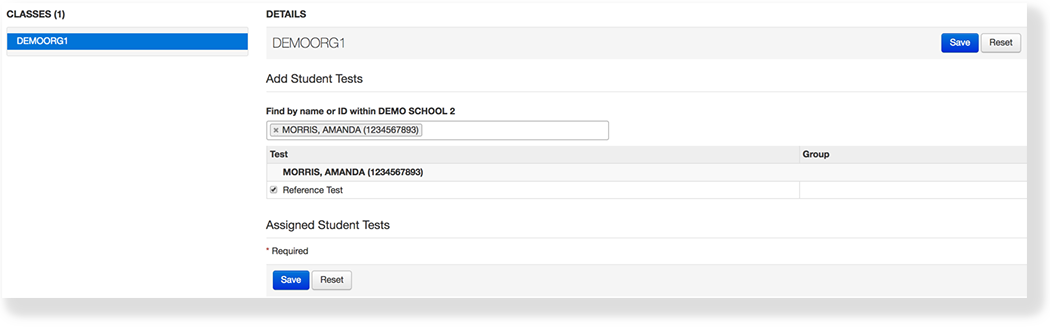
You can group student tests to more easily locate and add multiple student tests to a session.
Pearson recommends that you import a student registration file to create groups and add students to them; however, you can also manually add a group after the initial import.
Prerequisites
Before you can add a student test to a group:
- The student must exist in the system and be assigned a test(s).
- And the group must exist.