Page tree

Versions Compared

Key

  • This line was added.
  • This line was removed.
  • Formatting was changed.
AnchorTOPTOP AnchorRIRIPRE UI Text Box
typenote

You can group student tests to more easily locate and add multiple student tests to a session.

Pearson recommends that you import a student registration file to create groups and add students to them; however, you can also manually add a group after the initial import.

AnchorPRE

Prerequisites

Before you can add a student test to a group:

  • The student must exist in the system and be assigned a test(s).
  • And the group must exist.
AnchorInstructionsInstructions


Step-by-Step

UI Text Box
sizemedium

Image Removed

(Click Image Removedto view image)

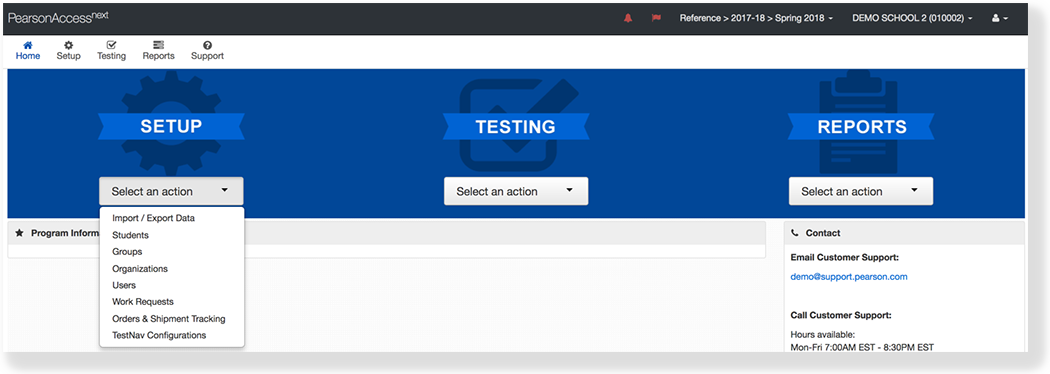
  1. From Setup, select Groups.

Image Removed
  1. Image Added

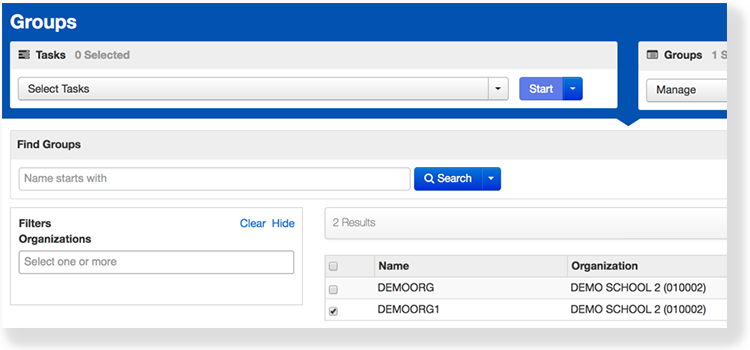
  2. Click the checkbox next to a group.

Image Removed
  1. Image Added

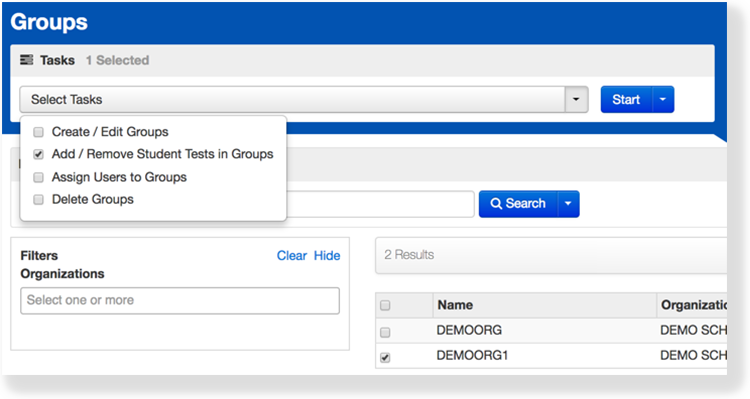
  2. Click Select Tasks, select Add/Remove Student Tests in Groups, and click Start.
Image Removed

  1. Image Added
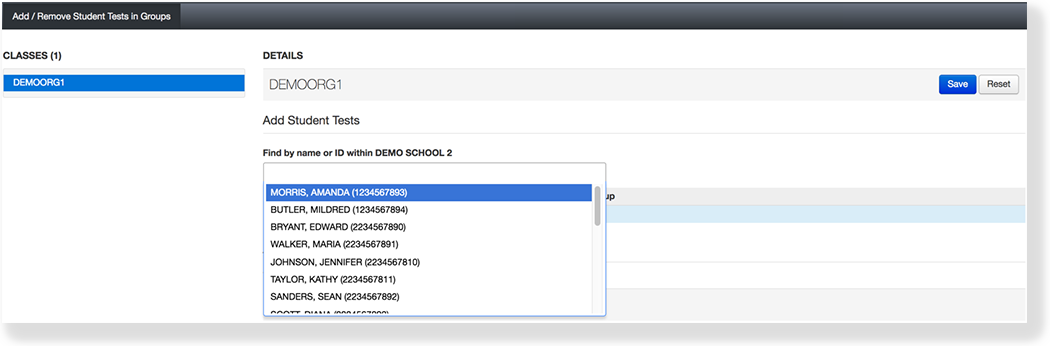
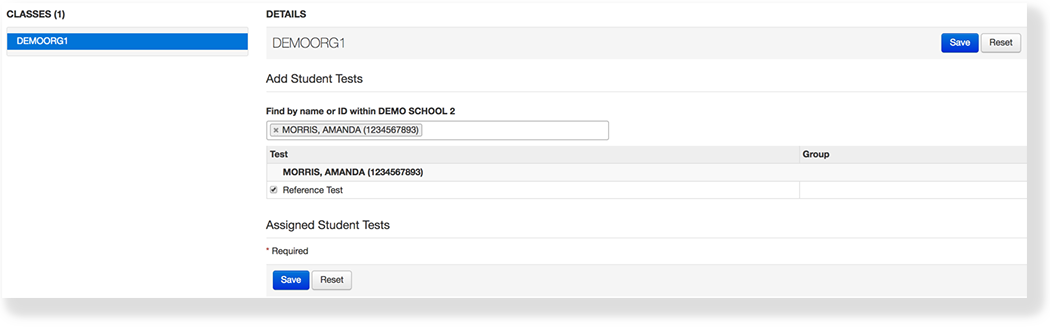
  2. Type a student name and select the student.
Image Removed

  1. Image Added
  2. Click the checkbox next to the student test.
Image Removed

  1. Image Added
  2. Click Save.


UI Text Box
sizemedium
typetip
AnchorWhat’s Next?What’s Next?

What's Next?

Assign users to the group.

Back to the top