
You can delete an organization to remove it from the system.
Prerequisites
Your user account must belong to a higher-level organization than the organization you want to delete.
| Expand | |
|---|---|
|
...
|
...
| |
You must first delete user accounts and students associated with the organization. |
...
|
...
|
...
|
...
|
...
|
...
|
...
...
|
...
|
...
...
Step-by-Step
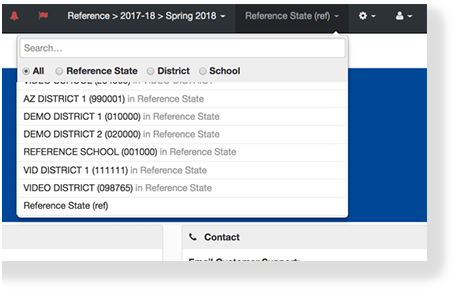
- Click the organization
...
- dropdown, and select a higher-level organization than the organization you want to delete
...
- .
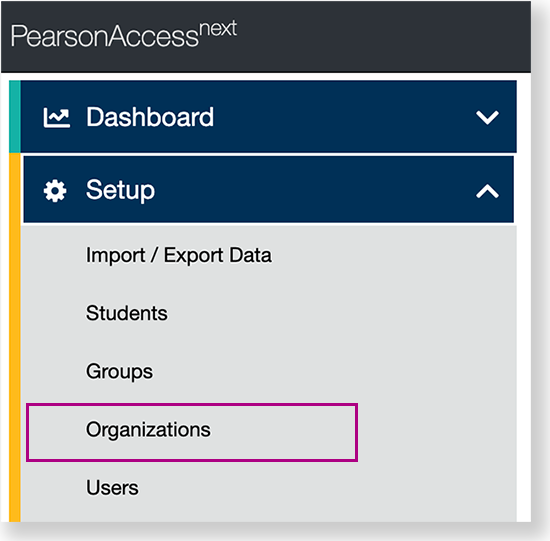
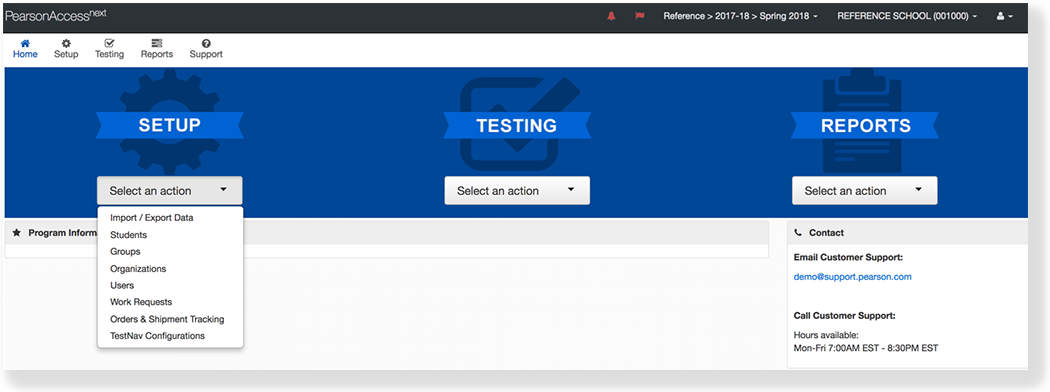
From Setup, click Organizations.
...
Expand title
...
View center navigation...
...
...
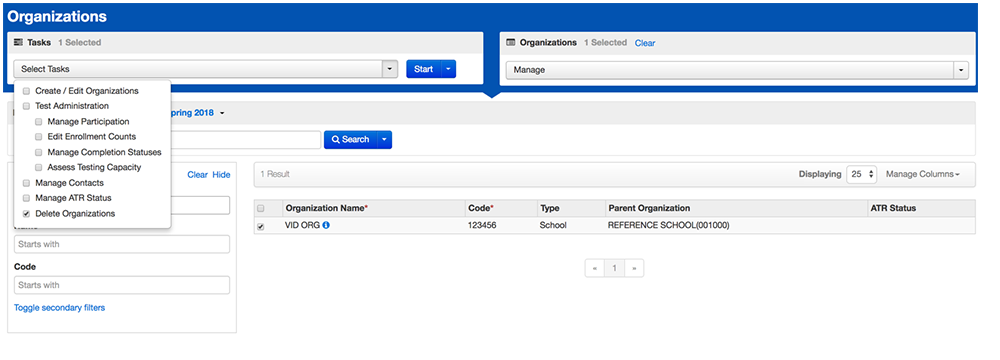
Open the task list and select Delete Organizations. Click Start.
| Expand | ||
|---|---|---|
| ||
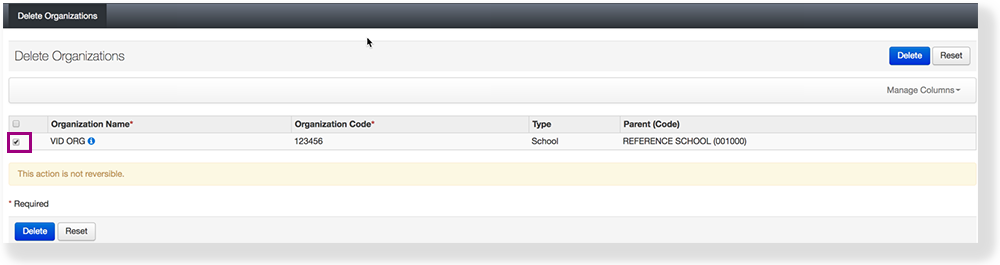
Confirm your decision by marking the box(es) next to the organization(s) in the list and click Delete.
| Warning |
|---|
Once you delete an organization, it cannot be restored. |
- Type the organization name into the search field, click Search, and click the checkbox next to the organization.
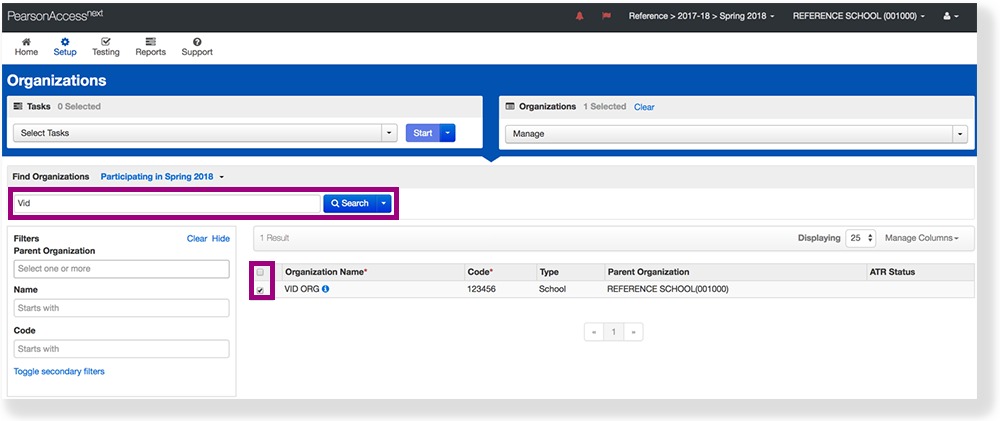
- Click Select Tasks, select Delete Organizations, and click Start.
Select the checkbox next to the organization you want to delete.
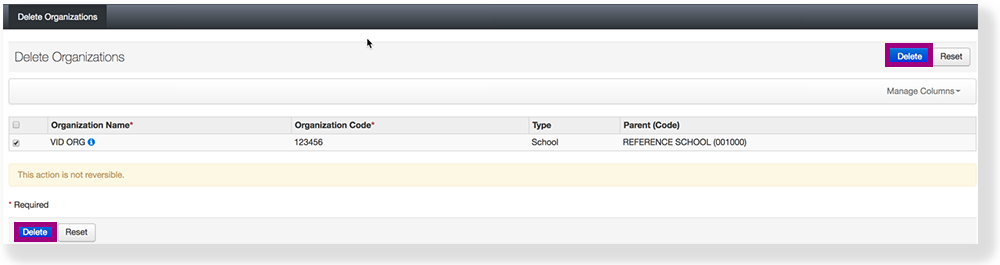
Click Delete.
Effects
After you delete an organization, you cannot restore it.
| Expand | ||
|---|---|---|
| ||
...