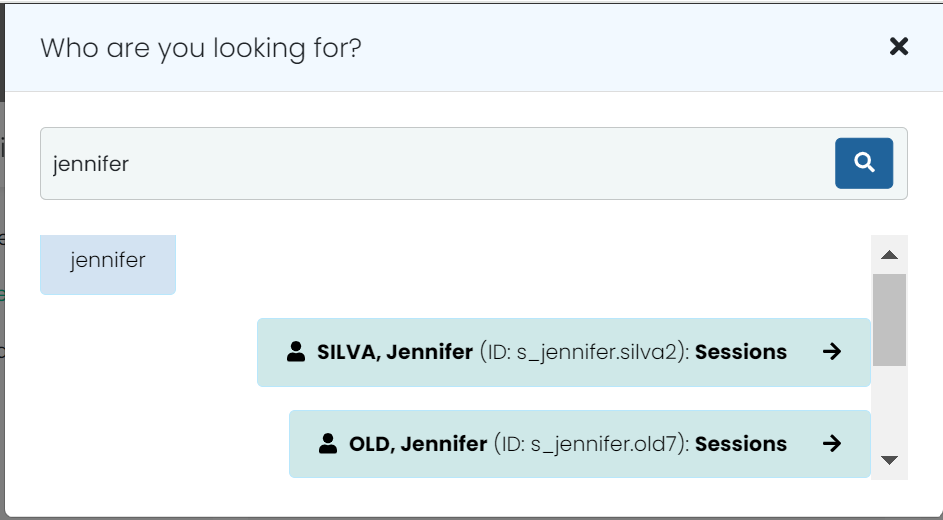
-
Created by
 user-760ba, last updated on Jul 18, 2024
2 minute read
user-760ba, last updated on Jul 18, 2024
2 minute read
Student Dashboard: A new student search function gives users an overall dashboard holistic view of a specific student's information. This includes consolidated views for Performance, Sessions, and Demographic & Accommodations information. The dashboard allows the user to take action(s) on the information displayed, as applicable with permissions assigned. This includes printing a PDF of all performance results or viewing individual student reports. Using the Student Search Student Search > No Results Note for Site Administrators: This Student Search feature is controlled with a new user role permission in Rostering called ‘Student Dashboard’.