-
Created by
 user-6d962, last updated by user-760ba on Jan 21, 2026
2 minute read
user-6d962, last updated by user-760ba on Jan 21, 2026
2 minute read
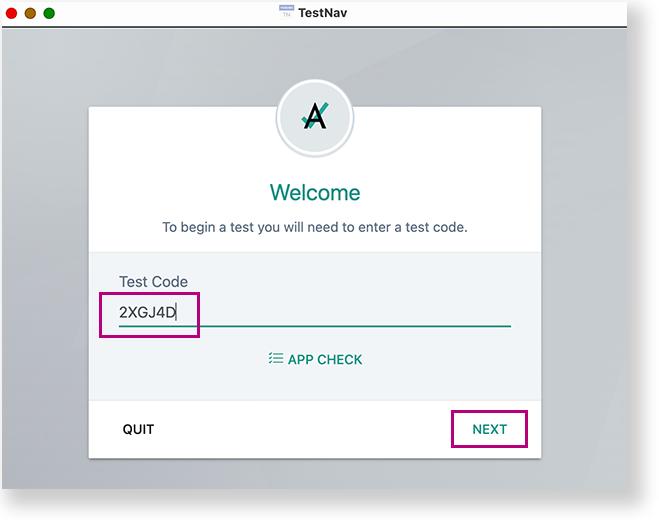
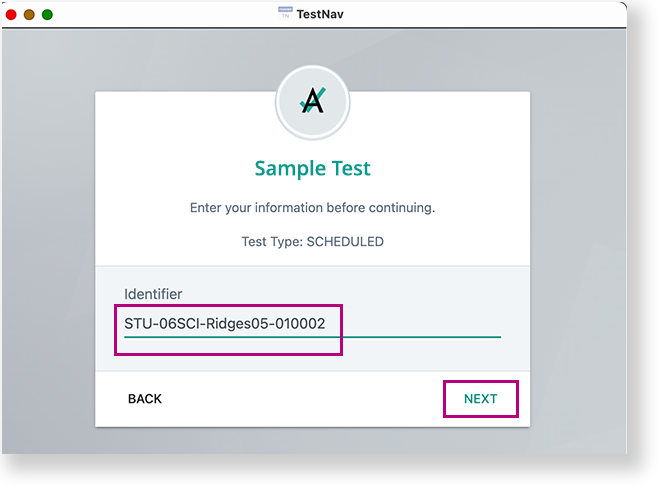
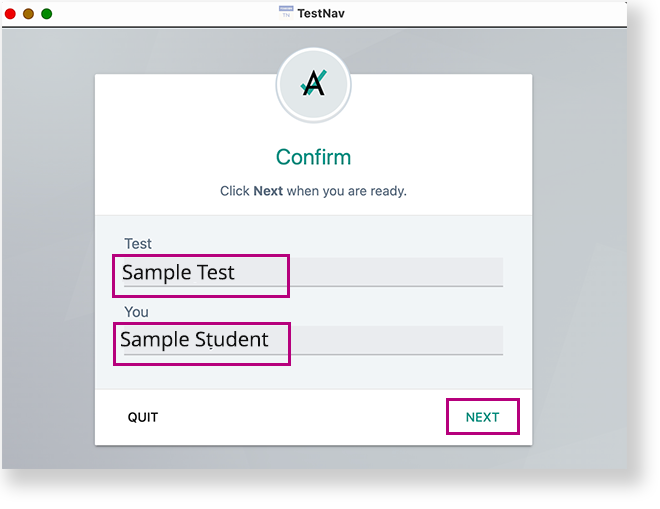
This page pertains to ADAM tests being delivered via the TestNav Secure Browser. To access an assigned test via the TestNav app, students need to: Listen to directions from the test proctor on which option to choose on the TestNav selector page (Step 4). Select the selects appropriate organization as directed in Step 1 (for example, their state) on the TestNav home page. (Note: If the program was set previously on the device, the student will skip to the next step.)