
-
Created by
 user-c5bed, last updated on Mar 30, 2016
3 minute read
user-c5bed, last updated on Mar 30, 2016
3 minute read
After you create a reporting group, you can assign a user to it. The user can see reports for the student registrations or student tests in that group. You can assign students to a reporting group and view reporting groups by student registrations or student tests, as determined by the program. A student's test and registration can be tied to more than one reporting group within an organization.
This page explains how to add or remove student reports.
Add or Remove Student Tests in Reporting Groups
To add or remove student tests from a reporting group, follow these steps:
From Reports > Reporting Groups, search to find reporting group(s), or click the down arrow next to the Search button and select Show all results. Select the group(s), to add or remove student tests.
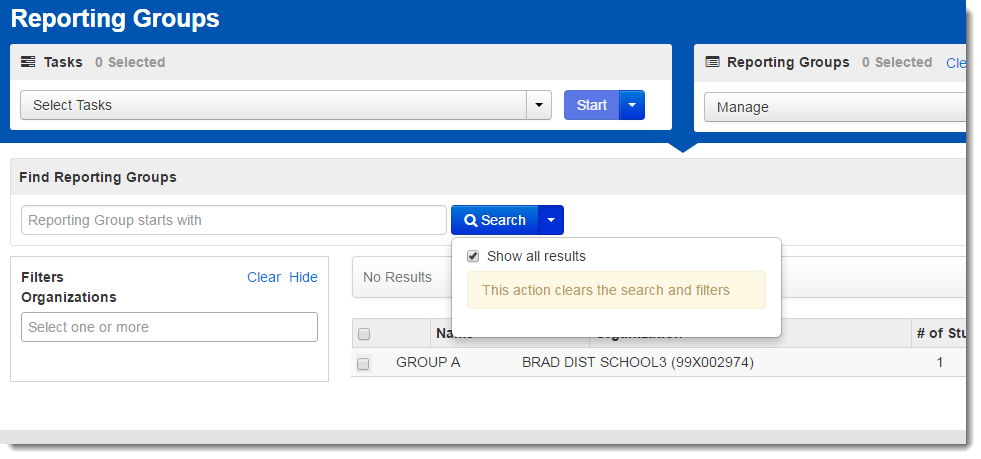
Open the task list and select Add / Remove Student Tests in Reporting Groups. Click Start.
Enter text in Find by name or ID within to begin searching for students.
Select a student(s).
To assign a test, under Add Student Tests, select the check box next to the student test. Click Save.
You can view the number of student tests associated with the group, from Reports > Reporting Groups, search to find reporting group(s), or click the down arrow next to the Search button and select Show all results.
To remove a previously assigned test, skip steps 3 and 4. Under Assigned Student Tests, deselect the check box next to the student test. Click Save.
Add or Remove Student Registrations in Reporting Groups
To add or remove student registrations from a reporting group, follow these steps:
From Reports > Reporting Groups, search to find reporting group(s), or click the down arrow next to the Search button and select Show all results. Select the group(s), to add or remove student registrations.
Open the task list and select Add / Remove Student Registrations in Reporting Groups. Click Start.
Enter text in Find by name or ID within to begin searching for students.
Select a student(s).
For student registrations, under Add Student Registrations, select the check box next to the student . Click Save.
To remove a previously selected registered student, skip steps 3 and 4. Under Assigned Student Registrations, deselect the check box next to the student. Click Save.
Related Information
To understand how to register students, see Register Students in a Test Administration.