
-
Created by
 Sajda Omar, last updated on Jun 26, 2023
3 minute read
Sajda Omar, last updated on Jun 26, 2023
3 minute read
This article describes how accommodations, such as text-to-speech, are defined and assigned. The ADAM player supports Text To Speech (TTS). For TTS to work, 1) the student must be assigned the TTS accommodation, and 2) the form used for the test must include TTS (see Authoring a New Form).
The TestNav player supports multiple accommodations; see the list at the bottom of this page.
Admins Select Client Settings
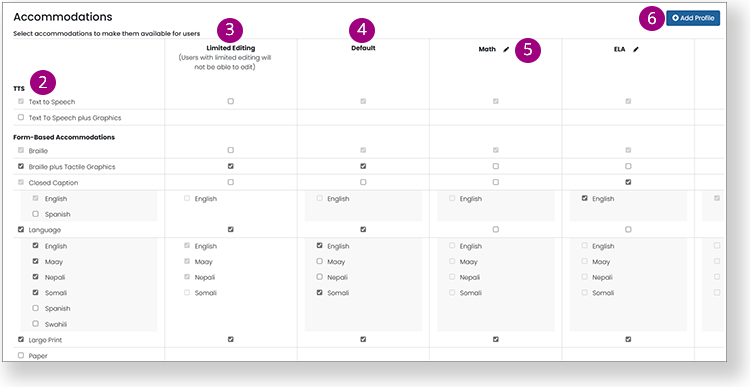
Admin roles with the appropriate permissions can access System > Client Settings > Accommodations. On this page, they select the accommodations that are available to students in ADAM. Accommodations that are not selected do not appear in the user interface for student records. Go to
Certain accommodations, such as Text To Speech, are available for online testing. Other accommodations, such as Braille, are paper-based or local accommodations that are noted in the student record.
For each accommodation selected, admin roles with the appropriate permissions can select Limit Editing to prevent certain user roles from changing that accommodation on students.
Admins Assign Accommodations to Students
Roles with the appropriate permissions can assign accommodations to individual students as follows:
- Select Rostering, and then Users.
- Use the search filters to find the appropriate student.
- Select the Edit icon from the Actions column.
- Select Accommodations.
- Select the appropriate accommodations, and then select Save.
Teachers View/Assign Student Accommodations
Teachers can view or edit their students' accommodations as follows:
- Select My Classes.
- Select a class.
- Select the more menu for a student, and then select Accommodations.
- You can change the accommodations if you have permission to do so.
Proctors View Online Accommodations
Proctors can view student accommodations (for the ADAM player and TestNav) in the Proctor Dashboard by hovering over the accommodations bubble for a student. The number in the bubble indicates the number of accommodations. Proctors can change the Text To Speech accommodation from the Proctor Dashboard if their role has permission.
See Proctoring a Test or Proctoring a TestNav Test.