
-
Created by
 user-760ba, last updated on Jul 29, 2024
3 minute read
user-760ba, last updated on Jul 29, 2024
3 minute read
Many tools for accessibility and test taking best practices can be enabled for students. If turned on at the section or form level....override..
See also:
| Tool | Can add at this level for all students: | Notes | ||
|---|---|---|---|---|
| Item | Section | Form | ||
| Navigation/Informational Tools | ||||
| Instruction Screen | Y | |||
| Flag Item (Bookmark) | Y | The tester can flag items they would like a reminder to revisit. Flagged items are shown on the review screens. | ||
| Resources/Exhibits (e.g., math reference sheet) | Y | Exhibits can be added at the item level in the ‘Associated Exhibits’ area of the Properties tab. These will display in a new ‘Exhibits’ button in the top toolbar when previewing a form. Multiple exhibits can be added, and tab names can be updated. | ||
| Dictionary | Y | Y | The tester can select a single word and have a dictionary entry appear to help with understanding. | |
| Expandable Columns | Y | |||
| Timer | Y | |||
| Testing Best Practices | ||||
| Choice Eliminator | Y | Y | This tool partially covers an option with a gray striped screen and can be turned on and off by clicking each option choice. This setting can be used with the choice masking tool. | |
| Choice Masking | Y | Y | This tool completely covers all options with a solid screen and can be turned on and off by clicking the eyeball next to each option. Masking will change color to match any color contrast settings. This setting can be used with the choice eliminator tool. | |
| Notepad | Y | Y | The notepad is cleared between sections. Does the scorer see?? | |
| Highlighter | Y | Y | The tester can highlight text in the content and change the background color by setting a highlight color. This allows the tester to set highlight reminders within the content. | |
| Accessibility Tools | ||||
| Text to Speech | Y | |||
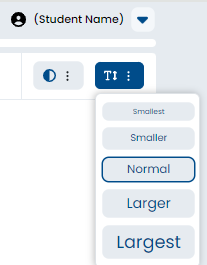
| Font Size | Y | The tester can modify the font size of text only. This does not affect images or other design elements. | ||
| Line Reader | Y | Y | This tool partially grays out the entire screen except the line the tester is currently reading. This is a strategy to eliminate some "noise" by allowing the tester to focus on one line of text at a time. The tester manually moves the line reader to read new lines of text. | |
| Line Reader Mask | Y | Y | The tester can completely cover the area around the content they are currently reading. This is a strategy to eliminate all "noise" by allowing the tester to focus on one line of text at a time. The tester manually moves the line reader mask to read new lines of text and can change the mask and display window size as needed. | |
| Magnifier | Y | Y | Enable to allow the student to enlarge specific areas of the screen during a test. Once activated, users can move the tool around, enlarge the tool and change the magnification. Allowed magnification is 150% to 400% in 50% intervals. | |
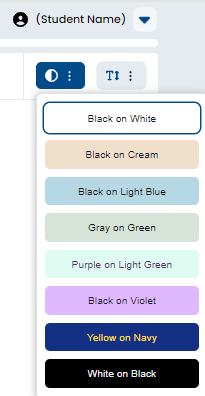
| Color Contrast | Y | Y | The tester can modify the color palette to create either more or less contrast between the font color and background color. There are eight different color schemes to choose from. This is a strategy to make the text easier for the tester to interpret. | |
| Math Tools | ||||
| Calculators | Y | Y | Can be turned on at the item or form section level and will display as a tool to the student while taking the test. Currently there are six options to choose from (Desmos and Texas Instrument): basic, scientific, and graphing. Multiple calculators can be made available but only one will be displayed to the student at a time. | |
| Protractor | Y | Y | ||
| Ruler | Y | Y | ||
Student View of Tools
· Line Reader:
· Line Reader Mask:
· Magnifier:
· Color Contrast:
· Font Size:
· Dictionary:
· Highlighter:
·
Tiny Link: