
-
Created by
 user-2df23, last updated on Feb 23, 2015
2 minute read
user-2df23, last updated on Feb 23, 2015
2 minute read
If you are looking for any and all students who fit a specific category, such as students who are registered for a test but who are not yet in an online test session, you can find them using a set of reports called operational reports. Operational reports include a set of standard reports and may also include some reports that are custom for your testing program.
To use reports to find students, follow these steps:
From Reports > Operational Reports, select Students & Registrations.
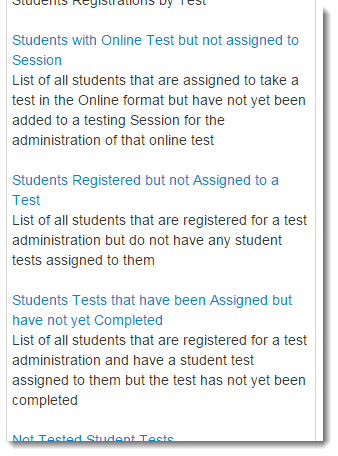
You will be shown a list of available reports. Click the title of the report you want to view. This list is different for each testing program, based on the testing contract details.
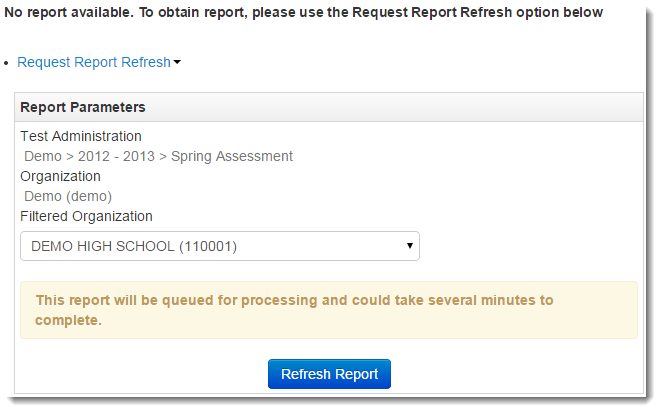
If a report is not yet available, click Request Report Refresh and, if desired, change the parameters to be used when the report is created, such as to only display the results for a specific organization. Click Refresh Report.
When a report is available, it will be listed on the page. Click Download Report to download a file with the requested information.
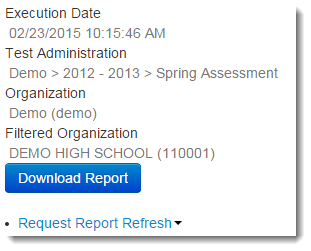
Reports are provided in CSV format and can be viewed using a spreadsheet program, such as Microsoft Excel.