
-
Created by
 user-6d962, last updated on Aug 25, 2015
3 minute read
user-6d962, last updated on Aug 25, 2015
3 minute read
Safari
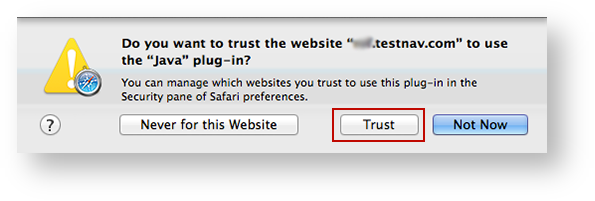
If a notification appears asking you whether to trust your secure test website to use Java, click Trust.
NEED CONSULT ON DESELECTING POP-UP BLOCKER below. Notes for reviewers - I have used Safari for a secure test without disabling pop-up blocker, and it works. The only error I've gotten is when I use it without running TestNav in unsafe mode. With running in unsafe mode, the test launches fine.
I know pop-ups are not related to unsafe mode, BUT because you cannot selectively block pop-ups in Safari, I am concerned about having admins unblock completely when it works for me. I've researched and asked around, but cannot get a clear answer from anyone. Any experts, please chime in. The instructions for enabling pop-ups are below for now.
To enable pop-up windows for TestNav:
- Click Safari > Preferences...
Click Security, and deselect the Block pop-up windows check box.

Use Java to run TestNav in Unsafe Mode for Safari
TestNav must run in unsafe mode in Safari. After you trust your secure test website to use Java (as shown above) and enable pop-ups for TestNav:
Also under Safari > Preferences..., > Security, click Manage Website Settings... (If the button is disabled, select Allow Plug-ins to enable it.)

- Scroll through the plug-ins on the left side of the window, and click Java. Your secure test website should appear in the Configured Websites field.
Click the drop down on the right of your website, and select Run in Unsafe Mode. Then, click Done.

When you launch TestNav, you may also see one of the following Java notifications depending on which Safari version you use.
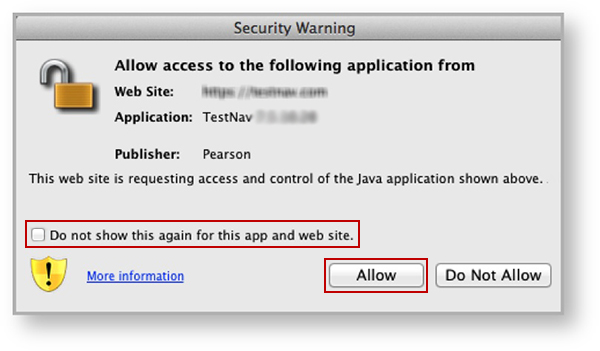
If you see the Security Warning notification:
- Select the Do not show this again for this app and web site check box.
This ensures that the warning screen will not appear again. Click Allow to continue to TestNav and TestNav SystemCheck.
If you see the Do you want to run this application? notification:
- Select the Do not show this again for apps from the publisher and location above check box.
This ensures that the warning screen will not appear again. Click Run to continue to TestNav and TestNav SystemCheck.

Eliminate the Java Prompt When Testing
Complete the following steps for Mac OS X, regardless of which browser you choose:
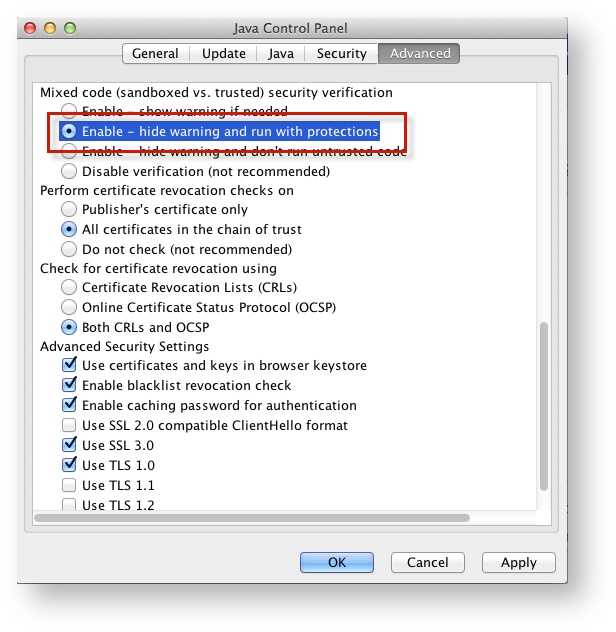
- Click the Apple icon > System Preferences > Java.
Click Advanced.
Select Enable - hide warning and run with protections:
Unable to render {include} The included page could not be found.
Run SystemCheck
Set Up Response File Backups
Default Primary Save Location
| Operating System | SRF Location | Log File Location |
|---|---|---|
| Mac OS X | Users/username/Pearson/... | /Users/<username>/Pearson/first name-last name-identifier/logs For example: /Users/UserA/Pearson/User-A-1234/logs |