You are viewing an old version of this page. View the current version.
Compare with Current
View Page History
« Previous
Version 3
Next »
Sign in to TestNav
- Double-click the TestNav icon to launch TestNav.
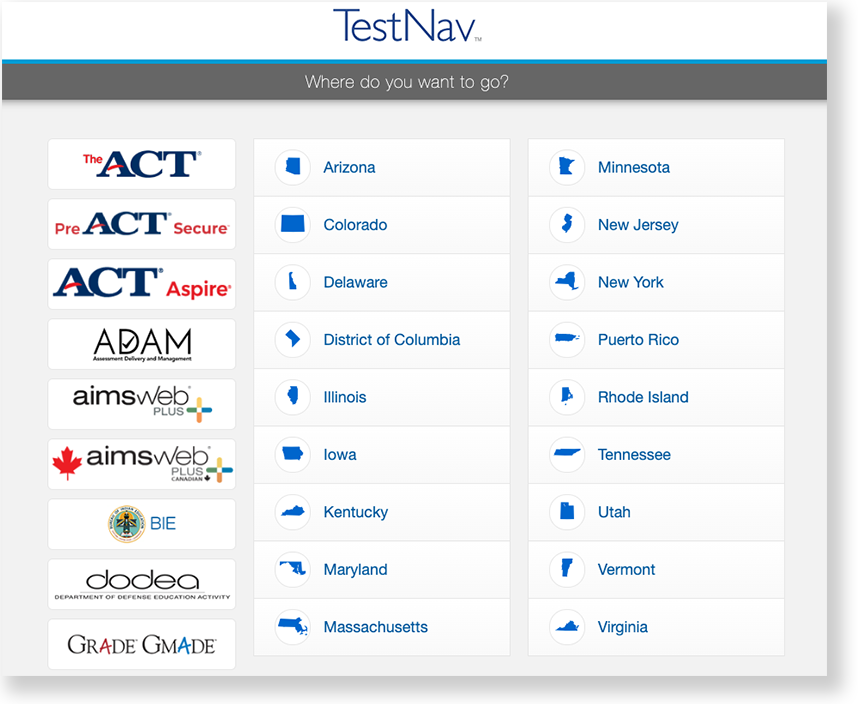
If you have not already done so, click the appropriate program icon to select your test. If your test was selected prior, you see the Sign In page, rather than the home page.
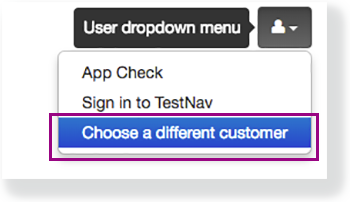
If you need to select a different test, click the user drop-down menu in the upper-right, and click Choose a different customer.
Click the appropriate program icon.
Start a test to ensure that you can do so without error.
- If you see a Practice Tests link on the Sign in page, click Practice Tests and start a test.
- If you do not see a Practice Tests link, use an authorization ticket from your assessment management system and start a test.
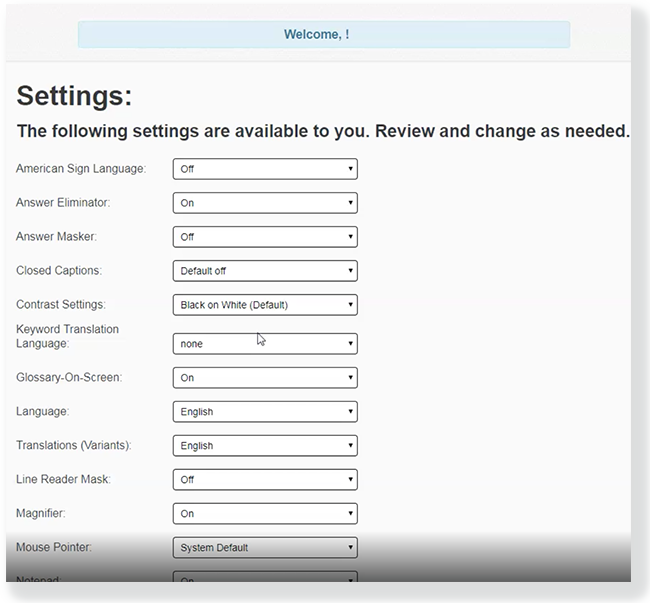
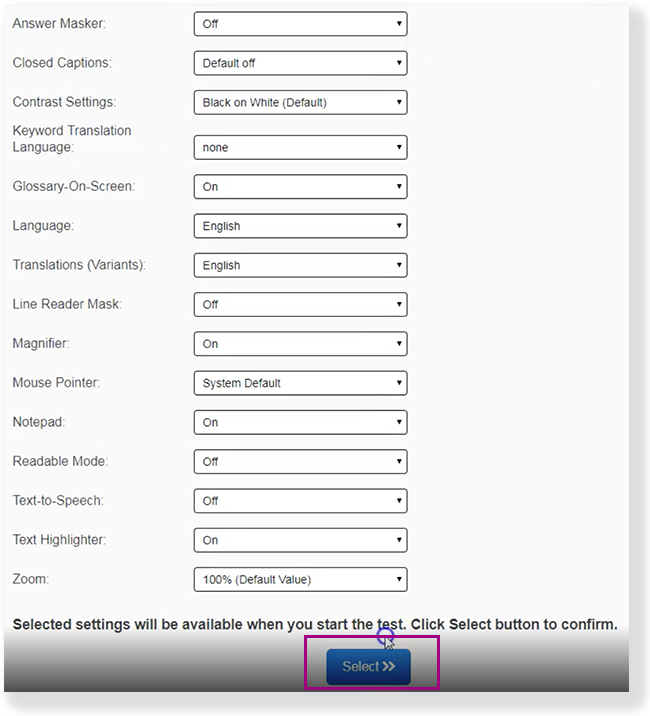
- If a Settings page appears, make any necessary selections, click Select, and then Start.
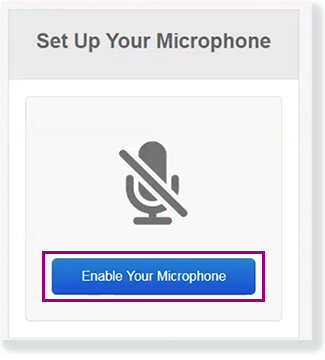
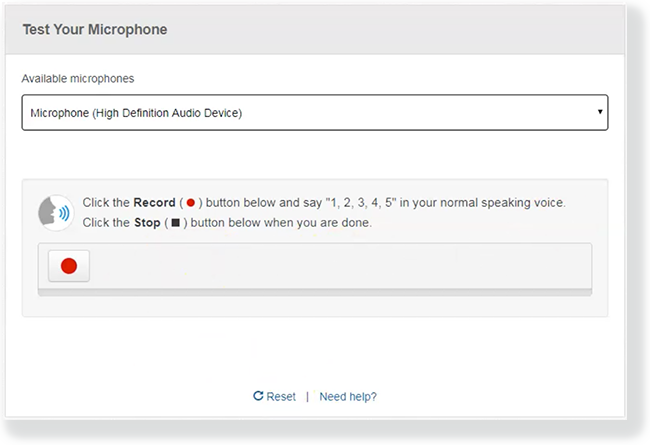
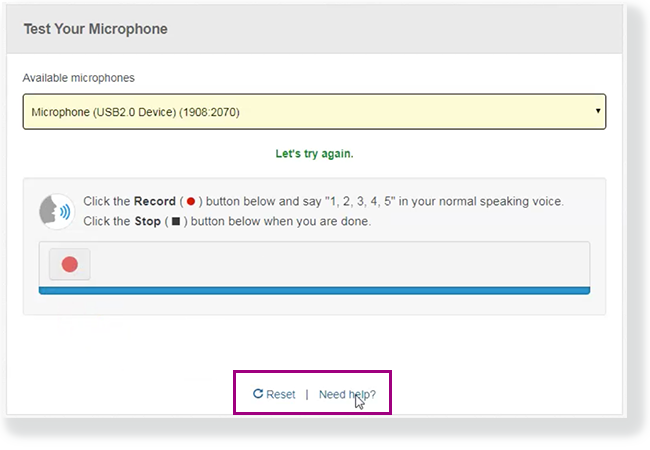
- If the test requires audio, click Enable Your Microphone to set it up. Follow instructions to on the Test Your Microphone window to select an available microphone, record audio, and play it back.
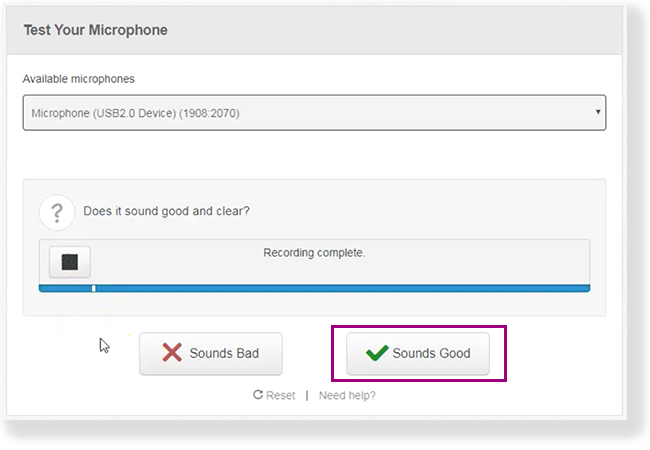
- Click Sounds Good to continue to the test items.
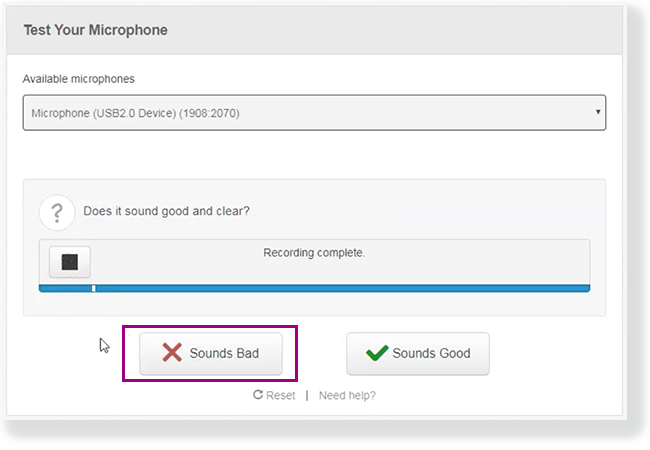
- Click Sounds Bad > Reset to start microphone selection and test again.
Clicking Need help? prompts you (or the student) to raise a hand for teacher assistance.
Instruct students to close all apps or programs running on their devices before starting a TestNav secure (high-stakes) test.
- If you have not already done so, choose the appropriate icon for your test on the home page. If your test was selected before the test session, you see the Sign In page, rather than the home page.
If you need to select a different test, click the user dropdown at the upper-right of the page, and click Choose a different customer.
Click the appropriate icon for your test.
- Start a test to ensure that you can do so without error.
- If you see a Practice Tests link on the Sign in page, click Practice Tests and start a test.
- If you do not see a Practice Tests link, use an authorization ticket from your assessment management system and start a test.
- If a Settings page appears, make any necessary selections, click Select, and then Start.
- If the test requires audio, click Enable Your Microphone to set it up. Follow instructions to on the Test Your Microphone window to select an available microphone, record audio, and play it back.
- Click Sounds Good to continue to the test items.
- Click Sounds Bad > Reset to start microphone selection and test again.
Clicking Need help? prompts you (or the student) to raise a hand for teacher assistance.
Tiny Link:

 user-760ba, last updated on Dec 17, 2025
4 minute read
user-760ba, last updated on Dec 17, 2025
4 minute read