-
Created by
 user-6d962, last updated by user-760ba on Jan 21, 2026
2 minute read
user-6d962, last updated by user-760ba on Jan 21, 2026
2 minute read
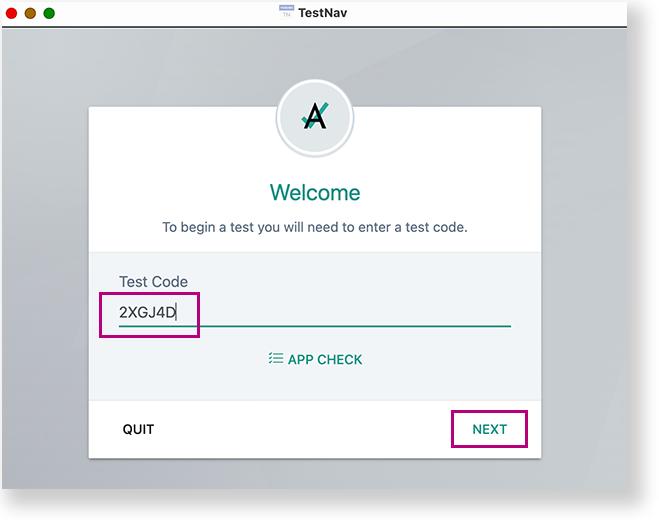
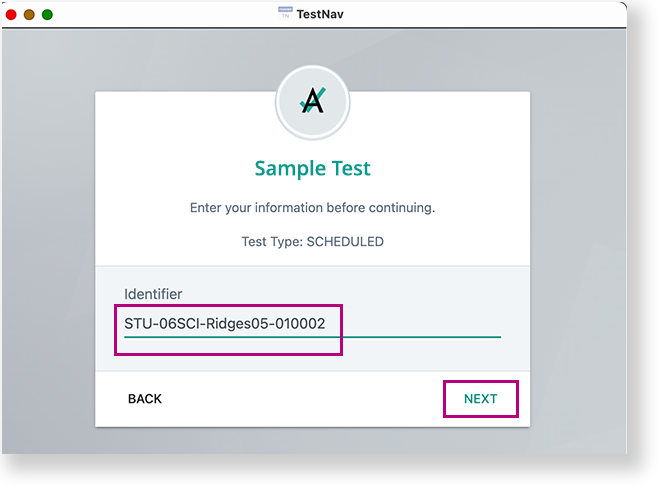
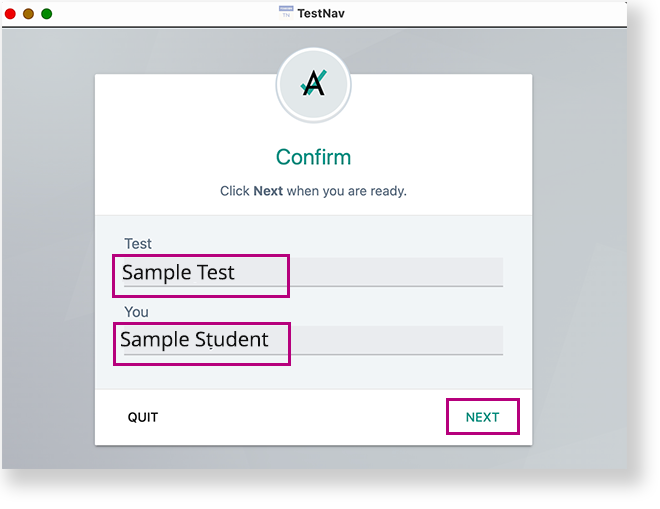
This page pertains to ADAM tests being delivered via the TestNav Secure Browser. To access an assigned test via the TestNav app, students need to: A test proctor should give each student their test card with details to enter into TestNav and direct them which option to choose for Step 3. Student launches TestNav app. Student selects appropriate organization- for example, their state) on the TestNav home page. If ADAM or your program was selected before the test session on the device (highly recommended), the student will skip to the Welcome page.