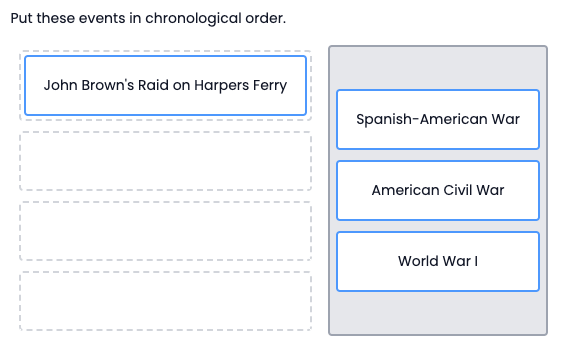
You can use the Order interaction to create drag and drop items that must be put in a specific order. Note that if the student mistakenly puts what should be the last answer first, all the other responses will be incorrect, even if some are in the right order relative to each other.
See Author Test Items and Choice Interaction for general instructions on item creation.
- From the Editor tab, select Add Interaction > Match & Order > Order.
- Enter a Prompt.
- Under Choices heading, enter answer choices. Add or delete choices as needed.
- Under Choice Settings:
- For Choice Position, optionally change the position of the choices and bay relative to each other.
- Optionally, control the Width of the choices in pixels.
- For Grip Style, optionally choose an icon for each choice.
- Show Choice Bay is on by default. Unchecking allows the choice bay to be hidden so that choices can be rearranged within a single target container instead of being moved between a bay and targets. The styling has been adjusted for the target appearance when the choice bay is hidden. Starting location is a dotted border around each choice. The border turns solid when a student has moved a choice and the item is then considered answered.
- Shuffle: Select to scramble the choices. For the item analysis reports, the order of choices in the item setup are reflected for all students. Do not use if the order matters.
- For Target Settings, typically leave Label and Label Suffix as is. You can optionally add a prefix to the choices that will be visible to the student, such as A) or b.
- For Settings:
- Optionally, indicate the Min Choices a student must make.
- Max Points defaults to 1 but may be changed. See Scoring Types for details on Scoring Type options available in the Scoring tab.
- Under Correct Response, drag and drop the answer choices into the correct order. This is necessary to set the scoring accurately.
- Select Save.
- Preview the item.
Example
Tiny Link: https://support.assessment.pearson.com/x/cID8Bg