Once a course and class are created, you can add the teacher and students.See also: Course and Class Creation and Management
Add Teacher to an Existing Class
- From the LaunchPad Pearson administrator login page, log in with your LaunchPad user account credentials. For account access inquiries, please contact your Pearson delivery team.
- Under the Roster Data header, select Courses.
- Select the course of the class to add students to.
- Select the desired class title.
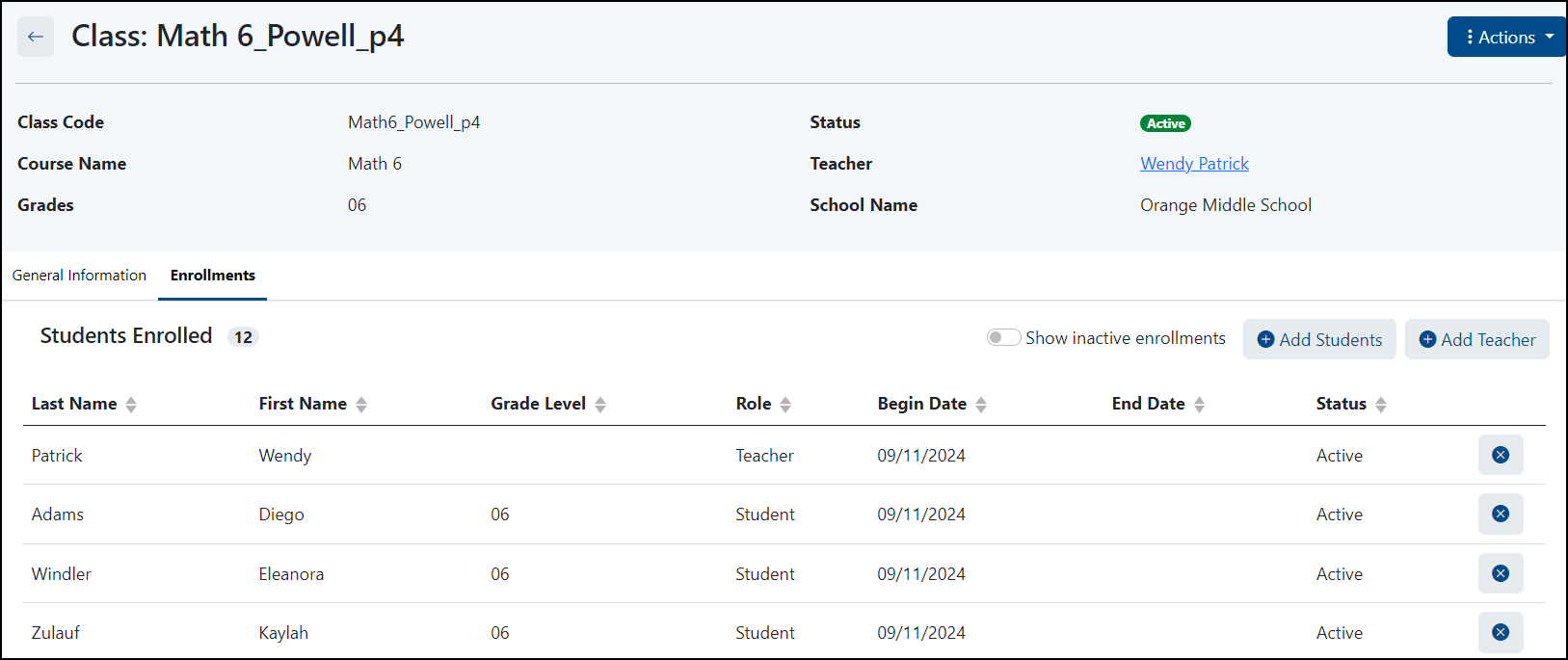
- Select the Enrollments tab.
- Select the Add Teacher button.
- Enter name to search or scroll to locate teacher and select the plus button of teacher(s) to add. Only users with a role of Teacher may be added.
- Select Add Selected Teachers.
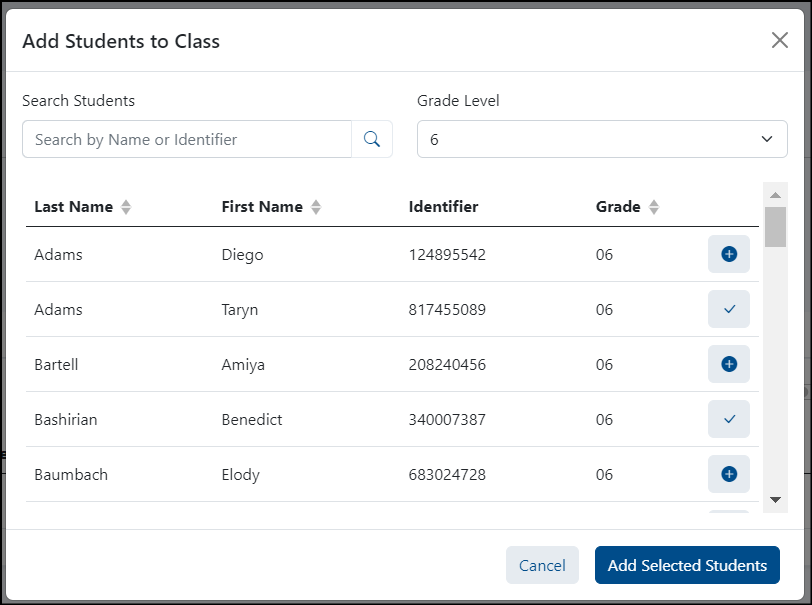
- Select the Add Students button.
- Optionally filter by grade and use the search box to locate students.
- Select the plus button for each student to add.

- Select Add Selected Students.
You can remove a student from the class by selecting the X icon and confirming that you want to remove the enrollment.

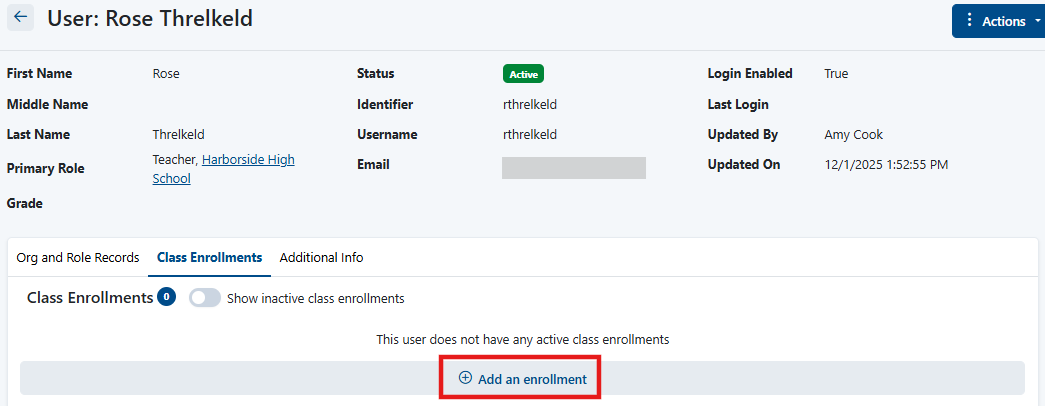
Add a Class to a Teacher
As an alternative to the workflow described above, you can also edit a teacher's user profile to assign class enrollments.

Tiny Link: https://support.assessment.pearson.com/x/ZgCKCQ