Users with access to view classes or users in Launchpad can print student QR codes.
- QR codes are available only if it's been configured on your site and for specified grade levels.
- QR codes do not provide access to TestNav.
- If a student is in a grade level where QR code login isn’t configured, then their login attempt will not work, even if they had a QR code printed.
- It is not possible to print a QR code for a student who is in a grade level where QR code login is not enabled.
Print from LaunchPad (Teachers Only)
If your program uses LaunchPad for rostering and is set up to be available to teachers, they can print QR codes from a widget.
- Sign in to LaunchPad.
- Select QR Codes.
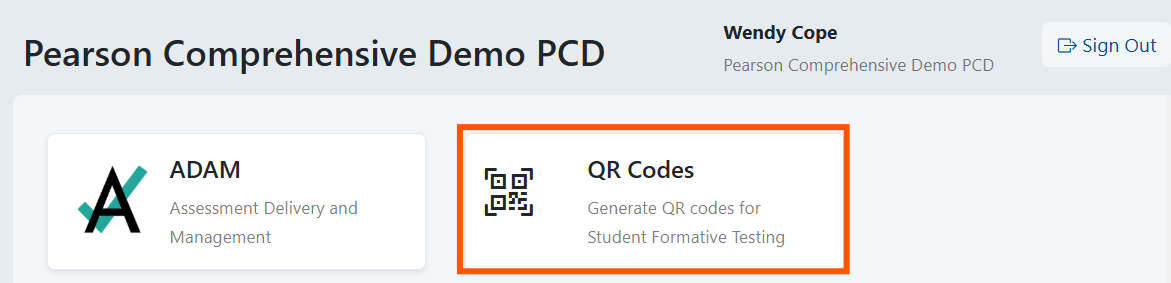
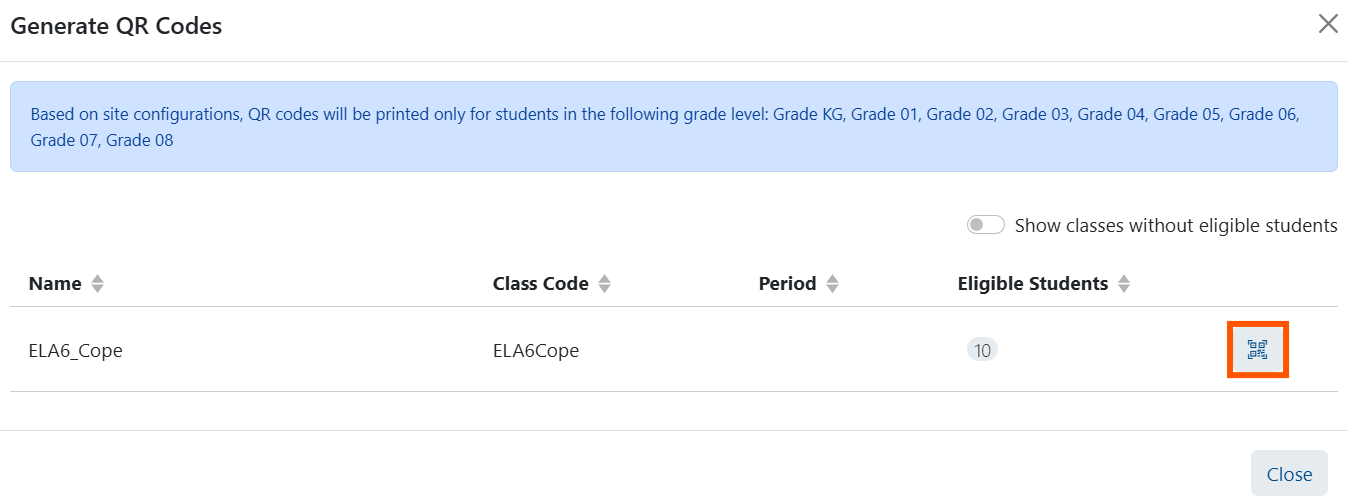
- In the generate QR Codes window, select the icon for the desired class.
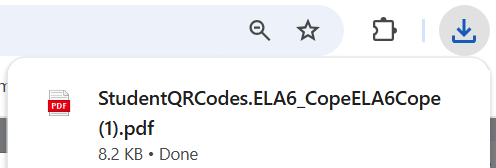
- The file will be available in your downloads area.
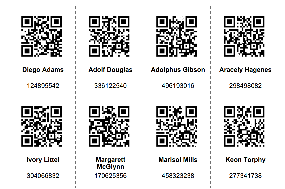
- Open and print the QR codes.
Print from the Class Details Page
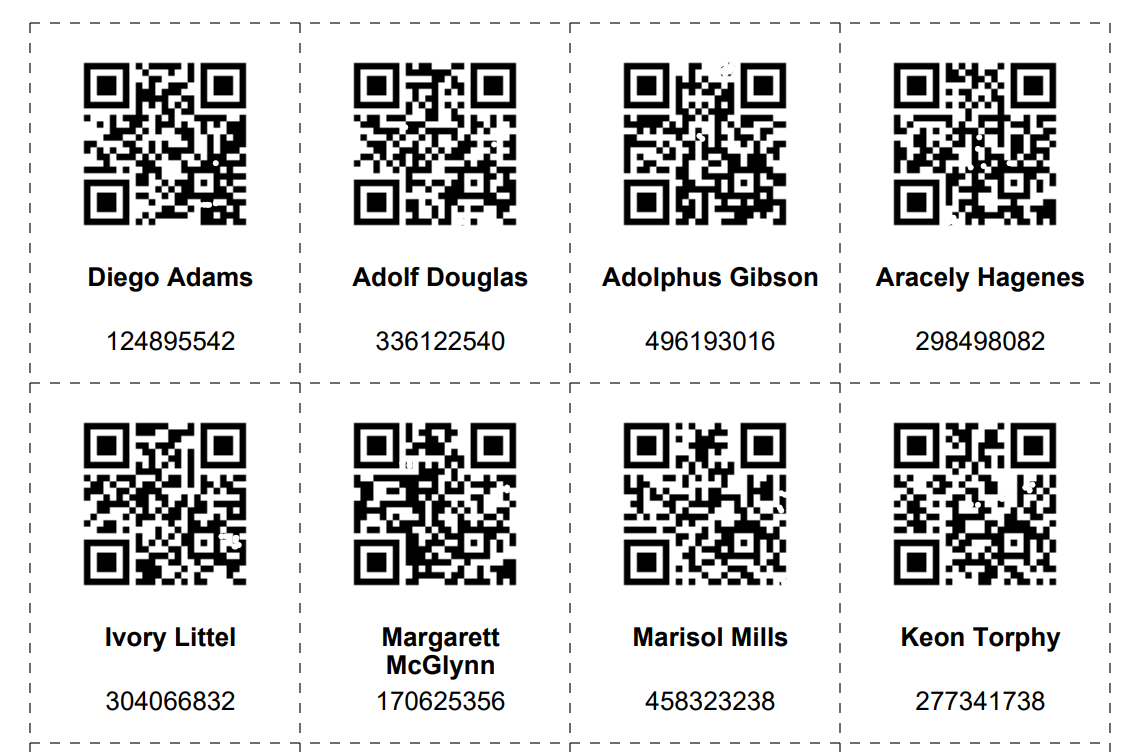
When generating a class of QR codes, it will create a paper-saving consolidated grid of student QR codes with guidelines for cutting.
- In Launchpad, select Classes.
- Select a class.
- In the Actions menu, select Download QR Codes.

- Download the file.
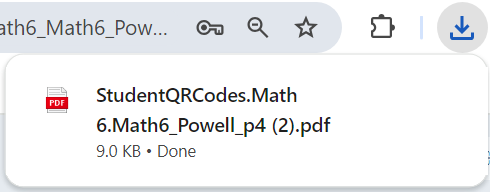
- Open and print the page(s).
Print a QR Code for an Individual Student
QR codes can be individually printed for a specific student if needed for a new student.
- In LaunchPad, go to Users.
- Search for a student by name or ID.
- Select the student name in the search results to open the student user details page.
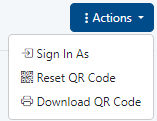
- In the Actions menu, select Download QR Code.
- Download the file and print.
Reset a QR Code
Reset a code if the kid lost their printout to avoid unauthorized access by someone else. Resetting will invalidate the previous QR code.
- In LaunchPad, go to Users.
- Search for a student by name or ID.
- Select the student name in the search results to open the student user details page.
- In the Actions menu, select Reset QR Code.
- In the confirmation window, select Reset and Download New Code.

- Open the downloaded file and print the new code for the student.
Tiny Link: https://support.assessment.pearson.com/x/iYCbCQ

 user-760ba, last updated on Jan 07, 2026
3 minute read
user-760ba, last updated on Jan 07, 2026
3 minute read