-
Created by
 user-760ba, last updated on Jan 28, 2026
4 minute read
user-760ba, last updated on Jan 28, 2026
4 minute read
LaunchPad role permissions are typically set by the Pearson Program Delivery Team in consultation with the customer on access requirements.
Available Roles
Each user is assigned to one of the following LaunchPad roles:
- System Admin
- District Test Coordinator (District Admin)
- School Test Coordinator (Site Admin)
- Principal
- Counselor
- Teacher
- Proctor
- Student
- Aide
- Parent
- Guardian
- Relative
- Other
What the user can see and do depends on the organization(s) to which they are assigned and the permissions granted to their role. This means that a District Test Coordinator in one instance of LaunchPad may have entirely different rights than those of another customer's District Test Coordinator. Additionally, for LaunchPad users authenticating to other modules such as ADAM, the role permissions in those modules will further determine user rights. Teachers must be assigned to classes with students to have access to only those students (rather than school-wide access).
Role Permissions Audit Log
The History button on the Role Permissions page for each role type allows users to view the history of changes made to role permissions. This includes tracking the user, timestamp, and details of each change. It is accessible to anyone with access to the Role Permissions page.
Set Up Permissions for a Role
For each user role that will be assigned to users, set up and be sure to save role permissions.
- Use Role Display Name: Default role names can be customized as needed. The entered Display Name value will appear across the application.
- Role Notes: This field is visible only to users who can see the Role Permissions page, and is a helpful place to include notes to explain what types of users should be assigned this role, a summary of the permissions for this role, etc.
- Roster Integrations: Do not enable this for any roles except System Admin. Customer users do not need to have this level of visibility into the nightly data feed outcomes for the automated import jobs.
- Single File Upload: This permission controls the display of the Data Import > Single File Upload tab. Edit access allows the user to see the Upload File button on the tab. Which data types they can import will depend on what checkboxes are selected (Orgs, Non-Student Users, Students). Additional note: the 'Roster Data' permission must also be set to 'View' in order for single file uploads to function as expected.
- Authentication: If enabled, the user will see the Authentication link in the LaunchPad menu. From here, they may be able to view, edit or create authentication methods, which impacts the display of the login page for the customer account. This permission should be assigned to limited users. End users do not need to see configuration details for the authentication provider on their client account.
- Accounts: Rostered users with Edit access to Accounts can view Account Settings, configure User Metadata, update the account name and image, and modify Custom Validation settings. View access is needed in order to access the Downloads page. If Roster Data view permission is enabled, then Account view permission should be also. Set this to View for any role who will have the ability to view users.
- Sub Accounts: Subaccounts are a capability in LaunchPad to "nest" multiple accounts within one parent account. It is not used often but can be useful for state solutions in which districts have different authentication methods.
- Roles, Demographic and Enrollment Record Search: If enabled, additional Roster Data links appear in the left navigation to search Role records, Demographic Records, and Enrollment records. However, those records are all aspects of a user. In viewing an individual user record, the LaunchPad interface will display the respective Role, Demographic and Enrollment records that the user may have. This is typically disabled for all roles. It is rarely needed to be able to search on these record types independently from the user record to which they are tied, and it is confusing for users to see these records in a list.
- Login As: Users with this permission will see the "Sign In as" option for users that they see in the Roster Data > User list. The Sign In As link appears as an action once a user record is opened, in the Actions menu.
- Launchpad Setup: The LaunchPad setup page controls the configuration of the apps that appear on the LaunchPad home page, to rostered users.
- Role Permissions: Do not enable this for any roles except System Admin.
- Roster Data: If the user should see any roster data, select View and then set the level of access for each type.
- Roster Data: Demographics: For View or Edit, indicate if the user should see Economic & Family Status.
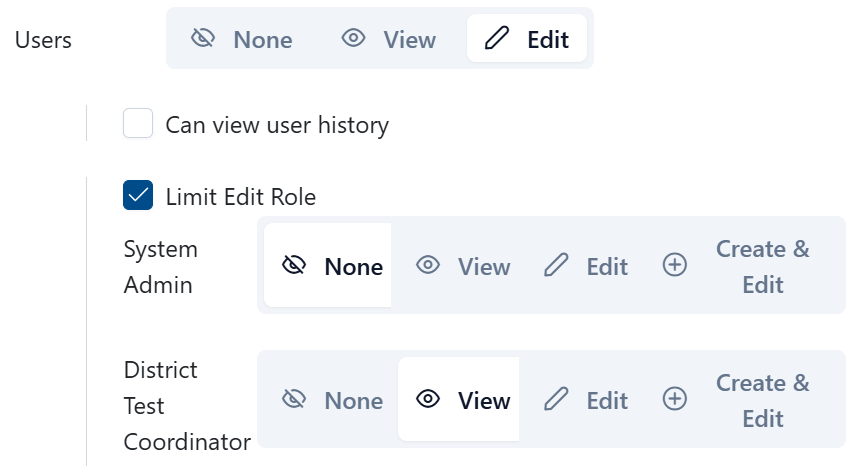
- Roster Data: Users: For View and Edit, there are additional options:
- Can View User History: can view history about the user for any role you have view or edit access to - all new/changed data for that user.
- Limit Edit Role option displays all available roles. Designate which user role groups are visible or editable for this particular role. This configuration restricts the available role and actions when users navigate to the User page under Roster Data. This should be used when to restrict certain roles from having access to view certain user types.
- Manage Transfer Requests: This option is typically only enabled for customers using Single File Uploads as a SIS integration would make this unnecessary. Located below the list of roles, this option allows a 'receiving' school for a new student to request that the student's prior school 'release' the student so they can be rostered to the new school. Approvers will have a dashboard in order to approve these requests. In addition to this setting, must also turn on the account setting to enable transfers.