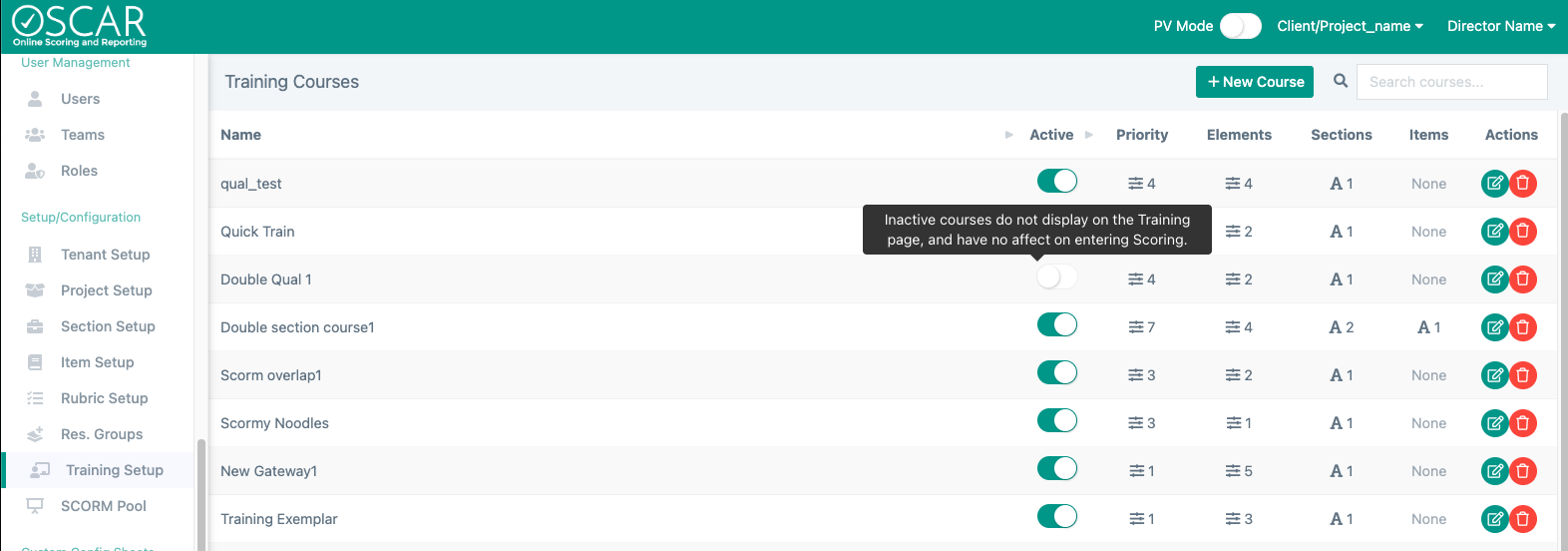
Add a New Training Course
Navigation: Setup/Configuration>Training Setup>Add New Course (button)
Training Courses allow Training to be configured and used in OSCAR. The Training Course is a configurable set of tasks that must be completed in sequence before Scoring can be accessed when the Training Course is required by a Section. When the Training Course is required by a Section, it must be completed by any user on a Team assigned to that Section. Turning off Training for a Section will immediately remove this requirement.

Click this link to watch a short video about Training Courses.
Steps to Create a New Course
The Training feature supports four types of elements including SCORM, which stands for Sharable Content Object Reference Model. Build a training course or upload a SCORM package and require raters/scores to view and/or pass the training course before scoring.
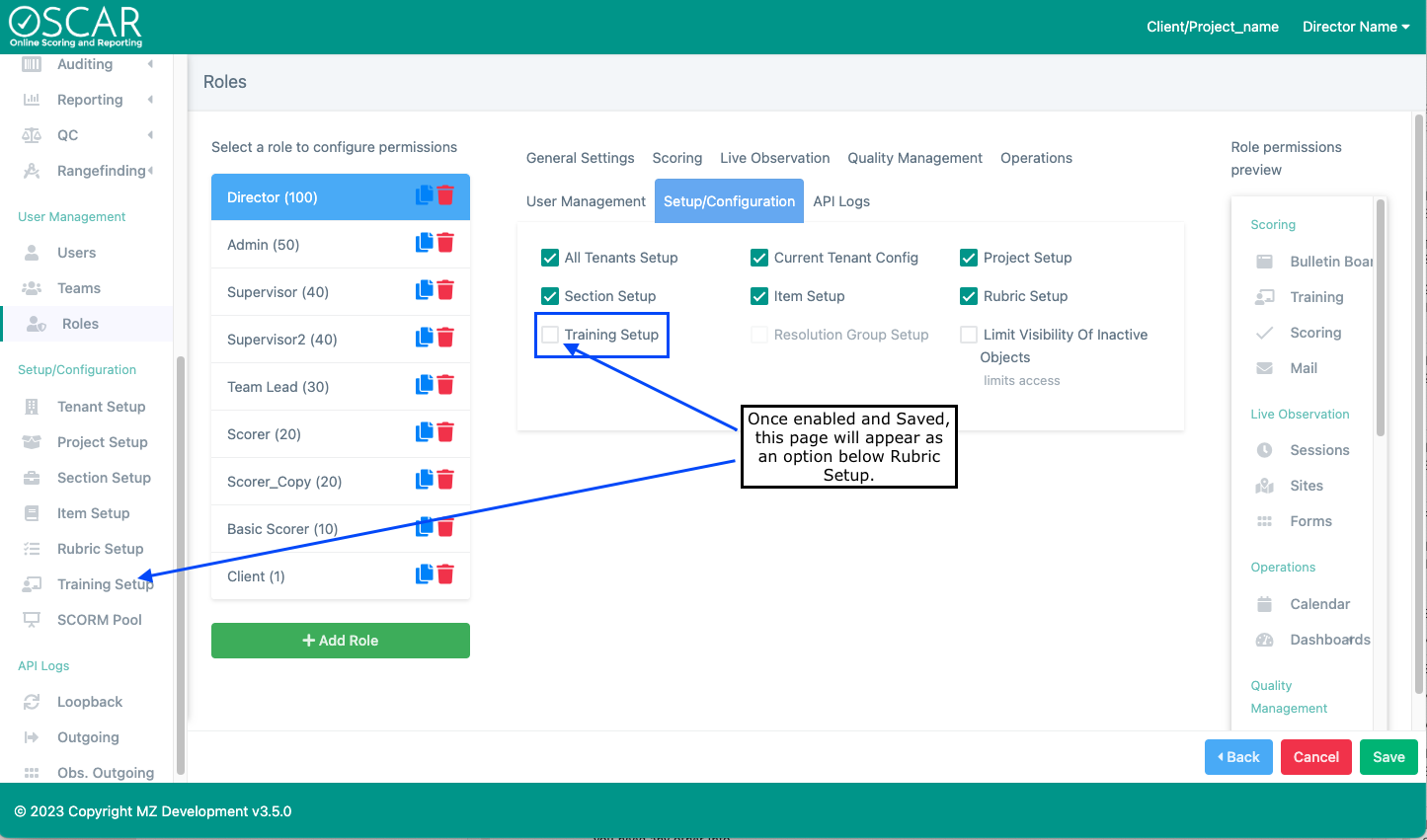
The first thing you'll need to do to get started is to update permissions to allow a team member(s) to create training courses.
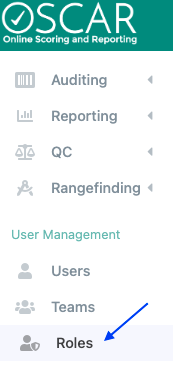
- Go to Roles (main menu), select role(s) you want to give permission to set up training courses.
- Navigate to the Setup/Configuration tab and scroll to the checkbox for Training Setup (displayed above User Setup)
- Go to Training Setup (main menu) and select New Course.

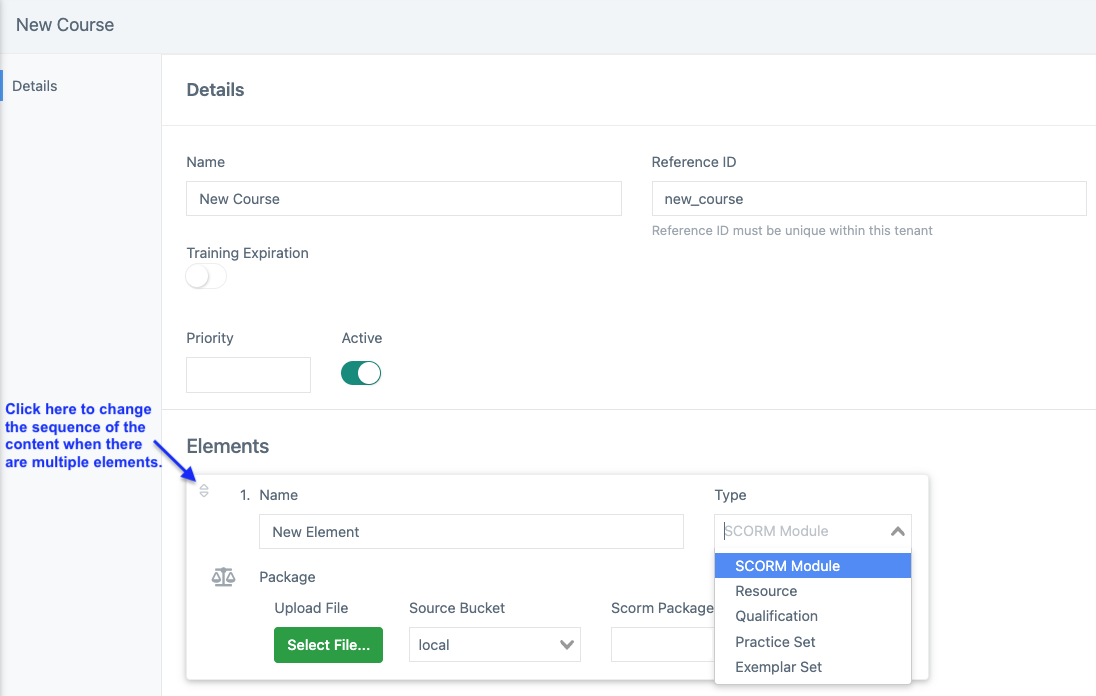
- Enter a course name and select +Add Element to add training course content. Courses are active by default. Scroll down to learn more about deactivated courses.
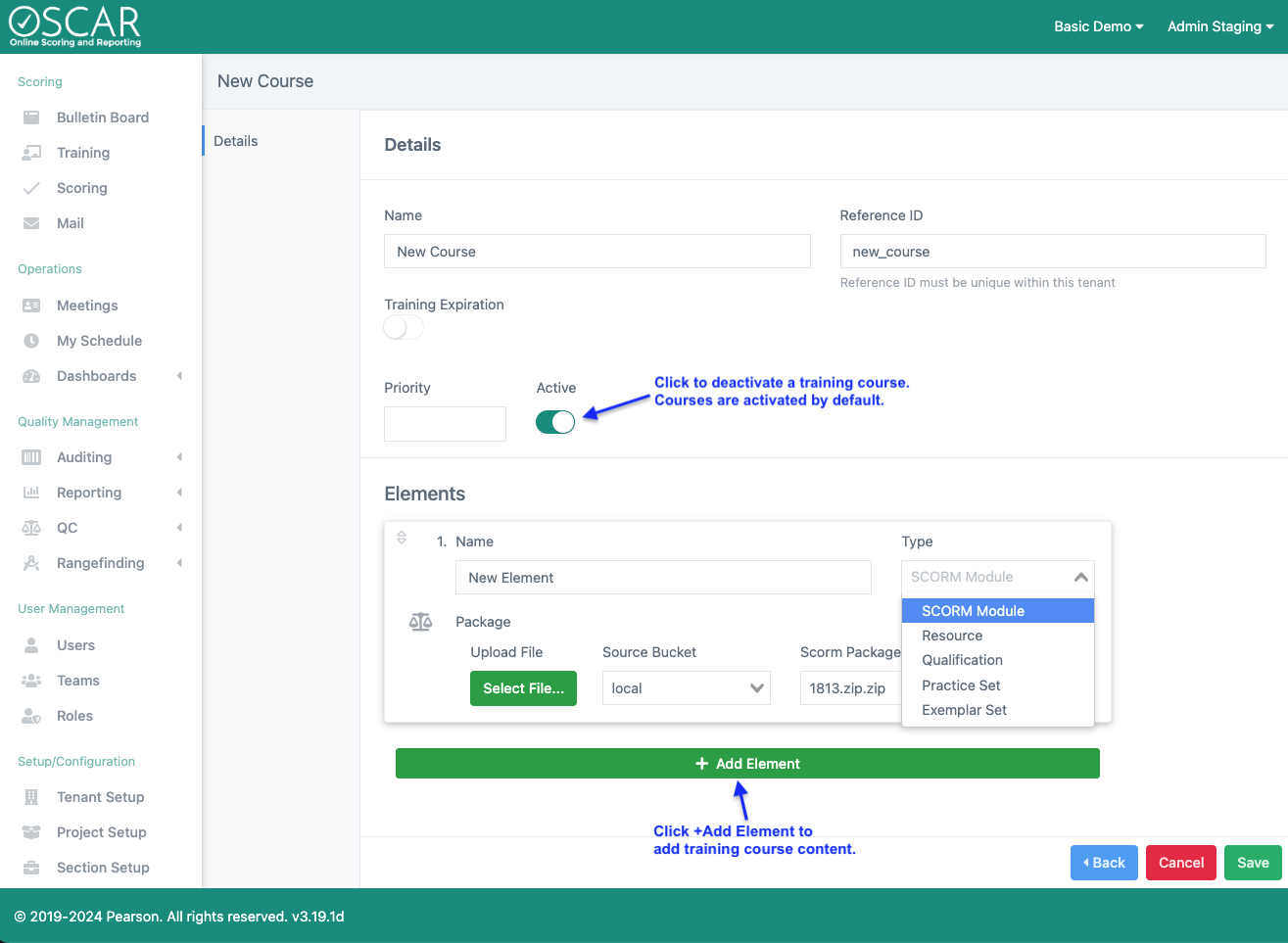
- Enter the element name and select the type of element from the drop-down list. Please note that the course name and element name are displayed to the user completing the training course.
- Click Select File to choose the file for the element type (e.g., SCORM Module) and click Save.
- Element types:
- SCORM Module: Upload an html5 package that has embedded SCORM framework. To complete this element, a rater must meet the complete requirement within the SCORM framework.
- Resource: Upload information (e.g., employee policy, project/prompt/rubric specific reference material) that a scorer should read or review before qualifying to score operational responses. Resource content can include various supported file types (e.g. *.MP4, *.PDF, *.JPG). This element will be complete when the resource is viewed by the rater.
- Qualification: Assign a specific item's Qualification requirements as an element in the Training Course. This will behave exactly the same as qualification accessed through the Scoring page, utilizing all Qualification configurations for the chosen item. To complete this element, raters will need meet the passing requirements of Qualification for the item chosen.
- Practice Set: Assign a specific item's Practice set(s) as an element in the Training Course. This will behave exactly the same as Practice accessed through the Scoring page. To complete this element, raters will need to apply a score to every response in the Practice set(s) for the item chosen.
- A training course can include multiple elements to be completed in a specific sequence.
- Element types:
- Go to Section Setup (main menu), choose a Section and click Edit
- Click to toggle on the Require Training feature and select a training course name from the drop-down list
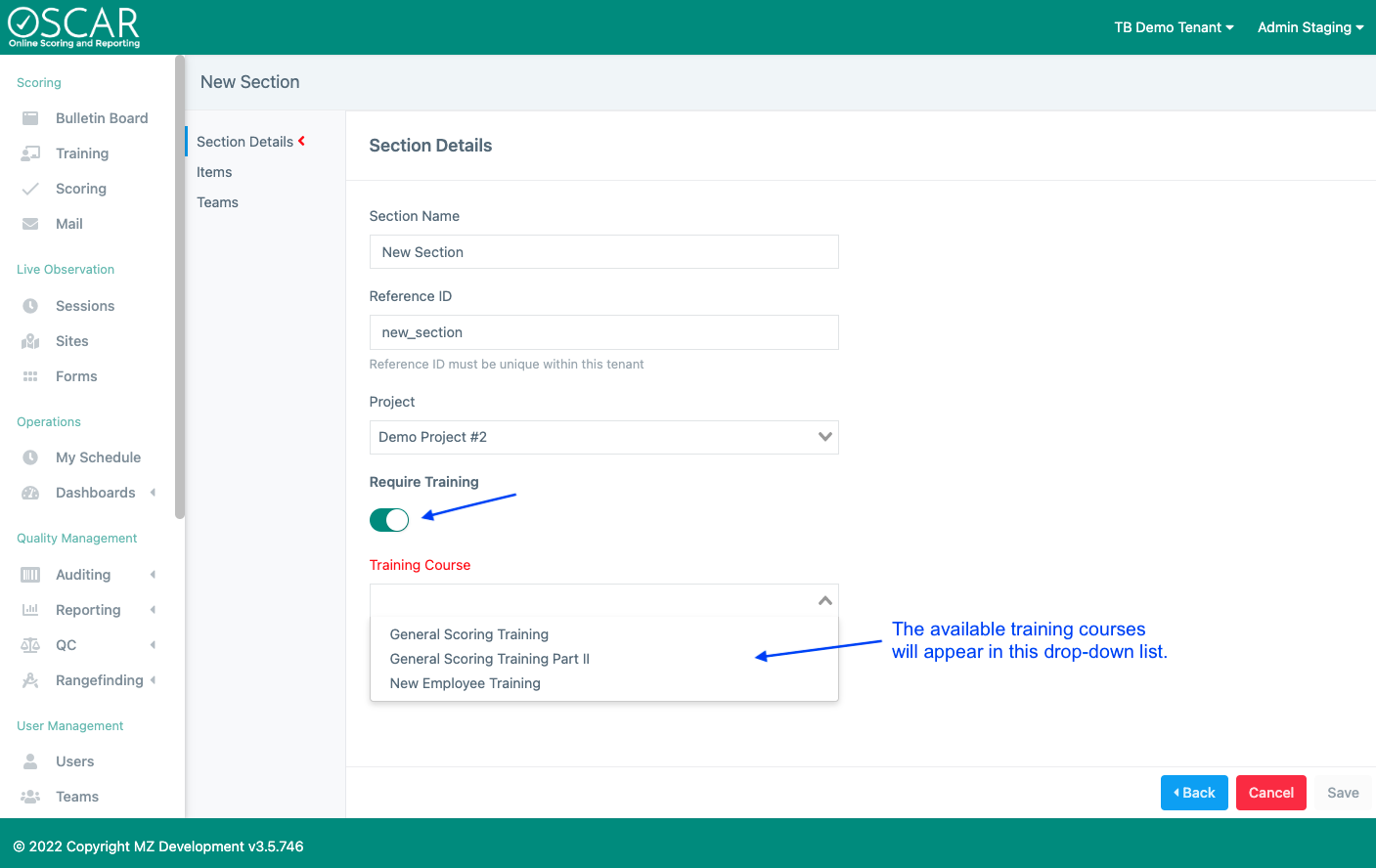
Once the Training Course is saved to a Section, it will appear to raters on the Training page and must be completed before access to Scoring for that Section will be permitted.
Deactivate Training Courses
Users are able to deactivate a Training Course. When a Training Course is inactive, it will no longer be required for any assigned Sections or Items. Users will still be able to view and complete the course from the Training page, but the course completion will no longer be checked as a requirement to enter scoring on assigned sections or items OR for continuing Training to another course with an equal or greater priority value. It is possible the Course will be re-activated after some period of time. When this happens, raters who skipped the course will be required again to take it.