
-
Created by
 user-6d962 on Sep 12, 2023
1 minute read
user-6d962 on Sep 12, 2023
1 minute read
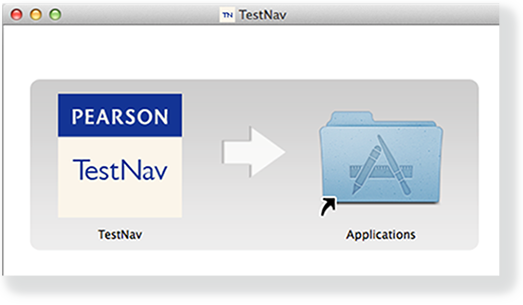
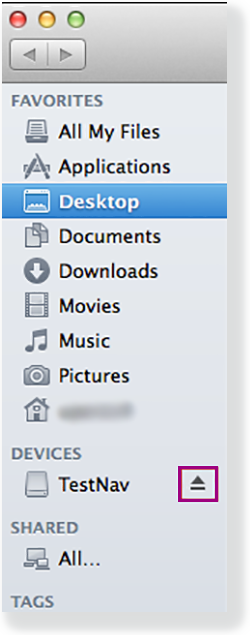
TestNav program files are saved in Applications/TestNav. Double-click the .dmg file (for example, testnav-1.4.1.dmg) that you downloaded. The TestNav install window appears. Eject the TestNav installer from Devices in the Finder sidebar. You can also eject it from the Desktop. TestNav program file updates are saved in {user_home}/Library/Application Support/Pearson. You must give students write access to the update directory. When you install TestNav, it creates the TestNav folder within the Pearson folder shown in the path above. The TestNav folder contains the following: The login preference stored in the default file can change if you select a different customer from the Sign In page. You can set the default file to read-only to prevent students from overwriting it after you set your test preference. If you encounter any issues during an update, you can find the errorlog folder within the update folder (for example: 1.4.1 > update > errorlog). The errorlog folder logs any issues TestNav may encounter when it attempts an update. You can also delete the Pearson folder to reset TestNav, clearing out any updates stored in that directory.Install TestNav
TestNav App Updates
You can also push the latest TestNav update, rather than waiting until each student opens TestNav. To push an update, take a snapshot of the Pearson folder, and push that folder to all student computers.