
-
Created by
 Philena Wuraola, last updated on Aug 26, 2026
3 minute read
Philena Wuraola, last updated on Aug 26, 2026
3 minute read
WriteUp! Teacher Guide: Using Demo Mode
Overview
Demo Mode allows teachers to experience WriteUp! from a student's perspective without needing access to a student account or device. This feature provides a safe, simulated environment where teachers can explore the student workflow, submit writing, receive feedback, and practice revisions exactly as students do.
Demo Mode is ideal for:
- Exploring the student experience before classroom implementation
- Troubleshooting student questions
- Understanding how feedback and revisions work
Accessing Demo Mode
- Sign in to your WriteUp! teacher account.
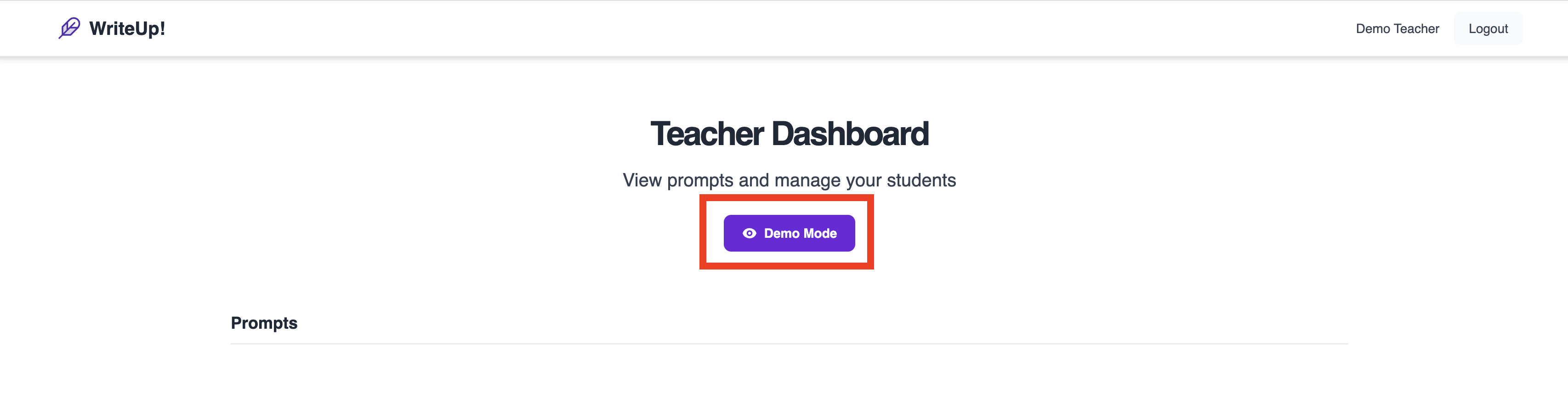
- From the Teacher Dashboard, select the Demo Mode button
Once selected, WriteUp! launches a simulated student environment within your current session.
What You Can Do in Demo Mode
While in Demo Mode, you can experience the complete student workflow, including:
Select a Writing Prompt
Browse and choose prompts just as a student would.
Write a Response
Use the student writing editor to type or paste a writing response.
Submit Writing
Submit your response and receive WriteUp! scores and feedback.
Review Feedback
View:
- Trait scores
- AI-generated feedback
- Revision suggestions
- Highlighted areas of writing
Practice Revisions
Revise your response based on the feedback and resubmit to experience the revision cycle.
Identifying Demo Mode
When Demo Mode is active, a prominent banner appears at the top of the screen indicating that you are viewing the student experience in a simulation.
This helps distinguish Demo Mode from the standard Teacher Dashboard.

Returning to Teacher Dashboard
You can return to the Teacher Dashboard at any time.
- Select Return to Teacher Dashboard within the banner
- You will immediately exit the simulated student experience and return to your teacher workspace.
No additional sign-in is required.

Understanding Demo Mode Data
Demo Mode is designed to help teachers explore the platform while keeping simulated activity separate from classroom reporting.
Demo Submissions Are Saved
Your Demo Mode submissions, scores, feedback, and revision attempts remain available when you leave and re-enter Demo Mode.
This allows you to:
- Continue exploring a response over multiple sessions
- Review previous feedback
- Practice multiple rounds of revision
- Reference earlier submissions during training or demonstrations
Important
Demo submissions will remain in Demo Mode until they are manually reset.
Leaving Demo Mode or signing out of WriteUp! does not automatically remove your demo submissions.
Resetting Demo Mode
If you would like to start over with a clean Demo Mode experience, you can use the Reset Demo feature.
Resetting Demo Mode:
- Removes all Demo Mode submissions
- Clears previous scores and feedback
- Resets revision history and attempts
- Returns Demo Mode to its original state
Please note you must exit your current screen for the reset changes to reflect

Reset Demo Mode option
Note: Resetting Demo Mode only affects your simulated demo activity. It does not impact any classroom data, student work, analytics, or reports.
Demo Mode Session Behavior
Understanding how Demo Mode behaves can help you return to your work exactly where you left off.
Action | What Happens |
Return to Teacher Dashboard | Exits Demo Mode and returns you to your teacher view. Demo submissions remain available. |
Leave Demo Mode and re-enter later | Previous demo submissions, scores, feedback, and revision history remain available. |
Close your browser | Ends the current Demo Mode session, but saved demo data remains available the next time you enter Demo Mode. |
Sign out of WriteUp! | Automatically exits Demo Mode. Saved demo submissions remainavailable unless they are reset. |
Select Reset Demo | Removes all demo submissions, scores, feedback, and revision history. |