LaunchPad

Page tree

Authorized users can export users.

  1. Under Roster Data, select Users.
  2. Select the Student, Non-Students or All Users tab.
  3. As desired, filter by status, grade, role and/or organization.
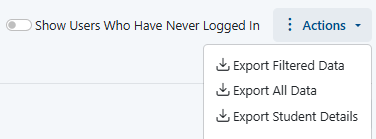
  4. In the Actions menu, choose from the following:
    • Export Student Details (if applicable)
    • Export Filtered Data
    • Export All Data


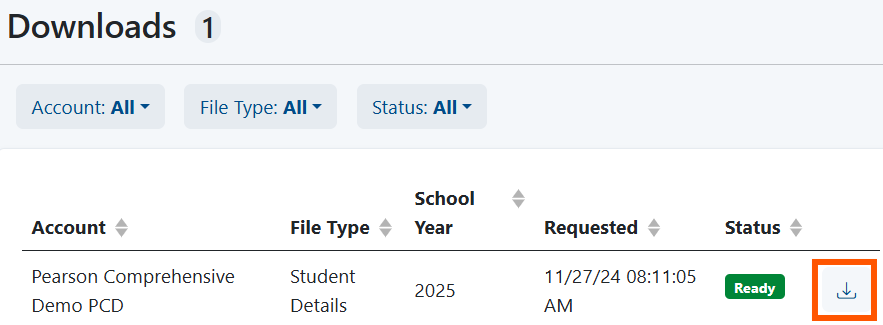
  5. Access the Downloads Page from either the confirmation message or the Downloads link.


  6. Download the file.


Tiny Link: https://support.assessment.pearson.com/x/SAAwCg

  • No labels