
-
Created by
 Erica Smith, last updated on Jul 02, 2026
3 minute read
Erica Smith, last updated on Jul 02, 2026
3 minute read
Use the Class Subjects page to manage the subjects available within your ADAM instance. Administrators can view system-provided subjects, create custom subjects, and control which subjects are available for use throughout the platform.
View Available Subjects
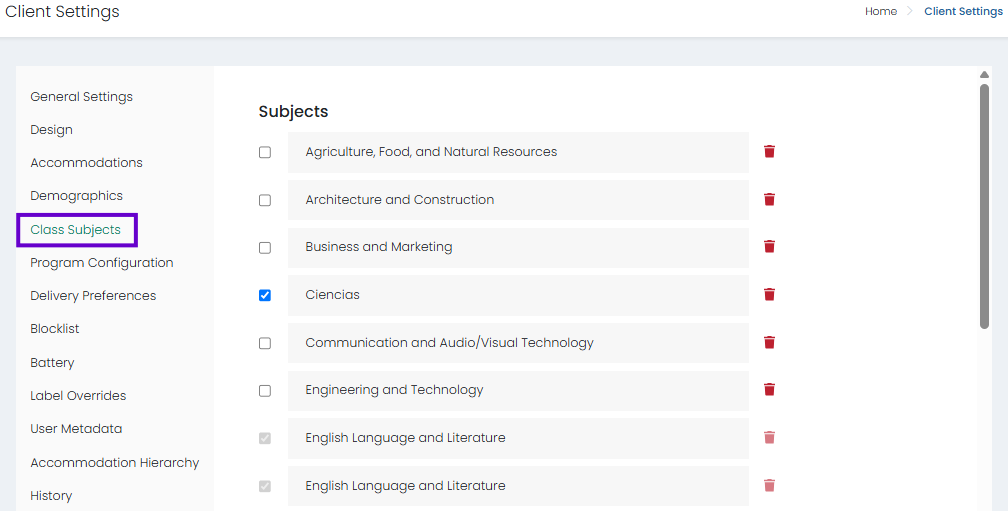
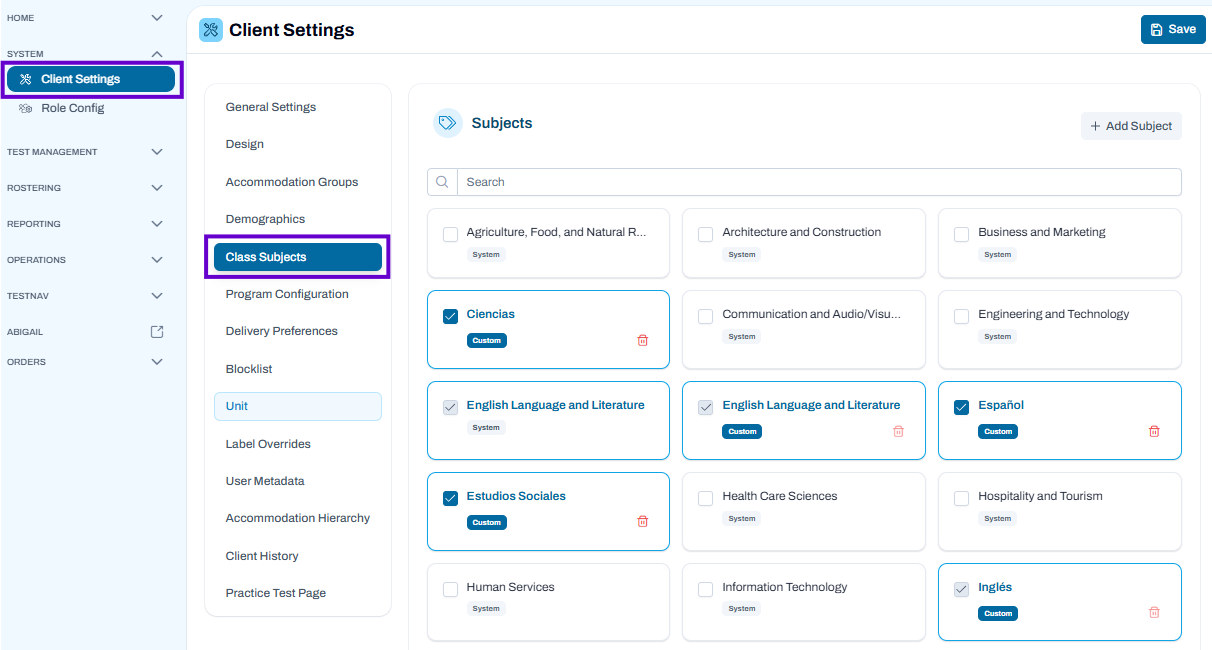
- Navigate to Client Settings > Class Subjects.
- Browse the list of available subjects displayed on the page.
- Subjects labeled System are provided by the platform and cannot typically be removed.
- Subjects labeled Custom were created by your organization and can be managed as needed.
Classic User Interface:
Updated User Interface:
Add a New Subject
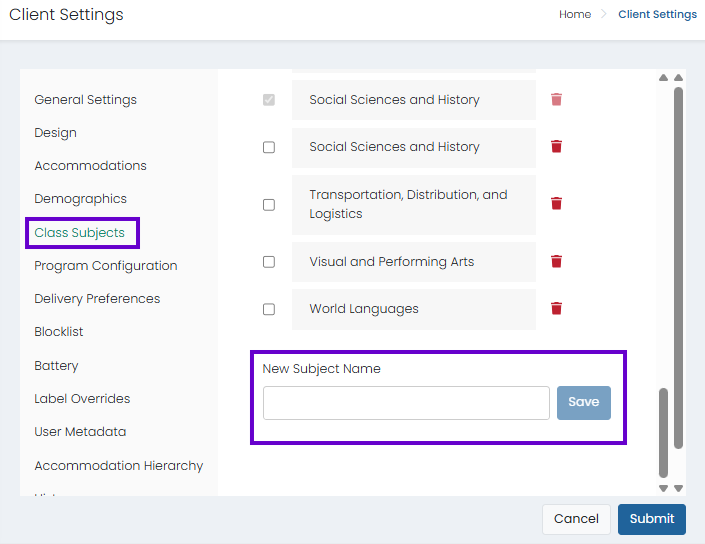
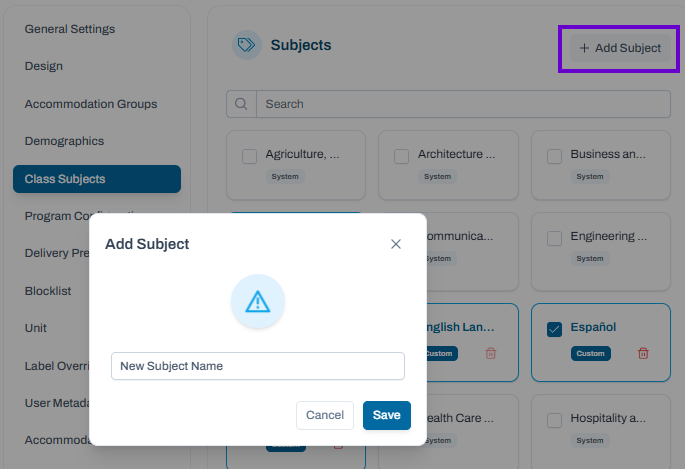
- Select Add Subject.
- Enter the subject name.
- Complete any additional required fields.
- Save the new subject.
Once saved, the subject appears in the subject list and is available for use throughout the system.
Classic User Interface:
Updated User Interface:
Enable or Disable Subjects
- Locate the subject you want to manage.
- Select or clear the checkbox on the subject card.
- Enabled subjects are available for selection in applicable areas of the platform.
- Disabled subjects remain in the list but are not available for active use.
Delete a Custom Subject
- Locate the custom subject you want to remove.
- Select the Delete (trash can) icon.
- Confirm the deletion when prompted.
Note: Only custom subjects can typically be deleted. System subjects are maintained by the platform.
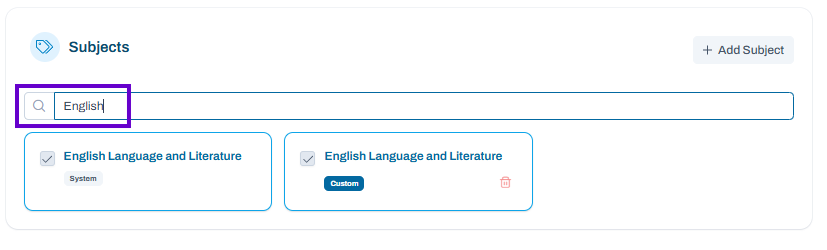
Search for a Subject (New UI Only)
- Enter a subject name in the Search field.
- The list automatically filters to display matching subjects.
- Clear the search field to return to the full subject list.
Best Practices
- Use consistent naming conventions when creating custom subjects.
- Review existing subjects before adding new ones to avoid duplicates.
- Disable unused subjects rather than deleting them when historical data may still exist.
- Periodically review custom subjects to ensure they remain relevant and organized.
Common Examples
Organizations often create custom subjects for:
- World Languages
- Career and Technical Education (CTE) programs
- State-specific course offerings
- Specialized intervention or enrichment programs
Using the Class Subjects page helps ensure subject lists remain accurate, organized, and available for reporting, scheduling, and assessment workflows.