Getting Started with ADAM
Logging into ADAM
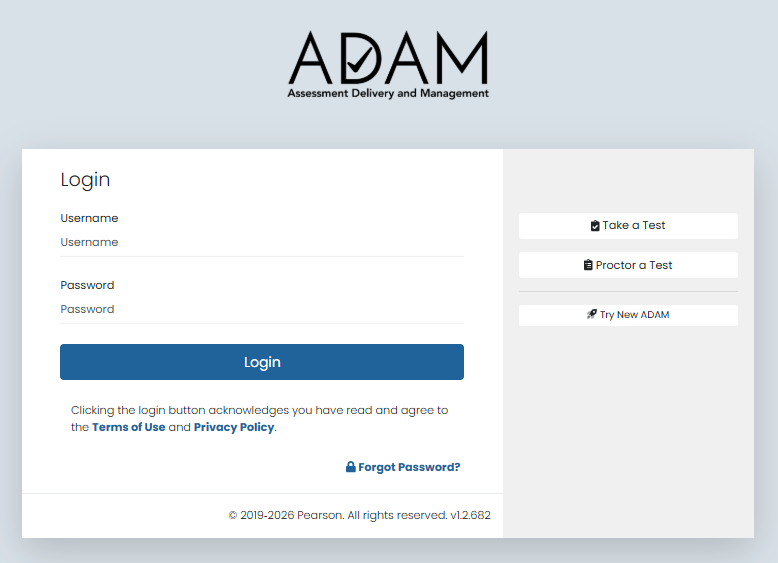
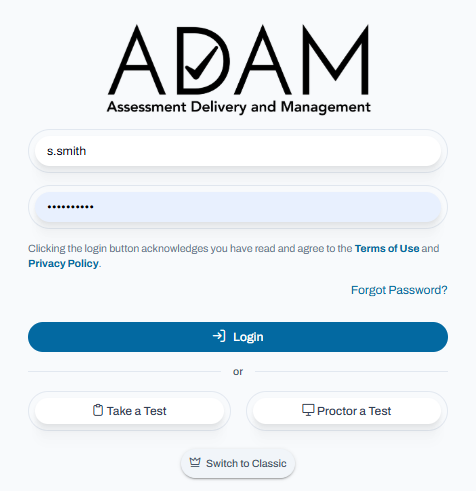
- Open a supported web browser and navigate to the ADAM login page provided by your organization.
- Enter your Username and Password.
- Select Login.
- If prompted, complete any required multi-factor authentication (MFA) steps.
- After successful authentication, the ADAM dashboard will open and you can begin using the platform.
NOTE: Contact your system administrator if you do not have login credentials or experience issues accessing your account.
Classic User Interface:
Updated User Interface:
Use the following links or information on how to Reset Your Password or using Forgot my ADAM Password.
Header Toolbar
The Header Toolbar provides convenient access to global tools and settings available throughout ADAM. From this area, users can search the application, access downloads and notifications, adjust display preferences, and switch between supported languages.
Classic User Interface:
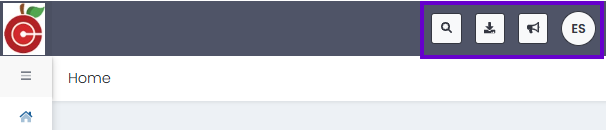
Updated User Interface:

Dark Mode (Updated User Interface Only)
Dark Mode changes the ADAM interface from a light color scheme to a darker color scheme, reducing screen brightness and making content more comfortable to view in low-light environments.
To use Dark Mode:
- Select the Theme Settings icon in the Header Toolbar.
- Choose Dark Mode from the available display options.
- The ADAM interface will update automatically using the dark theme.
- Repeat these steps and select Light Mode to return to the standard view.
Tip: Dark Mode can help reduce eye strain during extended use and may improve visibility in dimly lit environments.

Using Student Search
The Student Search tool allows users to quickly locate student records within ADAM.
- Select the Search icon in the Header Toolbar.
- Enter one or more student details, such as a name, student ID, or other available search criteria.
- Review the matching results returned by ADAM.
- Select a student from the results to view additional information or access the student's record.
- For further details on using this feature, refer to the Student Dashboard page.
Tip: Entering more specific search criteria can help narrow the results and locate students more quickly.
Using Downloads
The Downloads tool provides access to files, reports, exports, and other downloadable resources available to the user in ADAM.
- Select the Downloads icon in the Header Toolbar.
- Review the list of available files and downloads.
- Locate the file you want to access.
- Select the file to download or open it, depending on your permissions and system configuration.
Tip: Use Downloads to quickly access recently generated reports, exported data, and other files made available within ADAM.
Using My Requests
The My Requests tool allows users to view and track requests they have submitted within ADAM.
- Select My Requests from the Header Toolbar or navigation menu.
- Review the list of requests you have created.
- View the current status of each request, such as pending, in progress, or completed.
- Select a request to view additional details, updates, or related information.
- For further details on using this feature, refer to the Operations: My Requests page.
Tip: Use My Requests to monitor progress and quickly access previously submitted requests without needing to create a new one.
My Profile
The My Profile menu provides access to your personal account information and account-related actions within ADAM.
- Profile Information – Displays your name, organization, and assigned role.
- My Profile – View and manage your personal account details and preferences.
- Help – Access support resources, documentation, or assistance information.
- Log Out – Securely sign out of ADAM.
Tip: Use the My Profile menu to verify your account information, adjust available settings, access help resources, and securely end your session when finished.
Tiny Link: https://support.assessment.pearson.com/x/ugEWDw